Screen Navigation
NOTE: Although information appears similar on competitive displays, the navigational steps are often different. Refer to the operator's manual for your display for specific instructions.
A63052-UN-14AUG08
Menu Icon

A59325-UN-19FEB07
Primary Menu Icon
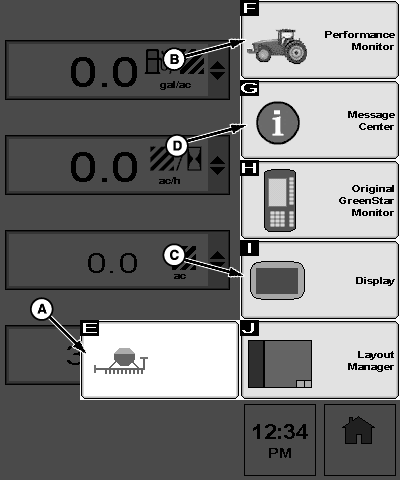
A - Drill Functions Icon
B - Performance Monitor Icon
C - Display Icon
D - Message Center Icon
Main MenuThe primary Menu button activates a screen with selectable buttons for each monitor function.
Selecting a button transfers to a screen with a particular monitor function. The following are a few examples.
- (A) Opens Drill Functions page. Use these functions to set up and observe drill activities.
- (B) Opens Performance Monitor Totals page. Various performance functions are available.
- (C) Opens Display Main page. Various monitor display functions are available.
- (D) Opens Message Center page. Various message functions are available.
The following screen area information is for translation purposes. This area assists an operator using a screen with English text when the operator does not read English. The left side of the list remains English to match the screen. The right side of the list is translated along with the rest of the manual. The operator matches the English words on screen with a listed item and views the translated meaning.
Screen Area Information
Performance Monitor - Performance Monitor
Message Center - Message Center
Original GreenStar Monitor - Original GreenStar Monitor
Display - Display
Layout Manager - Layout Manager
A63057-UN-15AUG08
A63058-UN-15AUG08
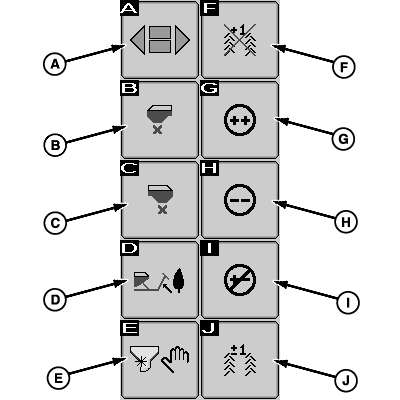
A - Function Toggle Icon
B - Left Metering Device Shutoff Icon
C - Right Metering Device Shutoff Icon
D - Obstruction Icon
E - Manual Start Icon
F - Disable Tramline Icon
G - Increase Seed Rate Icon
H - Decrease Seed Rate Icon
I - Cancel Seed Rate Icon
J - Tramline Toggle Icon
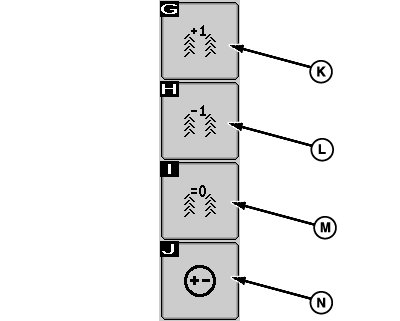
K - Increase Tramline Icon
L - Decrease Tramline Icon
M - Restore Tramline Icon
N - Seed Rate Toggle Icon
Main Screen Functions — Icon Set 1Select icons (A through N) for specific drill functions. Some functions navigate to a new screen, others are displayed on the main screen.
NOTE: If tramlines are enabled, functions (J and N) toggle between functions (G through J) and (K through N).
If tramlines are disabled, functions (F and J) are blank and (G through I) are displayed.
- (A) Toggles between icon function sets.
- (B) Shuts off seed meter. If equipped with two meters, shuts off left-hand seed meter.
- (C) Shuts off right-hand seed meter.
- (D) Temporarily raises marker to avoid contact with an obstacle.
- (E) Allows operator to manually start meter when speed is below the minimum for automatic start by software.
- (F) Disables or shuts off tramline functions.
- (G) Increases seed rate.
- (H) Decreases seed rate.
- (I) Cancels seed rate changes (G and H).
- (J) Displays tramline functions (K through M).
- (K) Increases tramline rate.
- (L) Decreases tramline rate.
- (M) Cancels tramline change (K and L).
- (N) Displays seed rate functions (G through I).
A63059-UN-24NOV08
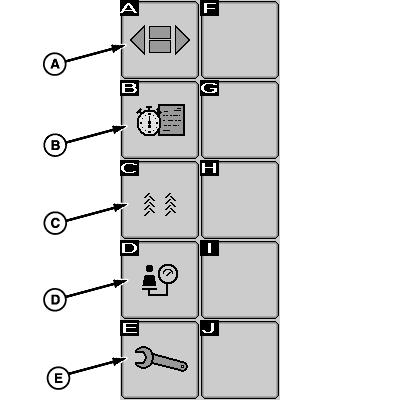
A - Function Toggle Icon
B - Work Registration Icon
C - Tramline Settings Icon
D - Seed Calibration Records Icon
E - Setup Menu Icon
Main Screen Functions — Icon Set 2Select icons (A through E) for specific drill functions. Some functions navigate to a new screen, others are displayed on the main screen.
- (A) Toggles between icon function sets
- (B) Displays work registration screen.
- (C) Displays tramline settings.
- (D) Displays seed record pages.
- (E) Displays drill settings screen.
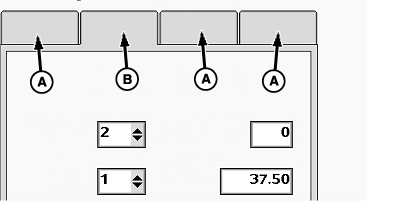
A59328-UN-11NOV08
A - Inactive Tab
B - Active Tab
Functional TabsSelect Tabs to activate various options on a screen.
A63060-UN-14AUG08
A63061-UN-24NOV08
A63062-UN-14AUG08
A59325-UN-19FEB07
Primary Menu Button
A - Drill Functions Icon
B - Function Toggle Icon
C - Setup Menu Icon
D - Drop Down Menu
E - Home Screen Icon
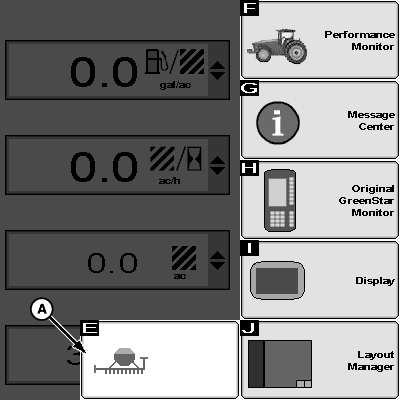
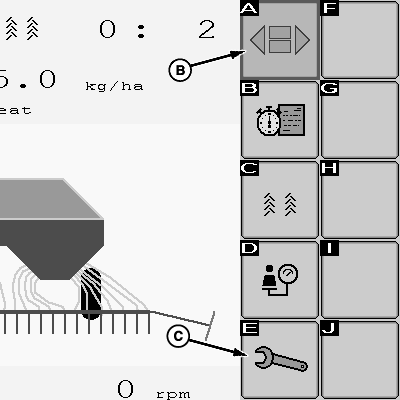
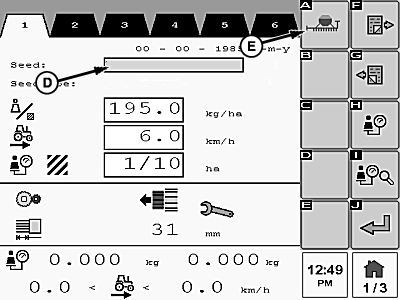
Navigation Example A:Follow along with an active monitor to become familiar with the display.
-
Press primary Menu button.
-
Select Drill Application Icon (A).
-
Select function toggle (B) to display main screen icon set 2.
-
Select setup menu icon (C).
-
Select seed type drop down box (D) and select desired seed type.
-
Select home screen icon (E).
A63050-UN-13AUG08
Drill Application Icon
A59325-UN-19FEB07
Primary Menu Button
A63030-UN-13AUG08
Function Toggle Icon
A63046-UN-13AUG08
Setup Menu Icon
A63051-UN-13AUG08
Drill Home Screen Icon
Navigation Example B:All procedures in this manual use a condensed version of Navigation Example A shown on previous page. The following steps are an example of the same procedure, simplified. Each bold word is a selectable screen item. The arrows >> indicate each screen item to select in sequence. Once common buttons, softkeys, and screen titles become familiar, this technique shortens the reading time required to accomplish a task. Remember, it is not necessary to begin at the Primary Menu if the display is already on the function screen required.
Follow along with an active monitor to become familiar with the display. If needed, refer back to previous descriptions in this section while learning screen items.
-
Select Primary Menu button >> select Drill Application icon >> select Function Toggle icon until icon set 2 appears >> select Setup icon.
-
Select Seed Type input box and select desired seed type.
-
Select Drill Home Screen icon to return to main drill screen.
|
NS43404,0000096-19-20081125 |