Seed Calibration
-

A63045-UN-13AUG08Seed Records

A63027-UN-13AUG08Previous Record
A63026-UN-13AUG08Next Record
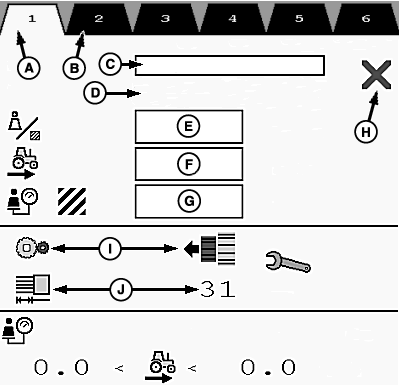
A63812-UN-13NOV08Left-Right Configuration Shown
A - Light Tab, View Record
B - Dark Tab, Hidden Record
C - Seed Selection Drop-down
D - Seed Type, Normal or Fine
E - Desired Rate
F - Target Travel Speed
G - Right Indicator
H - Calibration Result
I - Meter Gear Recommendation
J - Meter Value Recommendation
Select Menu button >> select Drill Application icon >> select Function Toggle until icon set 2 is displayed >> select Seed Records icon. -
NOTE: The seed record page is different from each hopper configuration. With a left-right tank configuration, the hoppers share one record page. Other configurations have separate seed record pages per hopper. Select Next Page and Previous Page to move between hoppers and records.
Multiple application records can be stored. A record with a light-colored tab (A) is viewed. Select Next Record and Previous Record icons to view records with dark-colored tabs (B). The tab with a flashing number is the active record currently controlling the meter.
-
Select drop-down menu (C) and choose a seed.
-
IMPORTANT: Avoid machine damage and incorrect calibrations. Follow screen commands. Electronic calibration procedure is different from mechanical calibration. Calibration labels on machine are only for mechanical calibration procedure.
Either Normal Seed or Fine Seed appears in location (D). Set butterfly valve and changeover switch, on the blower housing, to “N” for normal seed or “F” for fine seed.
-
Select drop-down box (E) and enter desired rate of seed delivery in units displayed next to box.
-
Select drop-down box (F) and enter target travel speed in units displayed next to box.
-
Select drop-down box (G) and enter fraction of area to simulate for calibration. Do not exceed 1/10. The larger the area simulated the more accurate the calibration, but the sample is larger and can take longer to collect.
-
Indicator (H) displays an “X” until calibration is completed properly. A checkmark appears after a successful calibration and calibration test.
-
Set the meter gear according to the meter recommendation (I). Red indicates to disengage micrometer. Green indicates to engage micrometer.
-
Set the meter rate according to the meter recommendation (J).
-
Place a collection container on a scale and zero scale reading.
-
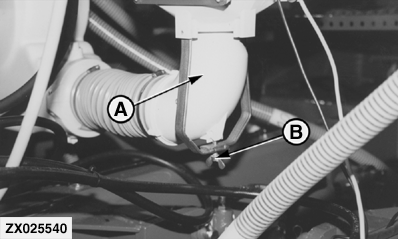
ZX025540-UN-28MAY01
A63045-UN-13AUG08Start Calibration

A63803-UN-11NOV08Start/Accept Icon
A - Manifold
B - Wing Nut
Remove wing nut (B) and manifold (A) under meter selected for calibration. Place a collection container under meter. -
 CAUTION: Avoid injury. Stand away from meters during calibration
and calibration test. Meters can engage unexpectedly.
CAUTION: Avoid injury. Stand away from meters during calibration
and calibration test. Meters can engage unexpectedly.Select Start Calibration icon. A screen appears to indicate progress of meter filling with product.
-
Select Start icon to begin filling meter. Wait for filling to complete or select “ESC” icon to cancel.
-
Empty collection container and place container beneath meter.
-
The calibration screen appears. Select Start icon to begin calibration.
-
When the calibration progress bar is complete and meter stops, weigh the sample collected.
-
Use the target rate and fraction of calibration area to calculate the expected sample weight. If the sample weighs much different from the expected amount, perform calibration again. If sample is close to expected weight, enter sample weight in input box.
-
Select Accept icon.
-

A63049-UN-13AUG08Calibration Test
A63803-UN-11NOV08Start/Accept Icon
Select Calibration Test icon.
-
NOTE: Acceptable calibration area values range between 0.1 and 10.
Enter a calibration area to test in the input box and place an empty collection container under meter.
-
Select Start icon.
-
When meter stops, weigh sample collected. Compare the amount to the fraction of target rate entered into calibration area. If values differ, perform another calibration. If values match, accept and confirm data. Repeat test for additional meters.
Perform calibration on each meter for each product. If the same product is used for different rate records, the identical collection sample can be entered without performing additional calibrations. Different products always require a calibration and calibration test. If the same product is used in a tank but the quality is different, a calibration test is recommended. A calibration is not required.
|
NS43404,000009B-19-20151208 |