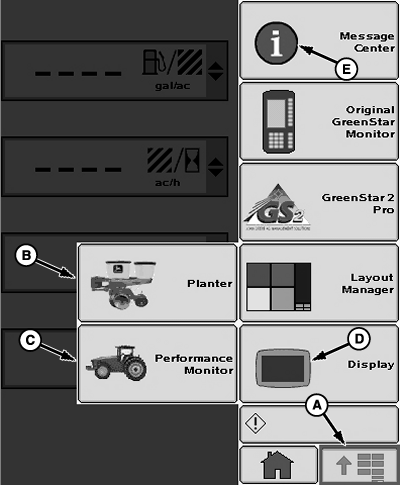
Screen NavigationNOTE: Although information appears similar on competitive displays, the navigational steps can be different. Refer to the operator's manual for your display for specific instructions. Main Menu Buttons and Softkeys appear similar. Buttons simply activate a feature or transfer to a new screen. Softkeys open screens where set up and data entry are possible. The Primary Menu (A) button transfers to a screen with selectable buttons for each monitor. Select a button to transfer to the desired application. The following are a few examples.
The following screen area information is for translation purposes to assist an operator using a screen with English text when the operator does not read English. The left side of the list remains English to match the screen and the right side of the list is translated along with the rest of this manual. The operator matches the English words on screen with English words listed on left side of list and views the translated meaning.
|
|
OUO6074,0000FA7 -19-24OCT08-1/5 |
|
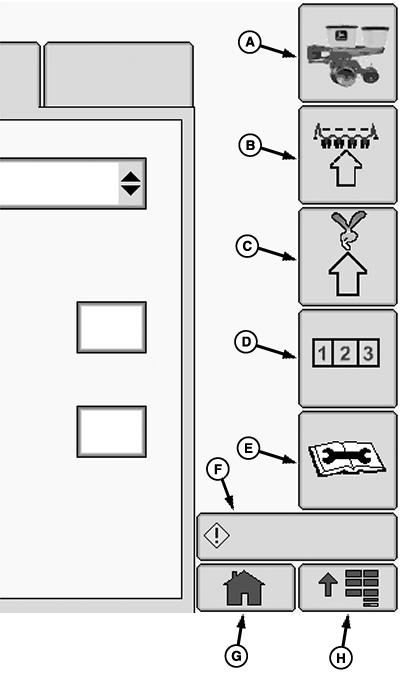
Planter Application Screens Select Softkeys (A) through (E) to transfer to various planter screens. A title at the top of each screen matches the name of the softkey. Once any screen is displayed, it is not necessary to return to the primary menu before selecting another softkey in the same application. Example: Assume that the current screen is already Planter - Rates screen. If a procedure indicates to select the Primary Menu button (H), then the Planter button, then the Configuration softkey (B) to reach Planter - Configuration screen, simply select the Configuration softkey instead. The display is already on a Planter screen. There is no need to start from the Primary Menu again.
|
|
OUO6074,0000FA7 -19-24OCT08-2/5 |
|
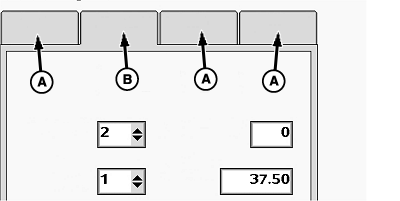
Function Tabs Select Tabs to activate various options on a screen.
|
|
OUO6074,0000FA7 -19-24OCT08-3/5 |
|
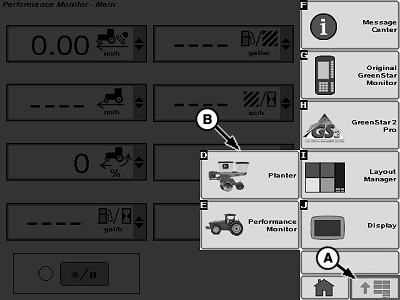
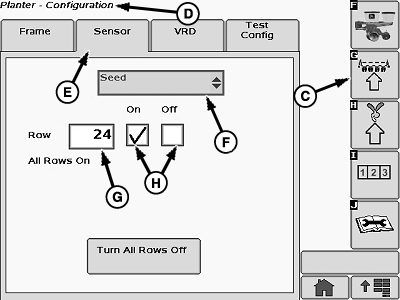
Navigation Example A: Follow along with an active monitor to become familiar with the display. 1. Select Primary Menu button (A).2. Select Planter Application button (B). 3. Select planter Configure softkey (C). Planter - Configuration (D) screen title is now displayed. 4. Select Sensor tab (E). 5. Select drop-down box (F) and choose Seed . 6. Select Row input box (G) and enter an individual row number. 7. Select On or Off check box (H) to configure selected row.
|
|
OUO6074,0000FA7 -19-24OCT08-4/5 |
|
Navigation Example B: All procedures in this manual use a condensed version of Navigation Example A shown on previous page. The following steps are an example of Navigation Example A, simplified. Each bold word is a selectable screen item. The arrows ( >> ) indicate each screen item to select in sequence. Once common buttons, softkeys, and screen titles become familiar, this technique shortens the reading time needed to accomplish a task. Remember, it is not necessary to begin at the Primary Menu if the display is already on the destination screen. Follow along with an active monitor to become familiar with the display and this style of navigation. If needed, refer back to previous descriptions in this section while learning screen items. 1. Select Primary Menu >> Planter button >> Configuration softkey >> Sensor tab.2. Select Seed from drop-down box. 3. Select Row input box and enter an individual row number. Select On or Off check box to configure selected row.
|
|



OUO6074,0000FA7 -19-24OCT08-5/5 |