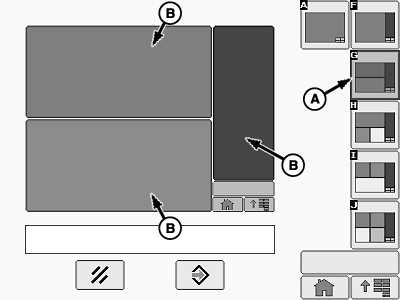
Screen Layout ManagerIMPORTANT: Planter screen is only available in full screen or half screen. Error messages do not appear on half screen layout. Return to full screen to see messages when an audible alert signals an error. 1. Select Primary Menu button. 2. Select Layout Manager button. 3. Select a page number from the drop down menu. 4. Select a layout pattern (A) from right side of screen. 5. Select Include in Home Page Collection check box. Add a check to include this page. Clear the box to remove a page from the collection. 6. Select an area of screen (B) to change. NOTE: If single window layout is selected, select Enter button after option is chosen. No need to select preview. 7. Only the options allowed in this area of screen appear. Select an option or select Previous button. 8. If an option is selected, a preview of selection appears. Select the preview to verify it is correct or select Previous button. 9. Select Enter button. 10. Select another area of screen to change. Continue until all areas are chosen. 11. To view all active home pages, repeatedly select the Home button.
|
|




OUO6074,0001045 -19-23JUL08-1/1 |