Quick Reference Setup for VRD Machines
|
|
|
|
|
|
|
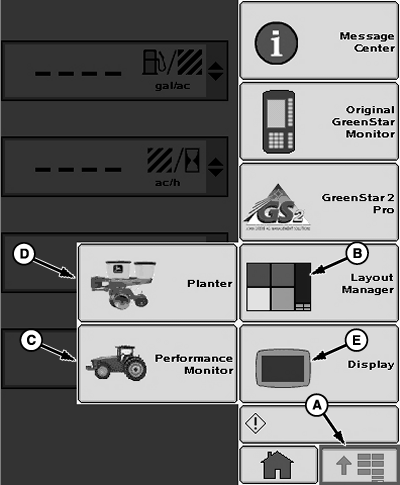
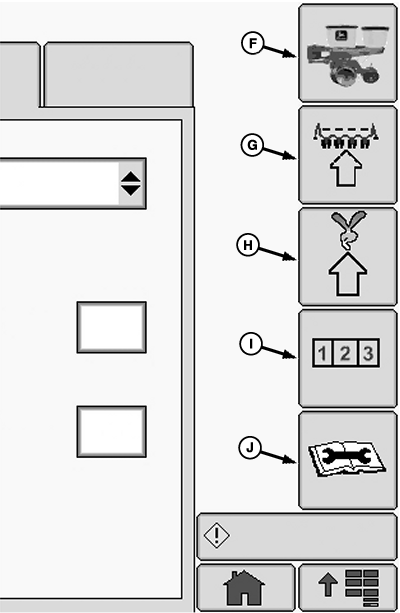
The following reference assumes that the operator has read and understands this manual. Some button images are given on this page as a reminder. Some entries require certain information be set up first. Follow quick reference in sequence. |
OUO6074,0001071 -19-07NOV08-1/5 |
| Quick Reference | |||
|---|---|---|---|
| Screen Layout | Select Menu >> Layout Manager button >> Select a layout pattern. | ||
| >> Screen Area | Select a screen area to assign an application. | ||
| >> Application Button | Only applications allowed in chosen area appear as selections. Select one. | ||
| >> Application Screen | Select application screen to verify. Select remaining screen areas to change. Select enter when done. | ||
| Performance Monitor | Select Menu >> Performance Monitor button >> Settings softkey. If monitor reset button is ever pressed, these values are erased. | ||
| >> Check Box | Select GPS or radar connected directly to planter application or not. Check indicates connected. Empty indicates radar is part of tractor system. | ||
| >> Input Box | Verify Implement Width matches planter width shown in planter monitor. Cycle power if they do not match. | ||
| >> Calibrate Button | Follow calibration procedure if radar is connected to display. | ||
| Planter Drive Configuration | Select Menu >> Planter button >> Configure softkey >> Drives tab >> Drive Configuration drop-down box >> Settings button. | ||
| >> Drive Source | >> Variable Rate. If this is changed, all setup data is lost. | ||
| >> Meter Type | Vacuum or Mechanical | ||
| >> Drive Type | MaxEmerge™ or Pro-Series™ | ||
| >> QS Enabled | Check indicates Quick Start enabled (recommended). Empty indicates disabled. | ||
| Planter Drive Section Configuration | Select Menu >> Planter button >> Configure softkey >> Drives tab >> Drive Sections drop-down box >> Settings button. | ||
| >> Number of Sections Input Box | Enter number of variable rate motors on machine. | ||
| >> RowCommand™ | Check indicates RowCommand™ enabled. Empty indicates disabled. | ||
| >> Next Page Button | Enter values for first motor in input boxes. | ||
| >> Next Page Button | Enter values for additional motors. | ||
| >> Enter Button | |||
| Planter RowCommand™ Configuration | Select Menu >> Planter button >> Configure softkey >> Drives tab >> Row Control Sections drop-down >> Settings button. | ||
| >> Number of Sections Input Box | Enter desired number of RowCommand™ sections on machine. | ||
| >> Next Page Button | Enter end row for current section. | ||
| >> Next Page Button | Enter values for additional sections. | ||
| >> Enter Button | |||
| Planter Frame Configuration | Select Enter >> Planter button >> Configuration softkey >> Frame tab. | ||
| >> Rows Input Box | Enter total number of rows. Total means all rows, even if planter is a split row machine, and half the rows are currently inactive. | ||
| >> Row Spacing Input Box | Enter row spacing. Spacing is the distance between any two side by side rows. Do not skip an inactive row and measure to the next active row on split row machines. | ||
| >> Planter Width Input Box | Enter planter width in unit of measure shown. Cycle power. | ||
| >> Split Row Check Box | Check the box, if planter is a split row machine. This status never changes for this machine. | ||
| >> Clutch Check Box | Check this box if machine is equipped with multiple width disconnects and a warning is desired when some rows are inactive. | ||
| Planter Sensor Configuration | >> Sensor Tab | ||
OUO6074,0001071 -19-07NOV08-2/5 |
| Quick Reference | |||
|---|---|---|---|
| >> Seed | >> Row Input Box | Use this to set specific row sensors. Change split row activation in Rates setup later, not here. Enter row number and select row on or off check box. Repeat for additional rows. Turn all row sensors on or off at once with button on bottom of page. | |
| >> Vacuum | >> Sensors: Drop Down | Select number of vacuum sensors on machine. | |
| >> Sensor | Vacuum must be off. Select each sensor, one at a time, and enter Calibration Value in input box. Deere sensors are 5.66. Select zero button to zero sensor reading. Select next sensor and repeat. | ||
| >> Fertilizer | >> Sensors: Drop Down | Select number of fertilizer sensors on machine. | |
| >> Sensor | Residual fluid pressure must be released from system. Select each sensor, one at a time, and enter Calibration Value in input box. Deere sensors are 37.50. Select zero button to zero sensor reading. Select next sensor and repeat. | ||
| >> Height (Only if RowCommand™ is enabled. | >> Common or Separate Check Box | Common sets a single height to start and stop variable rate motors. Separate sets individual start and stop heights for variable rate motors. |
|
| Calibrate full up and full down | Fully raise machine and select Raised button (up arrow). Select Enter. Fully lower machine while driving forward in field and select Lowered button (down arrow). Select Enter. |
||
| Set start and stop point | Common: Select Start/Stop button. Raise machine to correct height and select Start/Stop Height button or enter a value in Input box. Select Enter. Separate: Select Start/Stop button. From lowered position, raise machine to motor stop point and select Stop Height button or enter value in Input box. From raised position, lower machine to motor start point and select Start Height button or enter value in Input box. Select Enter. |
||
| >> Tractor Speed | Select Auto check box to allow display to determine optimal ground speed source (recommended). If unchecked, a drop-down appears. Select drop-down menu and choose sensor source. | ||
| Seed Rate Configuration | >> Rates Softkey | ||
| >> Show Rates Button | View current rates for each motor. | ||
| >>Change Rates Button | To change any rate. | ||
| >> Rate Drop Down | Select rate to change. | ||
| >> Motor Drop Down | When equipped with multiple motors and different rates for each motor. Select motor to set a rate. Only visible if box Use one rate for all motors is not selected. | ||
| >> On - Off Drop Down | Set rate to appear or run screen or not. | ||
| >> Target Input Box | Program target rate for selected motor. | ||
| >> High and Low Input Box | Automatically sets ten percent over and under. Select box to change. | ||
| >> Enter Button | Saves program. | ||
| >> One Rate All Motors Check Box | Only visible if multiple motors on machine. Check for one rate across machine. Empty for different rates on each motor. | ||
| >> Crop Name Drop Down | Select corn, soybeans or one of the custom crop names. | ||
| >> Edit Crop Name | Select to edit names of crops in crop name drop down. | ||
OUO6074,0001071 -19-07NOV08-3/5 |
| Quick Reference | |||
|---|---|---|---|
| >> Disk Type Drop Down | Select type of disk or meter. If custom is chosen, enter number of seeds/holes per revolution. |
||
| >> Seed Disk (Vacuum only) | Select disk installed in meter. | ||
| >> Population Adjust | Enter correction value after performing seed rate check in field. | ||
| >> Rows Planting Check Box | Only visible on split row machine configurations. This is where split row planting is turned on and off. Select number of rows actively planting. | ||
| Planter Calculators | >> Totals Softkey | ||
| Area Calculators | >> Totals Tab | Select any input box. Change values or zero with Zero button. | |
| Seed Estimator | >> Calculators Tab >> Seed Estimator | Select one of three estimators; Bag, Unit, or Weight. Enter all values and view result. See Counters and Calculators section for details. | |
| Vacuum Calculator (With Vacuum Meters Only) | >> Calculators Tab >> Vacuum | ||
| >> Top Drop Down | Select Vacuum | ||
| >> Seeds per kg (lb.) Input Box | Enter number of seeds per kg (lb.) | ||
| >> Disk Type Drop Down | Select type of disk in meter. | ||
| >> Seed Disk Drop Down | Select disk. Set vacuum to suggested value as a starting point. | ||
| Fertilizer Calculator | >>Calculators Tab >> Fertilizer | ||
| >> Model Drop Down | Select planter model. | ||
| >> Rate (gal/ac) | Set the rate at which fertilizer will be applied. | ||
| Target Speed (mph) | Set the target speed the tractor will travel. | ||
| Diagnostics | |||
| >> Diagnostic Softkey >> Readings tab. | >> Hardware/Software | Provides system data. On large frame planters with more than one controller, select each controller separately from the drop down. | |
| >> Sensors/Status Drop Down | Observe readings of programmed sensors. | ||
| >> System Voltages | Provides system data. | ||
| >> VRD Data Drop Down | Review sensor readings. If Target rpm displays CAL, operate machine in the field a short distance with VRD active. This calibrates motors. | ||
| >> Tests >> Top Drop Down | >> Seed Tube Sensor | Tests the seed sensors detected by the monitor. | |
| >> Seed Drop | Tests if a seed sensor is detecting seeds accurately. | ||
| >> Timed Seed Drop | Tests the seed rate of a single row unit. | ||
| >> VRD Events Log | |||
| >> VRD Motor/Valve Flush | Used to flush air from VRD hydraulic system. | ||
| >> Diagnostics Code | |||
| >> Rotate Meters | Verify drillshaft and meters turn without pulling machine through field. | ||
OUO6074,0001071 -19-07NOV08-4/5 |
| Quick Reference | |||
|---|---|---|---|
| Row Clutches test | Used to electrically test each RowCommand™ row clutch circuit. | ||
| Row Clutch Self-test | Used to electrically test all RowCommand™ clutches. | ||
OUO6074,0001071 -19-07NOV08-5/5 |