Virtual Terminal Displays
When using only the John Deere Tractor CommandCenter™ to display planter monitor:
- Turn on key power and allow the application to load. Select Main menu, then select Display (button I).
- Select Settings button (button J), then select the Multiple Displays button (button H)
- On the multiple displays setup page, check the box next to “Implement Bus Virtual Terminal” to allow the CommandCenter to communicate on the Implement Bus.
- Once this box is checked, turn off key power, allowing the display to save the changes.
- Turn of key power, allow application to load, and press the main menu button. Allow main menu to be displayed on the screen for several seconds. An hour glass flash indicates that the planter software is loading on the display. After the hour glass flash, the planter icon appears on the main menu.
When using the John Deere Tractor CommandCenter™ display and an additional GreenStar™ display:
- Turn on key power and allow both displays to load. Select Menu on the CommandCenter, then select Display icon (button I).
- Select Settings button (button J), then select the Multiple Displays button (button H)
- For SeedStar™ to communicate with the GreenStar™ display. On the Multiple Displays setup page, make sure “Implement Bus Virtual Terminal” box is not checked.
- Turn off key power to save changes.
- Turn on key power, allow application to load, select Menu on GreenStar™ display. Allow menu to be displayed on the screen for several seconds. An hour glass flash indicates that the planter software is loading on the display. After the hour glass flash, the planter icon appears on the main menu.
To move planter application from one display to another:
-
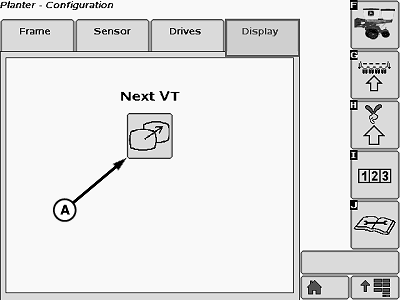
A68119-UN-13JUL10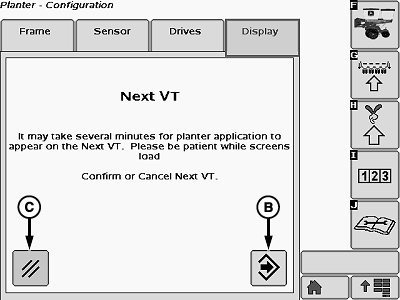
A68120-UN-13JUL10A - Next VT (Next Virtual Terminal)
B - Confirm
C - Cancel
With tractor power off, ensure GreenStar™ monitor (2630, 2600, or 1800) is connected to tractor corner post. - Make sure that all electrical connections have been made between tractor and planter.
- Turn on key power. Allow both CommandCenter™ display and GreenStar™ to load. Select main menu button on CommandCenter™ display and select the planter application.
-
NOTE: The Display tab only appears if two or more ISO compatible
displays are on the implement CAN bus. Next VT feature is not available
when actively planting.
Once on planter home page, select Planter Setup button (button G). Select Display tab. - Select “Next VT” button (A) (this stands for Next Virtual Terminal) to move planter information to the GreenStar™ display.
- Select Confirm (B) or Cancel (C). Controller will restart.
NOTE: Depending on display configuration it can take up to 255 seconds for planter application to appear on desired display.
|
OUO6064,00004D0-19-20110520 |