Configure Frame Layout, Row Layout, and Drive Disconnect Warning
-

A59325-UN-19FEB07Menu

A59551-UN-08MAR07Planter Button
A59172-UN-29JAN07Configuration Softkey

A59173-UN-29JAN07Rates Softkey
Select Menu >> Planter button >> Configuration softkey >> Frame tab >> Frame Configuration drop-down box. -
Select Row Configuration drop-down box.

A72709-UN-21SEP11Single Row Spacing
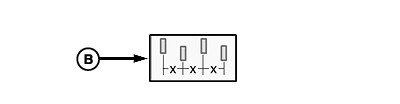
A72710-UN-21SEP11Split Row Spacing
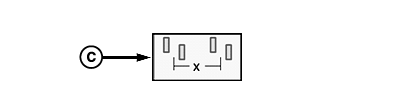
A72711-UN-21SEP11Twin Row Spacing
A - Single Row Configuration
B - Split Row Configuration
C - Twin Row Configuration
Single Row Configuration (A): Use this configuration when planter is only a single row design.Split Row Configuration (B):
NOTE: When split row option is chosen, the number of rows, row spacing, and machine width are automatically calculated for monitoring purposes. Split row settings are displayed to the right of input boxes.
If machine is a split row design, select Split Row from drop-down box. Split Row must always remain selected for planters of this design. To toggle between wide and narrow rows when planting, perform the following:
- Select Rates softkey.
- Select Rows Planting check box to change between split rows and all rows.
NOTE: To ensure all settings update; actively select the rows planting check box even if a check mark is already in the box.
Cycle power to ensure that all new settings are updated.
Twin Row Configuration (C):
NOTE: When twin row option is chosen, the number of rows, row spacing, and machine width are automatically calculated for monitoring purposes. Twin row settings are displayed to the right of input boxes.
If machine is a twin row design, select Twin Row from drop-down box. Twin Row must always remain selected for planters of this design. To toggle between twin and single rows when planting, perform the following:
- Select Rates softkey.
- Select Rows Planting check box to change between single rows and all rows.
Cycle power to ensure that all new settings are updated.
-
NOTE: If number of rows is changed, RowCommand™ must be enabled again. (Refer to drive section configuration.)
Select Rows input box. Enter total number of rows on machine.
-
Select Row Spacing input box. Enter distance between each row unit.
-
Planter Width is automatically calculated. To enter the width manually, select input box and enter a value.
-
Select Clutch Disconnect Warning check box to enable or disable the partial width alarm. When enabled, a full page warning displays for 5 seconds whenever a clutch or drive section is disengaged. A message is displayed on Message Center softkey and monitor beeps every 15 seconds as a reminder.
-
Select Transport Mode button to place monitor in transport mode when moving planter to and from fields.
Screen Area Information
Planter Configuration - Planter Configuration
Frame Configuration - Frame Configuration
Planter Data - Planter Data
Planter Dimensions - Planter Dimensions
GPS Dimensions - GPS Dimensions
Total - Total
Rows - Rows
Planter Width - Planter Width
Single Row - Single Row
Split Row - Split Row
Twin Row - Twin Row
Clutch Disconnect Warning - Clutch Disconnect Warning
Transport Mode - Transport Mode
Rows Planting - Rows Planting
|
OUO6064,00005BC-19-20130301 |