Configure Custom Seeding Tool
-
IMPORTANT: All individual entries selected for a model are returned to default values once another model is selected from the Model drop down.

A59671-UN-14JAN08Air Cart Button

A59325-UN-19FEB07Primary Menu Button
A59672-UN-14JAN08Configuration Softkey
A62277-UN-23JUL08Next Page Button
Select primary Menu button >> Air Cart button >> Configuration softkey >> Tool tab. -
Select the Model drop down box and choose a Custom option.
-
Select and check DS check box if operating cart as double shoot. Select and clear DS check box if operating cart as single shoot.
-
Select the Row Spacing input boxes and enter the seeding tool row spacing for each rank.
-
Select Next Page button.
Screen Area Information
Air Cart - Air Cart
Configuration - Configuration
Cart - Cart
Tool - Tool
Model - Model
Custom - Custom
DS - Double Shoot
Front Row Spacing - Front Row Spacing
Middle Row Spacing - Middle Row Spacing
Rear Row Spacing - Rear Row Spacing
Adj. Width - Adjust Width
ft. - feet
m - meter
in - inch
mm - millimeter
-
A59824-UN-22JAN08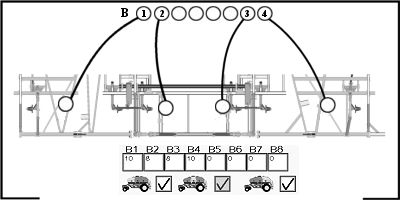
A61919-UN-19MAR08Single Shoot Example
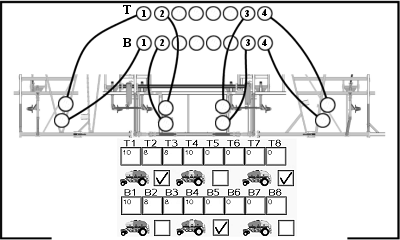
A61854-UN-19MAR08Double Shoot Example
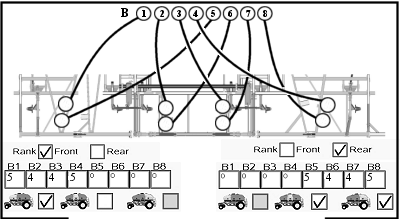
A61855-UN-19MAR08Dual Row Spacing Example
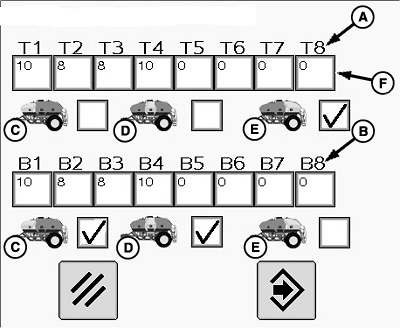
A - Top Primaries
B - Bottom Primaries
C - Front Tank
D - Middle Tank
E - Rear Tank
F - Input Box
Refer to meter cartridge and seeding tool diagrams in seeding tool operator's manual to identify how many rows are connected to each primary. The tool in this example has four primary towers connected to top shoot and four connected to bottom shoot. The primary numbers represent tower placement. The values entered are for the number of secondaries. -
IMPORTANT: System performs best if lightest product is in front tank and heaviest product is in rear tank.
NOTE: Both top and bottom primaries appear for double shoot. Only bottom primaries appear for single shoot.
NOTE: Smaller air carts only offer front and rear tank selection.
Select and check the front (C), middle (D), and rear (E) tank check boxes to indicate which tanks feed top (A) and bottom (B) primaries.
-
Select each primary input box (F) and enter the number of rows connected to that primary tower.
-
Select Enter button to lock the values.
Select Clear button to return to previous screen without saving any changed values.
-
When enter button is selected on Rows Per Primary screen, the monitor calculates machine width based on row spacing and number of rows on towers.
-
If an operator intends to overlap onto previous pass, select Adj. Width input box and decrease width of tool by amount of intended overlap.
-
Cycle power so configuration settings and changes synchronize to other controllers and applications, such as Blockage Monitoring and Field Doc.
Screen Area Information
Rows Per Primary - Rows Per Primary
T - Top
B - Bottom
Front - Front
Rear - Rear
|
LD45720,0000560-19-20111221 |