Screen Navigation
NOTE: Although information appears similar on competitive displays, the navigational steps are often different. Refer to the operator's manual for your display for specific instructions.
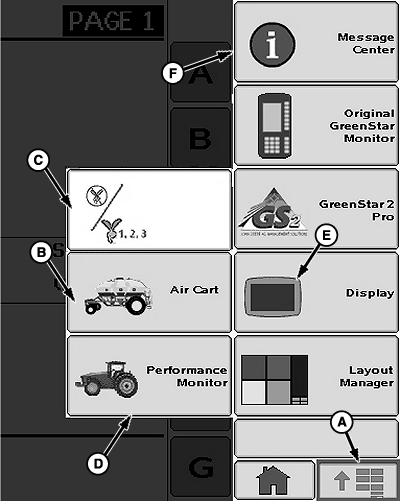
A59669-UN-01MAR08
Menu Buttons
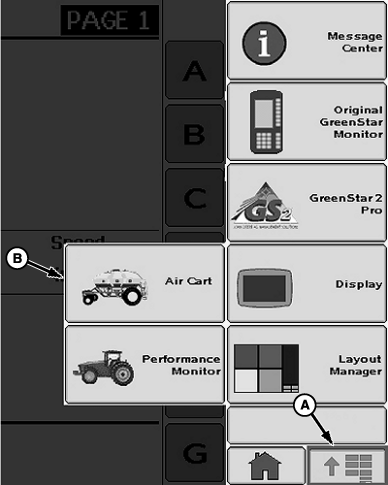
A - Menu
B - Cart Functions Button
C - Blockage Functions Button
D - Performance Monitor Button
E - Display Button
F - Message Center Button
Main MenuButtons and Softkeys appear similar. Buttons simply activate a feature or transfer to a new screen. Softkeys open screens where set up and data entry are possible.
The primary Menu (A) button activates a screen with selectable buttons for each monitor function.
Selecting a button transfers to a screen with a particular monitor function. The following are a few examples.
- (B) Opens Cart Functions page. Use these functions to set up and observe cart and tool activities.
- (C) Opens Blockage Functions page. Use these functions to set up and observe tool blockage activities.
- (D) Opens Performance Monitor Totals page. Various performance functions are available.
- (E) Opens Display Main page. Various monitor display functions are available.
- (F) Opens Message Center page. Various message functions are available.
The following screen area information is for translation purposes. This area assists an operator using a screen with English text when the operator does not read English. The left side of the list remains English to match the screen. The right side of the list is translated along with the rest of the manual. The operator matches the English words on screen with a listed item and views the translated meaning.
Screen Area Information
Air Cart - Air Cart
Performance Monitor - Performance Monitor
Message Center - Message Center
Original GreenStar Monitor - Original GreenStar Monitor
GreenStar 2 Pro - GreenStar 2 Pro
Layout Manager - Layout Manager
Display - Display
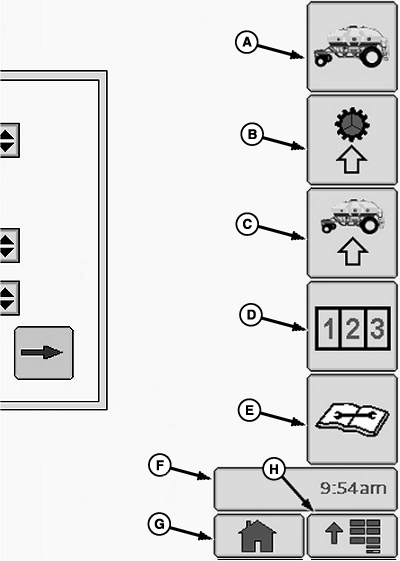
A59642-UN-22JAN08
A - Main Softkey
B - Meters Softkey
C - Configuration Softkey
D - Totals Softkey
E - Diagnostics Softkey
F - Message Center Button
G - Home Button
H - Menu Button
Cart FunctionsSelect Softkeys (A) through (E) to transfer to various cart screens. A title at the top of each screen matches the name of the softkey.
Once any cart screen is displayed, it is not necessary to return to the primary menu before another cart softkey is selected. Example: If a procedure indicates to select the primary Menu button (H) then the Configuration softkey (C) and the current screen title is Air Cart Meters, simply select the Configuration softkey.
- (A) Transfers between SectionCommand™ manual control page and main air cart run page.
- (B) Transfers to meter screen for meter setup and calculations.
- (C) Transfers to configuration screen for cart, tool, and sensor configuration.
- (D) Transfers to screen with operating totals.
- (E) Transfers to Diagnostics and Test screen.
- (F) Transfers to Message Center.
- (G) Transfers to Home screen.
- (H) Transfers to primary Menu screen with buttons for different functions.
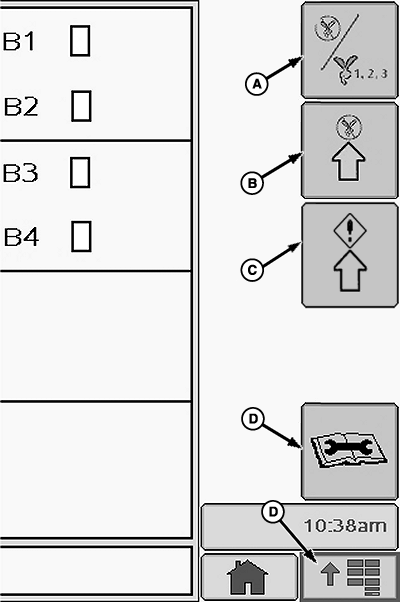
A77361-UN-27FEB13
Select Softkeys (A) through (C) to transfer to various blockage screens. A title at the top of each screen matches the name of the softkey.
Once any blockage screen is displayed, it is not necessary to return to the primary menu before another blockage softkey is selected.
- (A) Transfers to blockage run screen.
- (B) Transfers to Blockage Setup screen.
- (C) Transfers to Operator Alert Setup screen.
- (D) Transfers to Blockage Diagnostics screen.
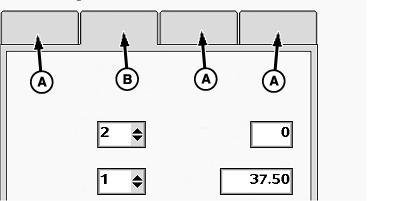
A59328-UN-11NOV08
A - Inactive Tab
B - Active Tab
Functional TabsSelect Tabs to activate various options on a screen.
A59670-UN-22JAN08
A82730-UN-06JUN14
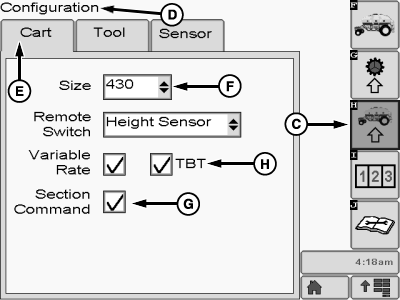
A - Menu Button
B - Cart Application Button
C - Cart Configure Softkey
D - Configuration Screen
E - Cart Tab
F - Cart Size Drop-down Box
G - Section Control Check Box
H - TBT Check Box
Navigation Example A:Follow along with an active monitor to become familiar with the display.
-
Select primary Menu button (A).
-
Select Cart Application button (B).
-
Select cart Configure softkey (C). Configuration (D) screen title is now displayed.
-
Select Cart tab (E).
-
Select Cart Size drop-down box (F) and enter the tank size of cart.
-
Select SectionCommand™ check box (G) if cart is equipped with optional Section Control feature.
-
Select TBT check box (H) if cart is TBT configuration to improve mapping accuracy.
Screen Area Information
Cart - Cart
Configuration - Configuration
Section Control - Section Control
Size - Cart Tank Size
VR - Variable Rate
TBT - Tow Between Cart

A59325-UN-19FEB07
Primary Menu Button
A59671-UN-14JAN08
Air Cart Button
A59672-UN-14JAN08
Configuration Softkey
Navigation Example B:All procedures in this manual use a condensed version of Navigation Example A shown on previous page. The following steps are an example of the same procedure, simplified. Each bold word is a selectable screen item. The arrows >> indicate each screen item to select in sequence. Once common buttons, softkeys, and screen titles become familiar, this technique shortens the reading time required to accomplish a task. If the display is already on the function screen required, it is not necessary to begin at the primary Menu.
Follow along with an active monitor to become familiar with the display. If needed, refer to previous descriptions in this section while learning screen items.
-
Select primary Menu button >> Air Cart button >> Configuration softkey >> Cart tab.
-
Select the size of this cart from Size drop down box.
-
If cart is equipped with section control, select Section Control check box and mark with a check.
Screen Area Information
Cart - Cart
Configuration - Configuration
Size - Cart Tank Size
VR - Variable Rate
|
SectionCommand is a trademark of Deere & Company |
LD45720,00005EE-19-20140606 |