Input Entry Methods
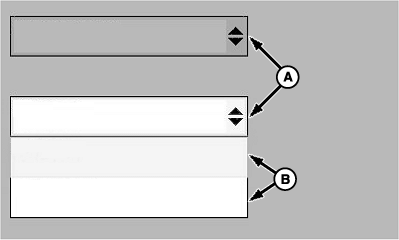
A59311-UN-15FEB07
A - Drop-Down Box
B - List
There are various ways the monitor accepts data entry. Following are some examples:Drop-Down Box
A drop-down box (A) contains a list (B) of items. Select a drop-down box to see list. Select an item from the list to make it the active item in the drop-down box.
To close a drop-down list without selecting a new item, select the current selection or touch (touchscreen only) an empty screen location.
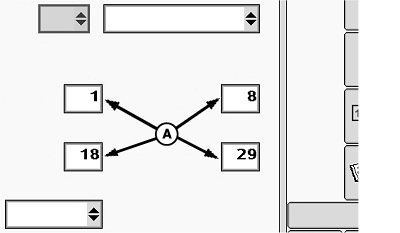
A scroll bar, with up and down arrows, appears next to a list when it is longer than screen area. Select an arrow to scroll up or down.
A59312-UN-11NOV08
A59357-UN-21MAR07
Numeric Keypad
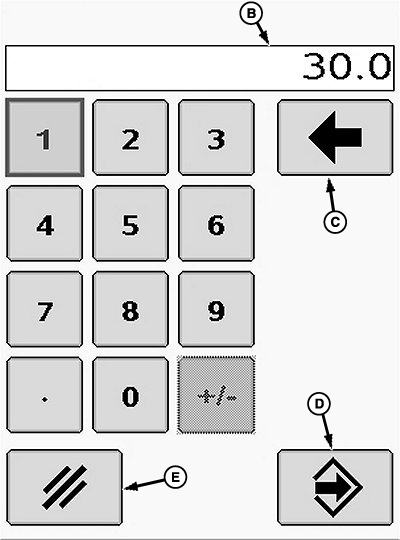
A - Input Box
B - Bounding Box
C - Back Arrow
D - Enter
E - Cancel
Input BoxInput boxes (A) allow numeric value entries.
- Select an Input Box to see the numeric keypad. Select desired value. Entered value appears in bounding box (B).
- Select Back Arrow (C) button to clear a selected value.
- Select Enter (D) button to confirm value.
- Select Clear (E) button to deactivate keypad without confirming a new value.
A59313-UN-15FEB07
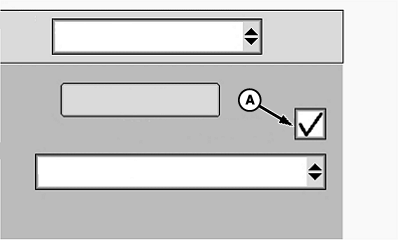
Check Box Example
A - Check Box
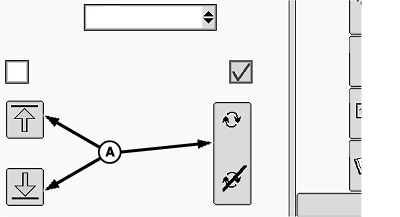
Check BoxA check box (A) allows activation and deactivation of single items. A check mark indicates an active feature. An empty box indicates a deactivated feature.
A59314-UN-11NOV08
Button Examples
A59315-UN-15FEB07
Button Examples
A - Button
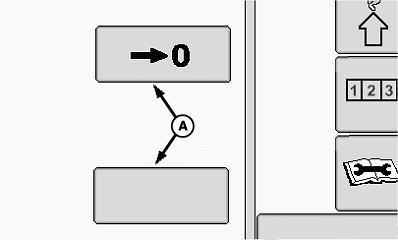
ButtonButtons have different shapes, sizes, and images. Some have text on them. Select any button (A) to activate its feature.
A59363-UN-20FEB07
Custom Input Keypad
A - Return
B - Appearance
C - Case
D - Symbols
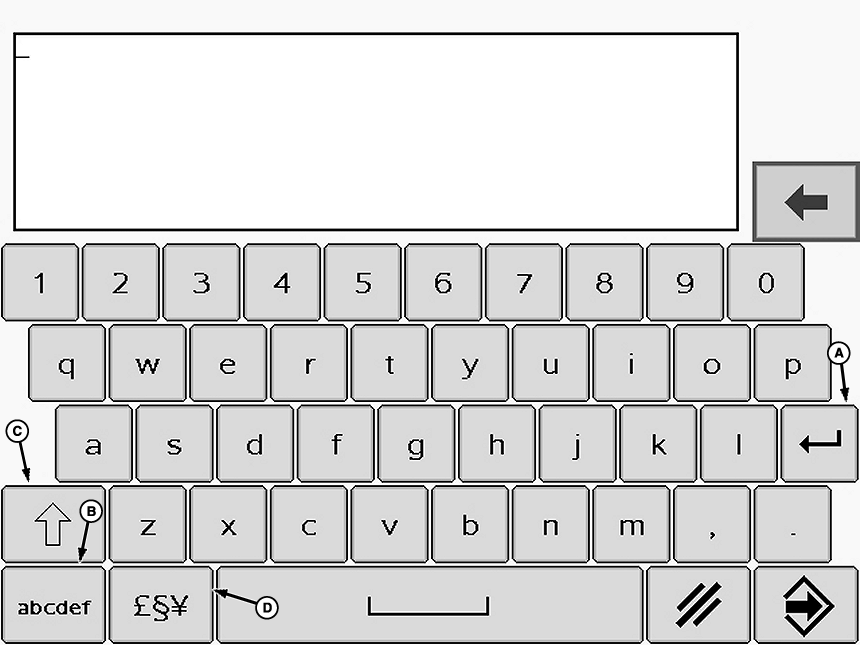
Custom Input KeypadSome input or drop-down boxes have an Edit or Custom option. When Edit or Custom is selected, a keypad appears for data entry. The Return (A) button moves cursor to the next line down. The Appearance (B) button toggles between a standard qwerty keypad layout and an alphabetical keypad layout. The Case (C) button toggles between upper and lower case letters. The Symbols (D) button toggles between a keypad with letters and a keypad with symbols.
|
OUO6074,0000FA5-19-20081016 |