Controls and Displays
CommandCenter
The CommandCenter is used to display various tractor functions; it allows the user to change the settings for these functions. In addition, it can display certain calculations (average fuel consumption, area worked, etc).
NOTE: The screens on the CommandCenter shown in this Operator's Manual are all in English. The language and units of measurement that actually appear on the tractor can be selected by the operator.
Operating the CommandCenter
LX1037584-UN-06NOV06
LX1036207-UN-16AUG05
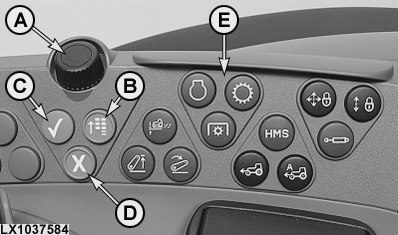
A - Selection wheel
B - Main menu key
C - Confirm key
D - Cancel key
E - Quick-access keys
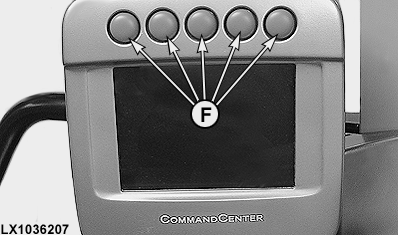
F - Hot keys
The CommandCenter can be operated as follows:
- With selection wheel (A), the main menu key (B), confirm key (C) and cancel key (D).
- With the 8 brown quick-access keys (E) (the ones that are assigned predefined functions).
- With the 5 hot keys (F), the functions of which are set by the user.
Selection wheel (A) allows you to scroll through the different screen cells. Key (B) gives access to the main menu of the CommandCenter. Key (C) is used to select or confirm an input. Key (D) is used to cancel an input.
The functions of keys (E) are explained in the relevant Sections (e.g. Hitch, Power Take-Off, Additional Equipment).
Emergency operation
LX1041034-UN-09JUN06
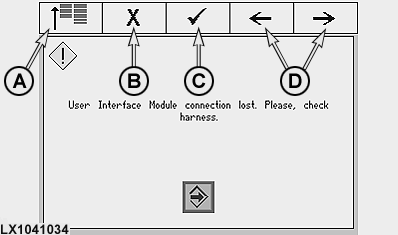
A - Cell for main menu
B - Cell for cancel
C - Cell for confirm
D - Cells for selection
If the connection between the CommandCenter and the regular keys is interrupted, the screen shown opposite appears. The CommandCenter can still be used via the 5 hot keys above the cells shown in the illustration.
Main menu
LX1041065-UN-11OCT06
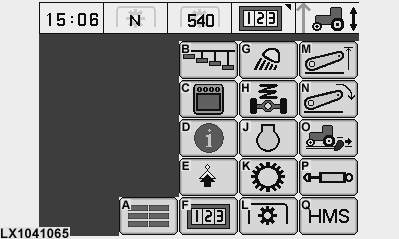
A - Main screen. Described on the following pages.
B - Hotkey screen. Described under Assignment of hot keys on the following pages.
C - Display screen. Described under CommandCenter settings on the following pages.
D - Information screen. Described in Section 135, Diagnostic Trouble Codes and Customization.
E - Option screen. Described in Section 20, Lights and Section 25, Operator's Cab.
F - Performance monitor screen. Described under Performance monitor on the following pages.
G - Lights screen. Described in Section 20, Lights.
H - TLS Plus screen. Described in Section 45, Operating the Tractor.
J - Engine screen. Described in Section 40, Operating the Engine.
K - Transmission screen. Described in Section 45, Operating the Tractor.
L - PTO screen. Described in Section 55, Power Take-Off.
M - Lift limit screen. Described in Section 50, Hitch.
N - Rate-of-drop screen. Described in Section 50, Hitch.
O - Load/depth control screen. Described in Section 50, Hitch.
P - SCV screen. Described in Section 70, Additional Equipment.
Q - HMS screen. Described in Section 51, HMS.
The content of this screen varies depending on how the tractor is equipped.
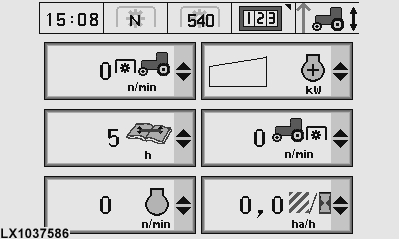
Main screen
LX1037586-UN-11OCT06
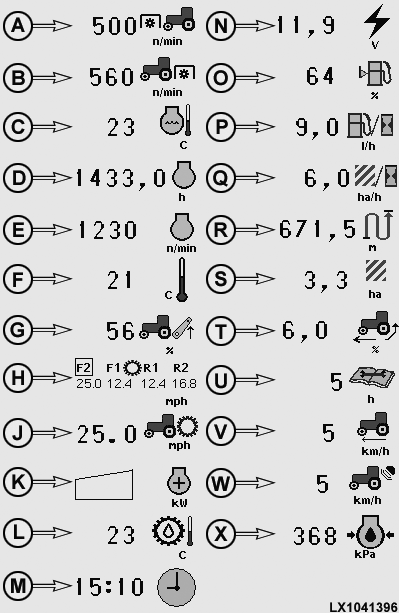
On this screen, six cells are available; they can be assigned any of the symbols in the selection lists. Selection depends on how the tractor is equipped.
Main screen - selections
LX1041396-UN-16NOV06
A - Front PTO speed
B - Rear PTO speed
C - Coolant temperature
D - Engine hours
E - Engine speed
F - Ambient temperature
G - Lift height of three-point hitch
H - Set speeds (AutoPowr/IVT)
J - Selected speed (AutoPowr/IVT)
K - Engine power
L - Temperature of transmission/hydraulic oil
M - Time of day
N - Voltage (electrical system)
O - Fuel reserve in percent
P - Fuel consumption per hour
Q - Area covered per hour
R - Distance covered
S - Area covered
T - Rear wheel slip
U - Service interval
V - Ground speed
W - Ground speed (radar)
X - Engine oil pressure
Hot keys - assignment
LX1037587-UN-06NOV06
LX1041066-UN-11OCT06
LX1041067-UN-11OCT06
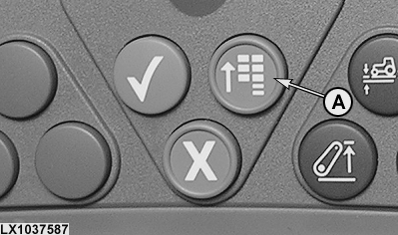
A - Main menu key
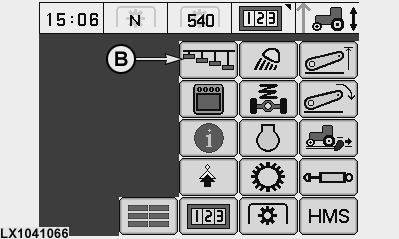
B - Hot keys
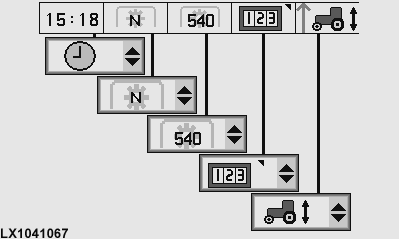
Press the main menu key (A) and select hot keys (B) on the screen.
On the following screen, a function may be selected from the selection list for each of the 5 hot keys. The functions depend on how the tractor is equipped.
Hot keys - selection of functions
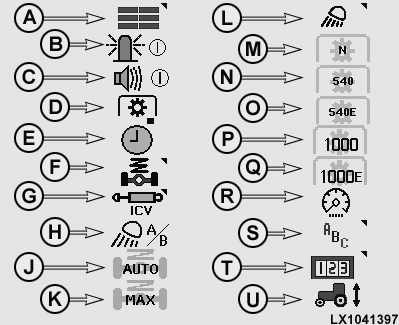
LX1041397-UN-11OCT06
A - Main screen
B - Beacon light
C - Back-up alarm
D - PTO remote (external) control
E - Clock
F - TLS Plus screen
G - Selective control valves for functions at front of tractor
H - Worklights A/B
J - TLS Plus automatic
K - TLS Plus (maximum hardness)
L - Worklights
M - PTO (neutral)
N - PTO (540)
O - PTO (540E)
P - PTO (1000)
Q - PTO (1000E)
R - Dimming the screen
S - Language selection
T - Performance monitor
U - Manual area recording
CommandCenter settings
LX1037587-UN-06NOV06
LX1041068-UN-11OCT06
LX1041069-UN-11OCT06
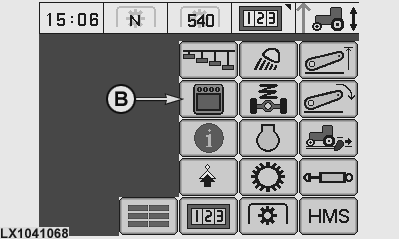
A - Main menu key
B - Display
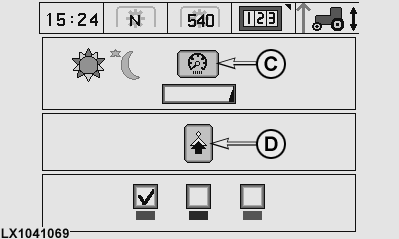
C - Dimming cell
D - Next screen
Press the main menu key (A) and select Display (B) on the screen.
On the following screen, brightness and the highlight color can be selected. Dimming cell (C) considerably reduces the brightness of the display (for night time operation). To reset the brightness to normal, press any key. Symbol (D) gives access to the next screen.
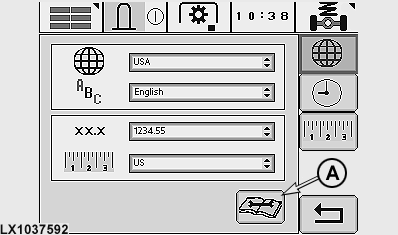
LX1037592-UN-31MAY06
Symbol (A) provides access to other screens on which a graphic test, equipment information and copyright details are shown.
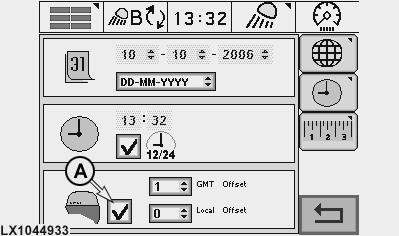
LX1044933-UN-12DEC07
A - Date and time synchronization
Date and time of day can be set on this screen.If the tractor is equipped with a GPS receiver, cell (A) can be used to determine whether date and time of day are to be synchronized with the GPS signal.
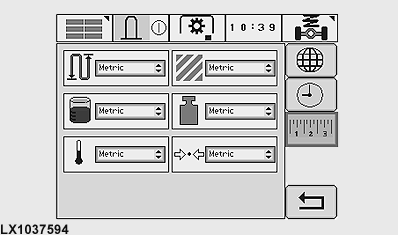
LX1037594-UN-31MAY06
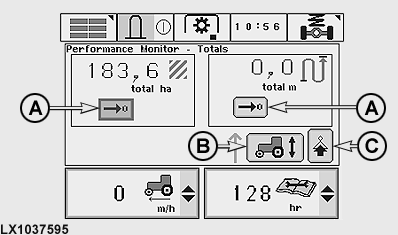
Performance monitor - totals
LX1037595-UN-31MAY06
A - Zeroing the values
B - Manual recording
C - Next screen
This screen shows area worked and distance covered. Cells (A) allow the stored values to be set back to zero (the user is first asked if he is sure he wants to make the change).
Cell (B) allows manual recording to be started and ended (provided this type of recording is selected under Performance monitor - implement selection).
Cell (C) gives access to the next screen.
Performance monitor - settings
LX1041070-UN-11OCT06
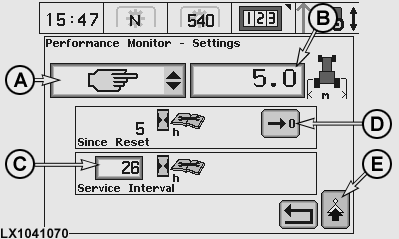
A - Implement/device selection
B - Implement width
C - Service interval
D - Zeroing the value
E - Next screen
Selection list (A) allows the implement/device to be selected that is used for calculating area.
Implement width can be keyed in at cell (B).
The service interval can be keyed in at cell (C). During the last 20 hours before reaching this interval a corresponding message will be displayed each time the tractor is started. After a service, the Since Reset hour-meter can be set back to zero at cell (D).
Cell (E) gives access to the Performance monitor - calibration screen.
Performance monitor - implement selection
LX1041398-UN-11OCT06
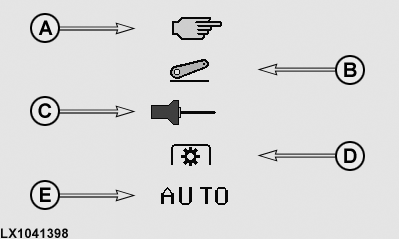
A - Manual recording
B - Hitch
C - Implement switch
D - PTO
E - Automatic recording
Manual recording can be started and stopped via a cell on the Performance monitor - totals screen. A hot key may also be used to perform this function (see Hot keys - selection of functions).
For automatic recording, the first implement that is activated starts the recording process. Recording is interrupted as soon as this implement is deactivated.
Performance monitor - calibration
LX1041071-UN-11OCT06
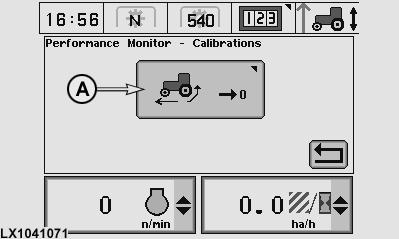
A - Setting slip to 0
Cell (A) gives access to the page shown below.
Performance monitor - zero rear wheel slip
LX1041072-UN-11OCT06
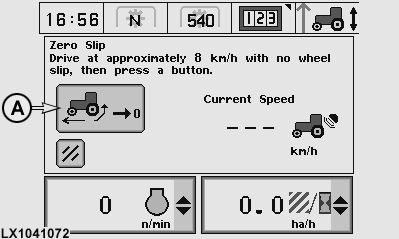
This setting is required after changing the tires or when the tires are bald.
Drive tractor at approx. 8 km/h (5 mph) and select cell (A).
A message appears saying whether the setting was successful or unsuccessful.
|
OU12401,0001D85-19-20091129 |