iTEC - Editing Mode, Set Up a Sequence While Stationary
NOTE: All changes are saved if another implement is selected, if the sequence softkey is used to change the sequence number, or if the editing mode is exited. This is the case if you change to another page, e.g. the page for SCV settings or PTO settings.
-
LX1045725-UN-16AUG10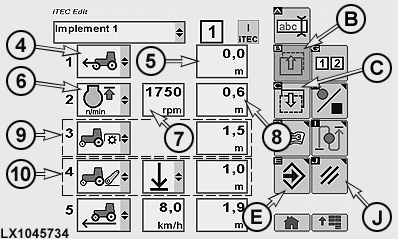
LX1045734-UN-16AUG10Functions in Wrong Order
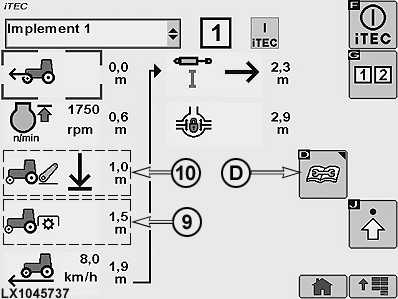
LX1045737-UN-17AUG10Functions in Correct Order
4 - Drop-Down Box for First Function
5 - Input Field for First Distance
6 - Drop-Down Box for Second Function
7 - Drop-Down Box/Input Field for Work Process
8 - Input Field for Second Distance
9 - PTO Function ON
10 - Hitch Function
B - Previous Page Softkey
C - Next Page Softkey
D - Status Softkey
E - Save/Enter Softkey
J - Cancel Softkey
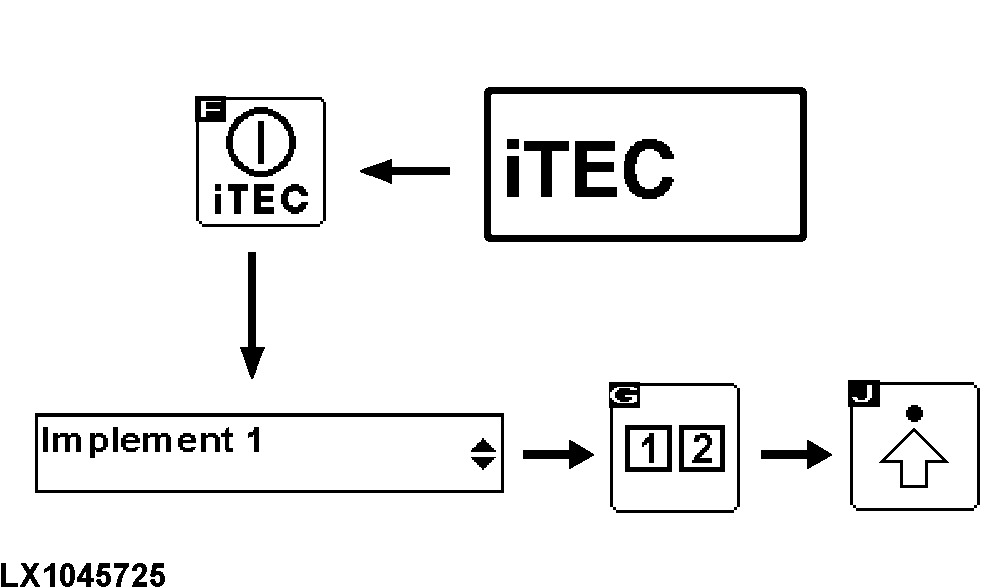
Select the iTEC home page and then press the iTEC ON/OFF softkey. For more information, see iTEC - Home Page, Enter Program Mode in this Section. -
Make sure that iTEC is switched on. At the same time, the iTEC indicator light lights up on the instrument panel.
-
Navigate to drop-down box (1, implement selection) and select desired implement.
-
Use the sequence softkey to select Sequence 1 or 2. When the sequence has been selected, the relevant display appears.
-
Select softkey for Advance Settings.
-
Go to drop-down box (4) for the first function and select e.g. Front-Wheel Drive ON. Current status of available functions can be displayed by selecting softkey (D). See also iTEC - Status Page in this Section.
NOTE: For a complete list of the available functions, see iTEC - Available Functions and Possible Work Processes in this Section.
-
As no selection can be made for Front-Wheel Drive ON, go directly to distance input field (5).
-
Key in the distance from the start of the sequence at which the function is to start.
-
Go to drop-down box (6) for the second function and select e.g. FieldCruise ON.
-
Go to the drop-down box/input field (7) for work process and use the thumb wheel or figure block to key in the desired engine speed.
-
Go to distance input field (8) and key in the distance from the start of the sequence at which the function is to start.
-
Select more functions with the relevant work processes and distances. Up to 20 functions can be selected. When no more functions can be selected on this page, use softkey (C) to change to the next page.
IMPORTANT: When Save/Enter softkey (E) is selected, the functions after distance are re-arranged in ascending order. As shown, functions (9) and (10) change position.
-
When all the steps of a sequence have been entered, select softkey (E) to save the changes or softkey (J) to delete all the changes.
|
OULXA64,000269D-19-20101124 |