CommandCenter™ - Configuring Home Page
-

RXA0110781-UN-09SEP10Menu Button → Layout Manager Icon
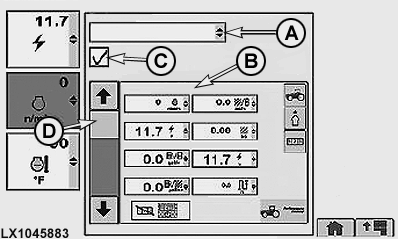
LX1045883-UN-21FEB11Layout Manager → Set Up CommandCenter™ Home Page
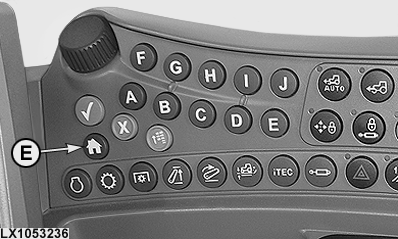
LX1053236-UN-29JUN11Button for CommandCenter™ Home Page
A - Region Drop-Down Box
B - Page Name
C - Include In Home Page Cycle Check Box
D - Drop-Down Box
E - Button for CommandCenter™ Home Page
Press the menu button. -
Select Layout Manager.
-
Layout Manager will open in the home page that was last used.
-
Select the desired region in drop-down box (A) to gain access to the selection list with the various options for the three home pages and ten softkeys.
↑
Home Page 1
Home Page 2
Home Page 3
Softkey A
Softkey B
Softkey C
Softkey D
Softkey E
Softkey F
Softkey G
Softkey H
Softkey I
↓
Softkey J
-
Place check in Home Page Cycle Check Box (C) to have desired page displayed.
-
To view home pages after they are included in the home page cycle, actuate button (E; for CommandCenter™ Home Page) and home page 1 appears. Selecting Home Page button repeatedly displays consecutive home pages, 1, 2, or 3.
-
Open drop-down box (D) to select pages or softkeys available for your tractor configuration.
NOTE: Page Name (B) is printed across the top of page. Not all pages are identified with a specific page name.
-
To remove page from Layout manager, deactivate check box (C) by removing the check (tick).
-
The 10 softkeys can also be programmed with the softkey options available to each. The selected softkey would then appear on the selected home page.
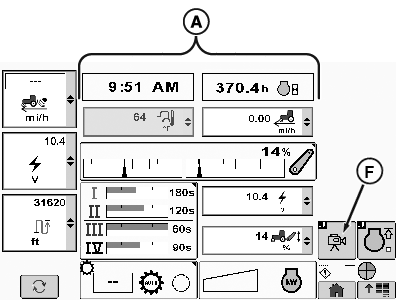
The default CommandCenter™ home page can be configured to monitor a number of ongoing tractor functions (A) normally monitored in the left region.
RXA0110781-UN-09SEP10
Menu Button → Layout Manager Icon
RXA0107757-UN-16SEP10
Default Home Page
RXA0110932-UN-16SEP10
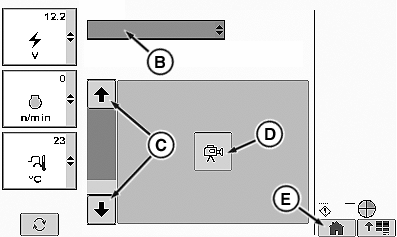
Adding Video Softkey
A - Tractor Functions
B - Region Drop-Down Box
C - Up/Down Arrow
D - Softkey (Video)
E - CommandCenter™ Home Page
F - Softkey (Video)
NOTE: Softkey layouts are only visible on home pages that support reconfigurable softkeys.
To add configurable softkey to home page:
-
Press the menu button.
-
Select Layout Manager.
-
In drop-down box (B), select the desired region.
-
Select desired softkey A to J.
-
Using Up/Down arrows (C), scroll to desired configurable softkey (D).
-
Select softkey (E) for CommandCenter™ home page.
-
Selected softkey (F) is then added to right region of the CommandCenter™ home page.
|
OULXA64,0002742-19-20120622 |