Digital Display - User Interface
LX1057733-UN-09OCT12
Sample Illustration
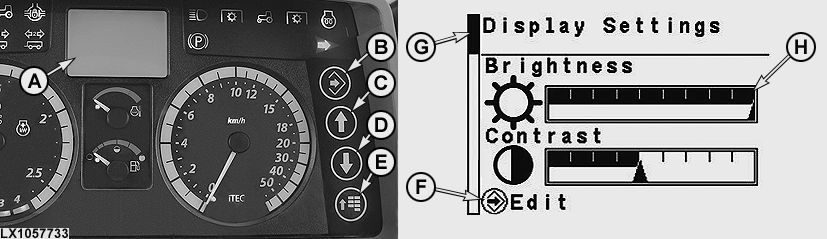
A - Digital Display
B - Confirm Button
C - Up Arrow Button
D - Down Arrow Button
E - Menu Button
F - Function of Button (Functions Currently Assigned to Buttons B and E)
G - Navigation Bar
H - Input Area

LX1057734-UN-26JUN12
Functions of Buttons, Summary (Possible Functions of Buttons B and E)
a - Start - Press confirm button (B) to start function
b - Next - Press confirm button (B) to go to the next page
c - Edit - Press confirm button (B) to edit selection
d - Save - Press confirm button (B) to save changes
e - Proceed - Press confirm button (B) to proceed with action
f - Reset - Press confim button (B) to reset current setting
g - Start - Press menu button (E) to go to the start
h - Next - Press menu button (E) to access the next menu
Menus are selected by pressing the menu button. Menus consist of several pages which can be selected by means of the arrow buttons.Depending on the function of the page that has been accessed, check boxes or input areas like e.g. (H) are displayed. Current settings can be changed in the input areas. Input areas and check boxes are selected by means of the confirm button. Values are changed by means of the arrow buttons and are then saved by pressing the confirm button.
Buttons (B) and (E) may have various functions. When differing from the main function, this will be displayed at (F) at the bottom of the digital display. See the illustration "Functions of Buttons, Summary". On most pages a help description explaining the functions is displayed automatically after accessing the page.
Navigation bar (H) shows the current position within a menu, if the menu consists of several pages (bar at the top means beginning of menu; bar at the bottom means end of menu).
|
OULXBER,0001C78-19-20120704 |