TIA™ - Status Page
LX1057491-UN-05DEC14
LX1057102-UN-23JUL13
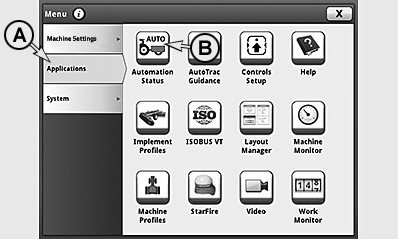
A - Tab
B - TIA™ - Status Page
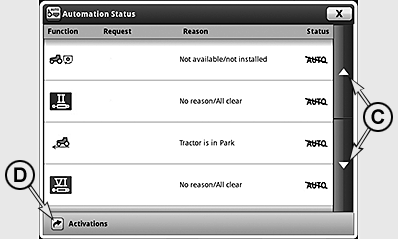
C - Softkeys for Changing Pages
D - Softkey for Activating TIA™
Access CommandCenter™ Menu and select tab (A).Press softkey (B) and access TIA™ status page.
On the status page, the status of all the functions available for TIA are displayed.
NOTE: If no TIA™-capable implement is connected, only a text message appears on the display.
If there are too many functions to display on one status page, softkeys (C) can be used to change to the next or previous pages respectively.
To activate the implements, press softkey (D) and access the page for activating the implements. See also TIA™ - Activating the Implements on the following pages.
The status page has four columns:
|
Function |
Auto/Command |
Cause |
Status |
|---|---|---|---|
|
All functions available for TIA™ displayed |
• The current command from the implement appears on the display if the function is in auto mode and the implement is commanding the function. |
• No Reason/All clear appears on the display if the function is fault-free and can be automated by the implement. • A brief text appears on the display if the function is not ready to perform requests (commands) from the implement. |
• AUTO indicates that the function is currently commanded and has no threshold. • AUTO indicates that the function is currently not controlled by the implement or cannot be controlled by it. The operator has control, or must enable the function. • !AUTO! indicates that the function is currently faulty. Cause is displayed in a brief text in second column. • AUTO↑ indicates that the function has an upper threshold. The command from the implement is too high. • AUTO↓ indicates that the function has a lower threshold. The command from the implement is too low. |
|
OULXA64,0002F17-19-20141204 |