TIA™ - Activating the Implements
LX1057492-UN-05DEC14
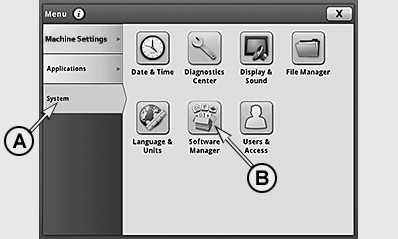
CommandCenter™ Menu
LX1057104-UN-23JUL13
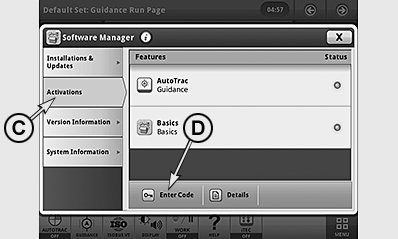
Page for Activating
LX1057105-UN-24JUL13
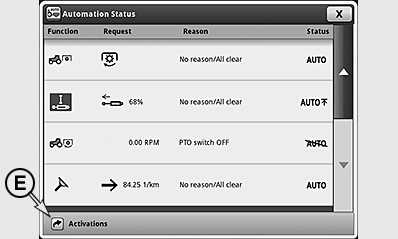
TIA™ - Status Page
LX1057106-UN-23JUL13
A - System Tab
B - Softkey for Software Manager
C - Activation Tab
D - Softkey for Entering Code
E - Softkey for Activating Tractor-Implement Automation
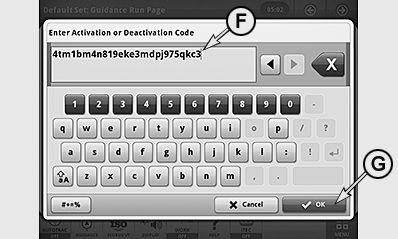
F - Box for Entering the Activation Code
G - Softkey for Confirming Entry
-
From the type plates, copy full tractor serial number and implement make, model, and serial number before requesting activation code from Stellar Support through dealer.
-
Give your John Deere dealer the tractor serial number and equipment make, model, and serial number so that the dealer can request the activation code from Stellar Support.
-
Wait until the dealer provides the 24- or 26-digit activation code.
-
To access the Implement Activation Page, either access the CommandCenter Menu, access tab (A), press softkey (B) and access tab (C) or go to the status page and press softkey (E).
-
Press softkey (D).
-
Select box (F) and key in the activation code at the keyboard.
NOTE: When activating Tractor-Implement Automation, some keyboard characters on keyboard are grayed out and are not used in activation codes. If received activation code includes any characters that are grayed out on Tractor-Implement Automation Activation page keyboard, request dealer reconfirm activation code.
-
Confirm the entry at softkey (G).
-
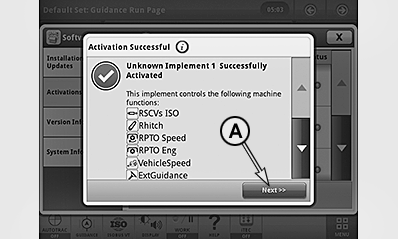
LX1057108-UN-23JUL13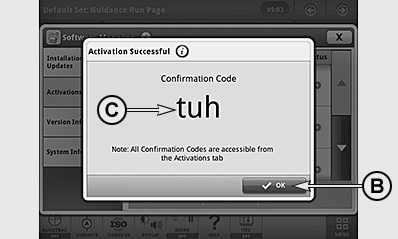
LX1057109-UN-23JUL13A - Confirm Code
B - Softkey Closing the Procedure
C - Confirmation Code
If the activation code has been keyed in correctly, a page appears with the functions that are enabled for currently activated implement. -
Press softkey (A); the confirmation code appears, indicating that the code has been accepted.
NOTE: If any response codes not covered in table are received after entering an Activation Code, double check the code, retry entering it and if that does not work, contact the dealer.
-
Press softkey (B) to close the procedure.
-
If the activation code is wrong, an error code appears. See also the table of frequently-encountered error codes and text descriptions.
Error Codes, Text Descriptions and Corrective Actions
Frequently-Encountered Error Codes
Text Displayed
Corrective Action
0
Code Accepted
None Required
5
Implement Already Activated
None Required, implement should work as expected
6 and 11
Space Unavailable for Activation
Contact your dealer for assistance
17
Demonstration Activation Replaced With Permanent Activation
None Required
NOTE: An unknown implement no. is displayed on the Tractor-Implement Automation™ page in the component list (E) until the implement is connected to the tractor for the 1st time.
|
OULXA64,0002F18-19-20141204 |