iTEC™ - Sequence Step Status
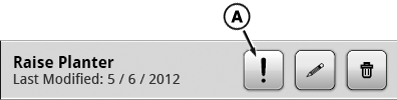
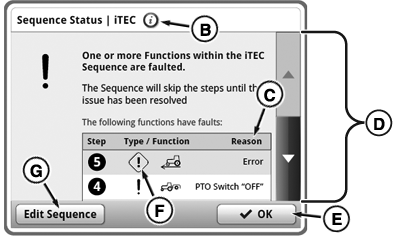
Whenever execution of a sequence step is not possible or is interrupted, iTEC™ system informs operator about new issue by displaying Information Alert (A) or Fault Alert (F) next to sequence or sequence step. Press on the Alert Symbol next to a sequence (in assignment area or sequence assignment tab) to access the sequence status page to read the steps with errors. Use scroll bars (D) to scroll up and down list.
NOTE: If a sequence step for which the function has been assigned to the multi-function lever is not executed, the assignment of the multi-function lever must be checked.
Select edit sequence button (G) to edit this certain sequence. Pressing on the Alert Symbol next to a sequence step (while in EDIT) will display information about the issue just for this step. Both views will show a short reason (C) for the issue.
RXA0131170-UN-05MAR13
Sequence Bar
RXA0131609-UN-25JUL13
Sequence Status Page
A - Information Alert
B - Information Button
C - Reason
D - Scroll Bar
E - OK Button
F - Fault Alert
G - Edit Sequence Button
NOTE: Information button (B) is provided on all iTEC™ pages and can be pressed to access a general status page. This page shows all functions that are part of the sequences of the selected implement (sequence set).
Page for editing:

RXA0131089-UN-26FEB13
Menu →Tractor Settings Tab → iTEC™ Icon

RXA0127531-UN-15AUG12
Manage Sequences Button → Tractor Settings Tab → Edit Button
RXA0131144-UN-25JUL13
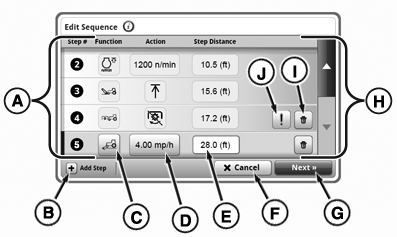
Edit Sequence Page
RXA0131281-UN-25JUL13
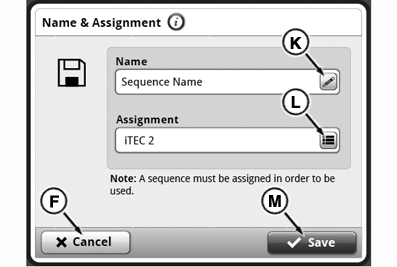
Name and Assignment Page
RXA0131280-UN-25JUL13
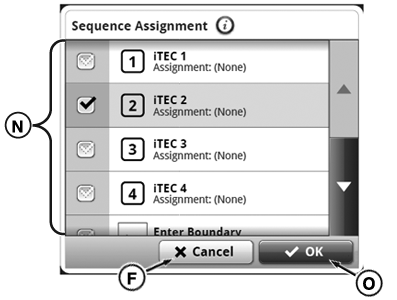
Sequence Assignment Page
-
Select Menu.
-
Select Tractor Settings tab
-
Select iTEC™ icon.
-
Use one of the following procedures:
• Procedure 1:
a. Press Manage Sequences button.
b. Select Sequences tab.
c. Select desired sequence.
d. Select Edit button.
• Procedure 2:
a. Select one of the assigned sequences.
-
A — Sequence Step List:
List of steps in selected sequence.
-
B — Add Step Button:
Add step to sequence.
-
C — Step Function Input Box:
Change selected sequence step function.
-
D — Step Action Input Box:
Change selected step action.
-
E — Step Distance Input Box:
Select number pad to adjust selected sequence step distance.
-
F — Cancel Button:
Exit without saving changes.
-
G — Next Button:
Access next page.
NOTE: A new step will be inserted after the step that is currently selected. The distance input box of the new step will be auto-filled with the value of the previous step. If this value is changed, the new step will be moved to the corresponding position in the sequence.
-
H — Scroll Bar:
Scroll up or down.
-
I — Delete Step Button:
Delete step.
-
J — Notification Button:
View problem for a particular step.
-
K — Sequence Name Input Box:
Select keypad to rename sequence.
-
L — Assignment Button:
Select sequence assignment list.
-
M — Save Button:
Save changes.
-
N — Sequence Assignment List:
Select the desired button.
-
O — OK Button:
Accept changes.
Keyboard
RXA0131300-UN-14MAR13
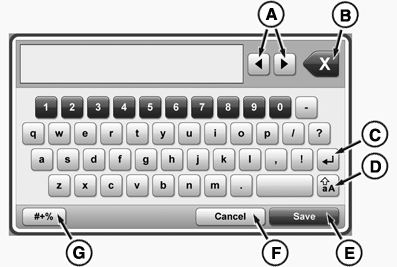
Keyboard
A keyboard will appear several times when operator edits sequences. Any time a sequence name needs to be changed, select the sequence name button and the keyboard appears.
-
A — Left and Right Arrow Buttons:
Move cursor to right or left in input box.
-
B — Back Arrow Button:
Delete individual characters to the left of the cursor in the input box.
-
C — Enter Button:
Move cursor to next line.
-
D — Caps Lock Button:
Toggle between upper and lower case letters.
-
E — Save Button:
Save changes.
-
F — Cancel Button:
Exit without saving changes.
-
G — Symbol Button:
Choose symbols.
Sequence Assignments Page:

RXA0131627-UN-09APR13
RXA0131606-UN-26MAR13
RXA0131607-UN-27MAR13
RXA0131283-UN-07MAR13
-
Select Menu.
-
Select Tractor Settings tab
-
Select iTEC™ icon.
-
Press Manage Sequences button.
-
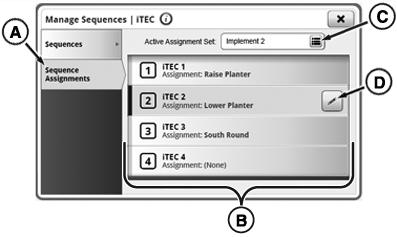
Select Sequence Assignments tab (A).
-
A — Sequence Assignment Tab:
View or change sequences assigned to buttons.
-
B — Sequence Assignment List:
List of assignments or vacant positions that can be assigned to the buttons.
-
C — Active Assignment Set Button:
Can be used to change the selected sequence set.
-
D — Edit Button:
Can be used to change the selected button assignment and the selected sequence set.
-
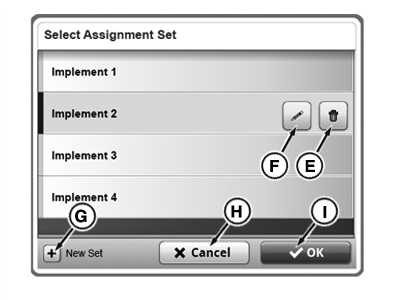
E — Delete Assignment Set Button:
Can be used to delete the sequence set.
-
F — Edit Assignment Button:
Can be used to change the name of the sequence set.
-
G — New Set Button:
Can be used to add a new sequence set.
-
H — Cancel Button:
Exit without saving changes.
-
I — OK Button:
Use this button to select a sequence set that has been marked beforehand.
-
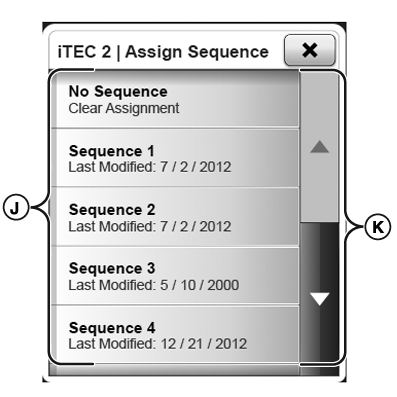
J — Available Sequence List:
Available sequences to assign.
-
K — Scroll Bar:
Scroll list up or down.
NOTE: Sequence set: A set consisting of sequences with assigned buttons for an implement. With assignment sets relating to different implements (e.g. planter and plow) it is easy to switch from one set (implement) to another.
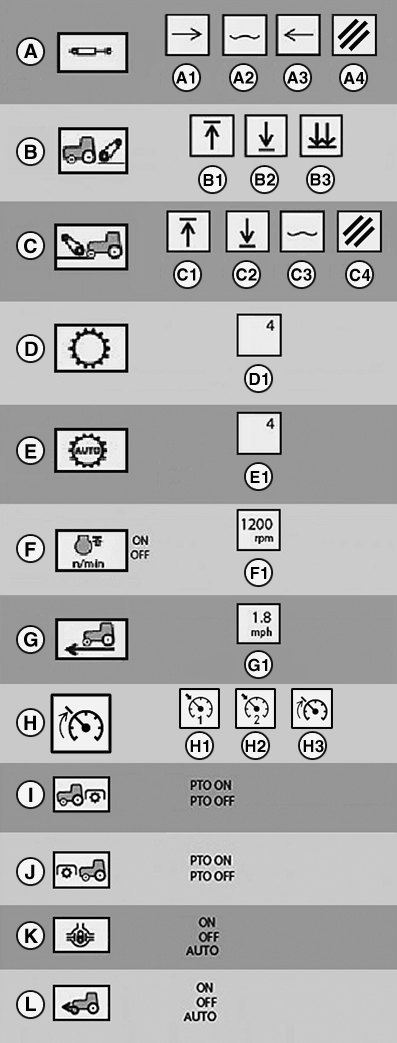
Available options:
LX266932-UN-10AUG16
First Column: Function, Second Column: Action
-
A — SCVs (I to XIII)
- A-1 Extend
- A-2 Float
- A-3 Retract
-
A-4 Cancel
-
B — Rear Hitch
- B-1 Raise to Lift Limit
- B-2 Lower to Lower Set Point
-
B-3 Lower Fast
-
C — Front Hitch1
- C-1 Raise
- C-2 Lower
- C-3 Float
-
C-4 Cancel
-
D — Transmission
-
D-1 Gear - Preselect the gear
-
D-1 Gear - Preselect the gear
-
E — Automatic Transmission (If Equipped)
-
E-1 Depending on transmission type: Shift to highest pre-selected
gear or resume automatic shifting.
-
E-1 Depending on transmission type: Shift to highest pre-selected
gear or resume automatic shifting.
-
F — Engine Set Speed ON/OFF
-
F-1 Adjust Engine Speed
-
F-1 Adjust Engine Speed
-
G — Travel Set Speed (AutoPowr™/IVT™ or DirectDrive)
-
G-1 Set to Maximum Travel Speed
NOTE: PTO speed has priority.
-
G-1 Set to Maximum Travel Speed
NOTE: PTO speed has priority.
-
H — Activate Travel Set Speed
- H-1 Travel Set Speed 1
- H-2 Travel Set Speed 2
-
H-3 Maximum Travel Set Speed
-
I — Rear PTO ON/OFF
-
J — Front PTO1 ON/OFF
-
K — Differential Lock ON/OFF/AUTO
- L — Front-Wheel Drive ON/OFF/AUTO
|
1 European
version only
|
OULXA64,00030D5-19-20160811 |