Navigate to Controls Setup
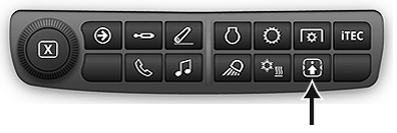
RXA0133715-UN-16JUL13
Controls Setup Shortcut Button on Navigation Bar
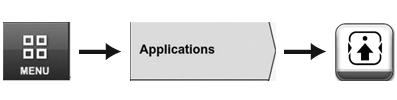
RXA0130061-UN-01AUG13
Menu → Applications Tab → Controls Setup Icon
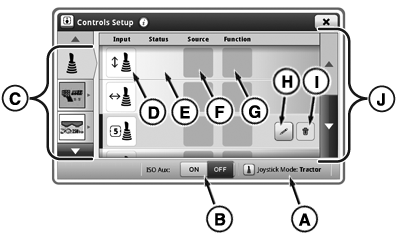
RXA0137961-UN-18DEC13
Assignment of Tractor Functions to Tractor Multi-Function Lever Shown
A - Multi-Function Lever Mode Icon
B - ISO Aux On/Off Toggle
C - Device List
D - Input Device
E - Status
F - Source
G - Function
H - Add or Edit Assignment Button
I - Delete Assignment Button
J - Scrollbar
Controls Setup page allows user to assign device (D) with various tractor and implement functions (G). Once completed, function may be performed by activating assigned device.NOTE: Some ISOBUS multi-function levers may not be able to be assigned to tractor and implements functions.
 CAUTION: ISOBUS Controller detected Improper operation can cause
unintended machine movement.
CAUTION: ISOBUS Controller detected Improper operation can cause
unintended machine movement.
To avoid death or serious injury to bystander, understand how this display operates the functions of each machine
Read the manual for the ISOBUS control unit.
CAUTION: Improper operation can cause unintended implement movement.
To avoid the risk of death or serious injury to a bystander, ensure:
- Users know which function is mapped to each control.
- Controls are properly labeled.
IMPORTANT: ISOBUS functions can only be assigned to an ISOBUS multi-function lever.
The message above is displayed when the ISOBUS control unit or ISO AUX is enabled. If necessary, check or modify the assignment for the ISOBUS multi-function lever. Immediately after the message, the operator can decline or accept by pressing appropriate buttons. If "Cancel" is selected, all ISOBUS multi-function levers will be disabled. If "Accept" is selected, all ISOBUS multi-function levers will be enabled.
Example – Two ISOBUS-compliant multi-function levers are used to control a towed sprayer with an ISOBUS control unit. The sprayer features two controlled functions: pump on/off and spray boom on/off. Using the Controls Setup feature, each function may be assigned to one of the ISOBUS multi-function lever switches.
Controls Setup Page
Press the Controls Setup shortcut button on the Navigation Bar or follow the alternative path:
-
Select Menu.
-
Select Applications tab.
-
Select Controls Setup icon.
|
OULXA64,0003167-19-20141127 |