RTP - Select and Save an Implement
Front loaders may be equipped for a variety of different applications. These include implements such as round-bale spikes, pallet forks, manure forks, grapple buckets and many more. These can be re-arranged in the implement dropdown box so that custom settings can be saved for the next application. Settings that are saved are:
- Setpoints of the two ranges
- Flow settings of SCV 11 and 12
- Characteristics of the multi-function lever
- 0° position of bucket
Entering a new implement
-
Open the Return-to Position page and press softkey (A) to engage return-to-position function.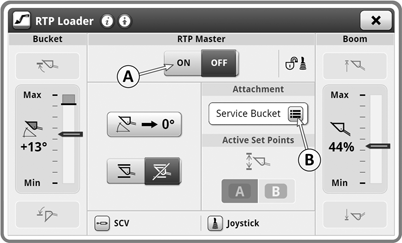
LX211122-UN-12MAY14NOTE: At tractor start-up, the return-to-position function is always switched off.
-
Open drop-down box (B) to key in an implement.
-
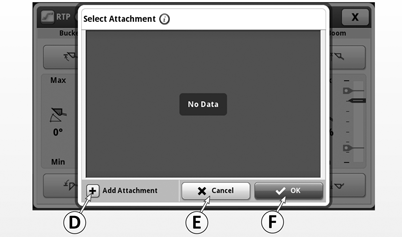
LX211123-UN-06MAY14D - Add Implement
E - Cancel Procedure
F - Confirm Selection
Press softkey (D) to add a new implement. A new box opens for entering the name of an implement. -
Use the keyboard to type in a name that must not have more than 14 characters. To select special characters, press softkey (D). Once the name has been typed in, confirm it with softkey (I). The procedure can be aborted using softkey (H).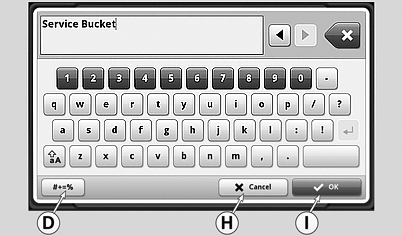
LX211124-UN-06MAY14NOTE: Up to 10 implements can be stored.
-
Once an implement has been stored successfully, it can be accessed using the drop-down box (see "Selecting an Existing Implement").
Selecting an existing implement
-
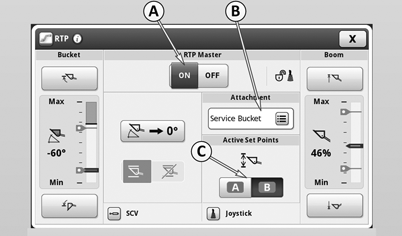
LX211125-UN-06MAY14A - Switch Return-To-Position On and Off
B - Window for Displaying the Active Implement and Opening the Drop-Down Box
C - Select Setpoint Range A or B for the Active Implement
Open the Return-to Position page and press softkey (A) to engage return-to-position function. -
Press (B) to make the drop-down box with the list of implements appear on the display.
-
All implements that have been entered appear on the display one above the other. Select desired implement by pressing it (then the name of the implement is highlighted). Use softkey (J) to confirm the selection.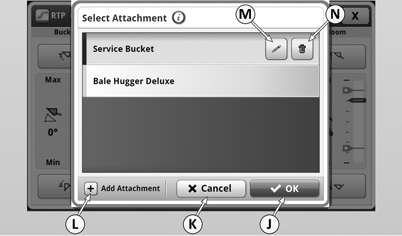
LX211126-UN-06MAY14 -
Press softkey (M) to edit the selection. Press softkey (N) to delete the selection.
-
Press softkey (K) to cancel the procedure.
-
Press softkey (L) to add a new implement.
-
After an implement has been selected, it appears on the Return-To-Position page at (B).
Now the setpoints that have already been determined for this implement may be used. See "RTP - Set the Return-to-Position Function" to edit the setpoints.
NOTE: If setpoints are changed, the new settings are automatically assigned to the currently selected implement.
|
OULXBER,00023CD-19-20160418 |