Operation and Entering the Diagnostic Addresses with Digital Display (Customer Level)
LX234742-UN-02JUL15
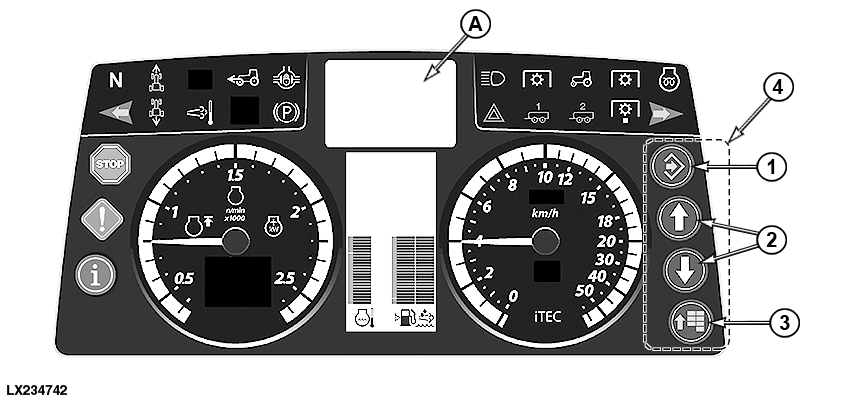
Instrument Unit
1 - Confirm Button (Confirming, Hiding, Saving, and Starting)
2 - Arrow Buttons (up and down)
3 - Menu Button
4 - Keypad
A - Digital Display
Diagnostic addresses relevant to the customer are displayed in the digital display (A)..
The instrument unit is accessed using the keypad.
Access the diagnostic address
-
Press MENU button.
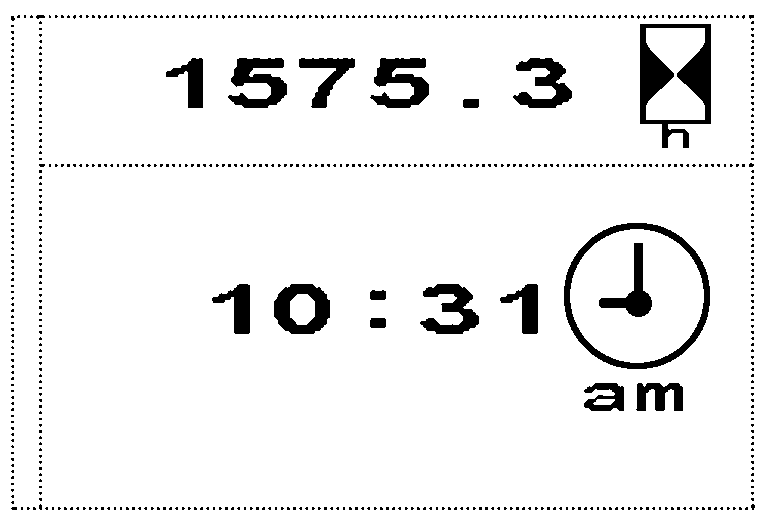
LX1054061-UN-27JUN12Home Page
NOTE: If any diagnostic trouble codes or informative messages are displayed on the instrument unit, keep pressing the confirm button until all the diagnostic trouble codes and messages are hidden.
Use the scroll keys to scroll to the Access to Diagnostics page.
NOTE: Order of displayed pages can vary depending on vehicle configuration.
-
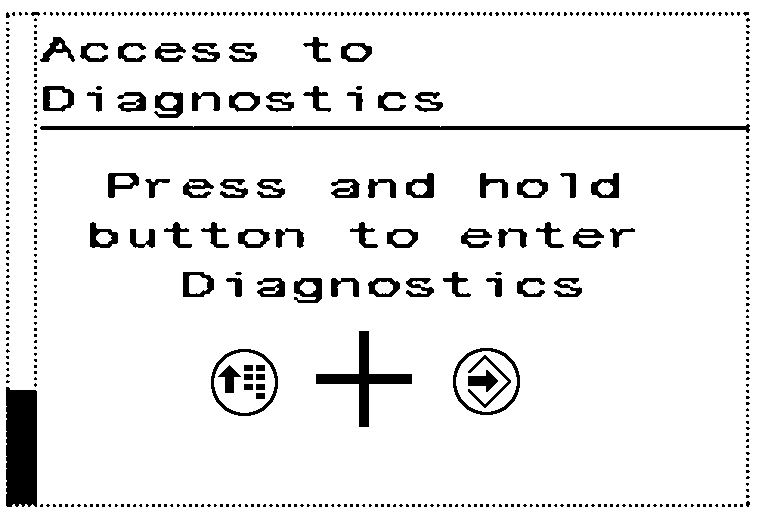
LX1054062-UN-27JUN12Access to Diagnosis
Press and simultaneously hold the menu button and enter button until the instrument unit changes to its diagnostic mode. -
Use the menu button to select the desired control software.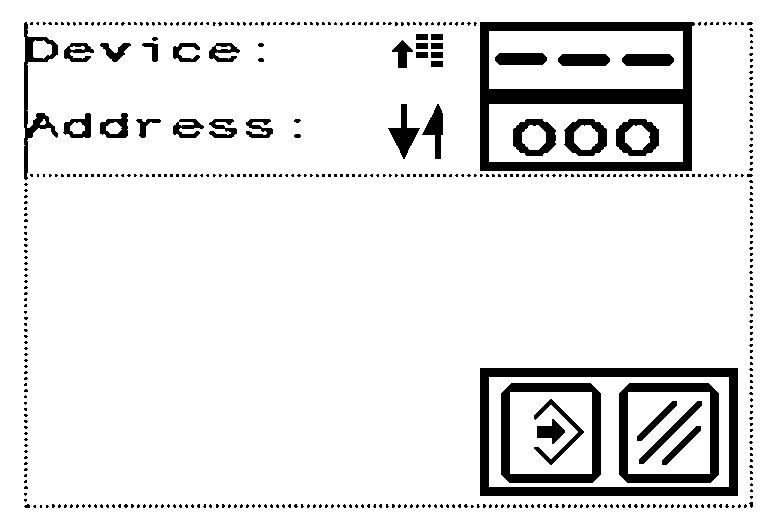
LX1054063-UN-27JUN12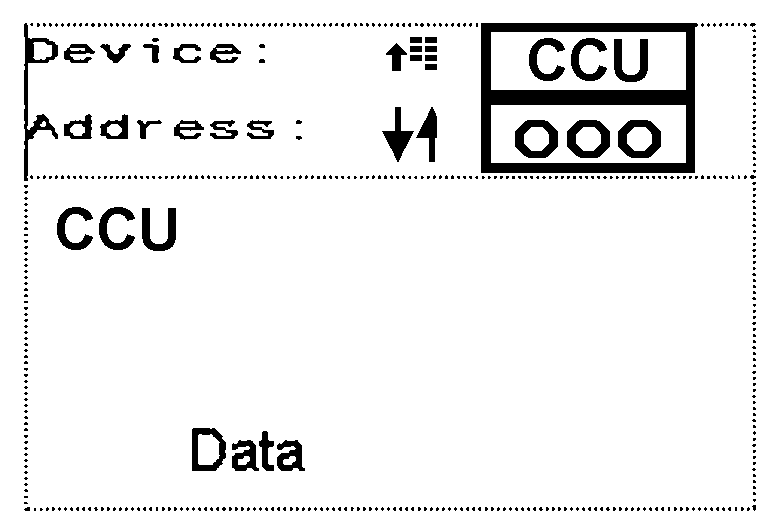
LX1058314-UN-27JUN12NOTE: Control software list can vary depending on installed options.
-
Use the scroll keys to navigate through the list of addresses.
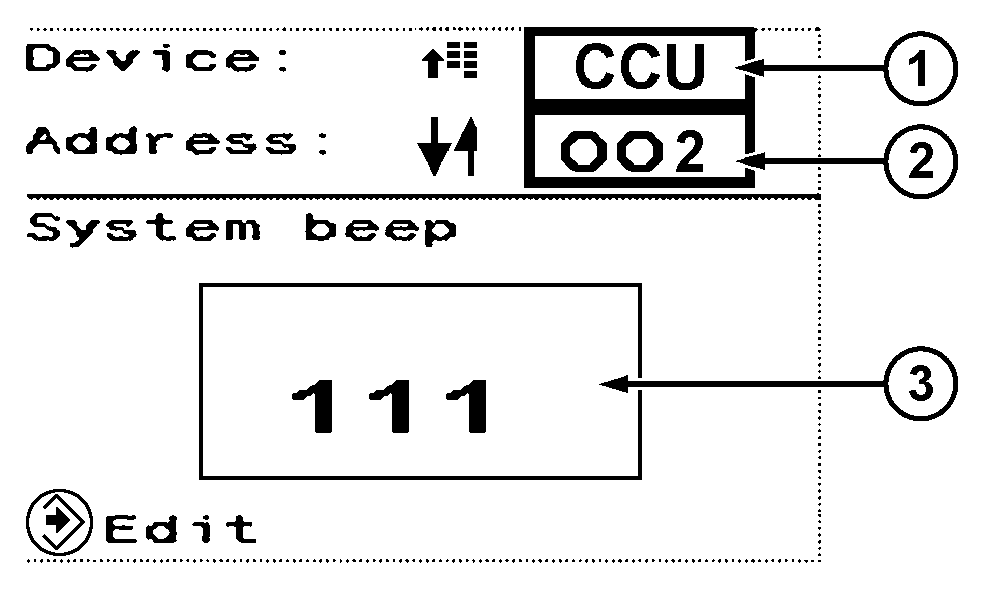
LX1058315-UN-27JUN121 - Control Software
2 - Address
3 - Value of Selected Address
-
The displayed value can only be changed in an input address.
At the address where the value is to be changed, press the enter key.
Use the scroll keys to set the value as appropriate, then press the confirm button.
Press and hold the confirm button and menu button to cancel or exit.
|
OULXA64,000381D-19-20150702 |