Setting Cab Lighting
-
Select Menu button.
-
Select Display.
RXA0098156-UN-07NOV08CommandARM™ Menu Button
RXA0099747-UN-14JUL10Display
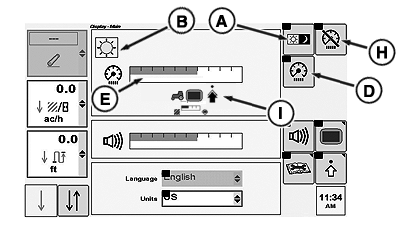
RXA0103977-UN-17JUL09Display Main Page — Day Lighting
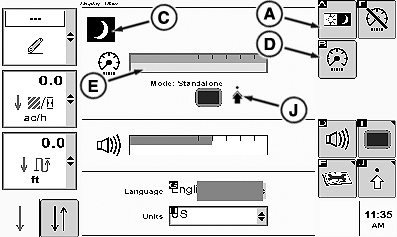
RXA0103978-UN-17JUL09Display Main Page — Night Lighting
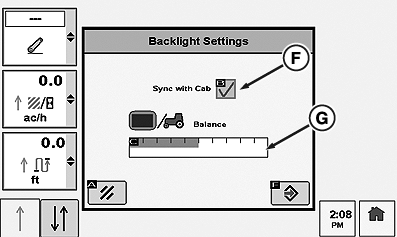
RXA0099534-UN-17OCT08Backlight Settings Page
A - Day/Night Settings Softkey
B - Day Setting Icon
C - Night Setting Icon
D - Adjust Brightness Softkey
E - Bar Graph
F - Check box
G - Bar Graph
H - Dim Mode Softkey
I - Sync With Cab Mode
J - Stand Alone Mode
-
Selecting Day/Night Settings softkey (A) toggles between day setting (B) or night Setting (C).
-
Select adjust Brightness softkey (D).
NOTE: As bar graph value goes up, cab lighting brightens. As bar graph value decreases, cab lighting dims.
-
When bar graph (E) highlights, rotate thumb wheel forward to brighten cab lighting or rearward to dim cab lighting.
-
When Back Light Settings page displays, select check box (F).
-
Rotate thumb wheel to highlight bar scale (G).
-
Press Confirm button, then using thumb wheel scroll forward to lighten back lighting or rearward to darken back lighting.
NOTE: Selecting check box (F) will toggle between either stand alone (I) or synchronization with cab mode (J).
Selecting Dim Mode softkey (H) darkens CommandCenter. This feature allows operator to go from field operations when CommandCenter is required to driving on road without CommandCenter illumination affecting drivers night vision.
-
To change between sync with cab mode to stand alone mode, click on the appropriate icon (I or J).
|
CommandARM is a trademark of Deere & Company |
OURX935,0000128-19-20101104 |