Setting Implement Width, Area Counter and Distance Counter
RXA0098156-UN-07NOV08
CommandARM™ Menu Button
RXA0103917-UN-10JUL09
Home → Performance Monitor Main Softkey
RXA0104280-UN-11AUG09
Performance Monitor Page
RXA0104277-UN-11AUG09
Area Counter Control Source Modes
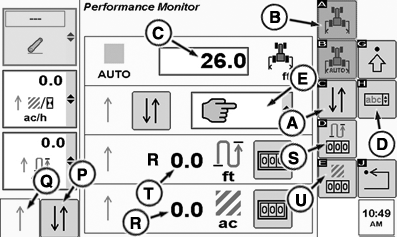
A - Area Counter Status Softkey
B - Implement Width Softkey
C - Implement Width Input Box
D - Area Counter Control Source Softkey
E - Area Counter Control Source Drop Down Box
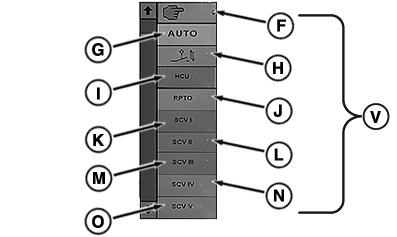
F - Manual Mode
G - Auto Mode
H - Switch Mode
I - Hitch Control Unit (HCU) Mode
J - Rear PTO Mode
K - SCV I Mode
L - SCV II Mode
M - SCV III Mode
N - SCV IV Mode
O - SCV V Mode
P - Area Counter Status Softkey
Q - Positional Indicator
R - Area Counter Display
S - Reset Distance Counter Softkey
T - Distance Counter Display
U - Reset Area Counter Softkey
V - Area Counter Control Source Modes
-
Select Menu button.
-
Select Home.
-
Select Performance Monitor Main softkey.
-
Select Implement Width softkey (B).
-
Select Confirm button. Implement Width Input box (C) highlights.
-
Using thumb wheel scroll to desired number to set the width of equipment.
-
Select Confirm button.
-
Select Reset Distance Counter softkey (S), hold for 3 seconds, this will zero Reset Distance Counter Display (T) .
NOTE: If Area Counter Control Source manual mode (F) is selected, implement status can be changed (toggled) by selecting Area Counter Status softkey (A or P) or Area Counter Control Source softkey (D). Position indicator (Q) will toggle Up or Down. Implement must be down to begin counting distance or area.
-
Select Reset Area Counter softkey (U), hold for 3 seconds, this will zero Reset Area Counter display (R).
-
Select Area Counter Control Source softkey (D). At Area Counter Control Source drop down box (E), make selection from available area counter control source modes (V).
|
CommandARM is a trademark of Deere & Company |
OURX935,000012A-19-20101104 |