Operating Intelligent Total Equipment Control (iTEC™) While Moving
NOTE: The tractor can not be in park while learning or executing a sequence. Tractor drive lever must be in a forward position to begin learning or executing set speeds, gears, or Automatic Power Shift (APS).
-
Select iTEC.

RXA0103927-UN-24JUL09iTEC
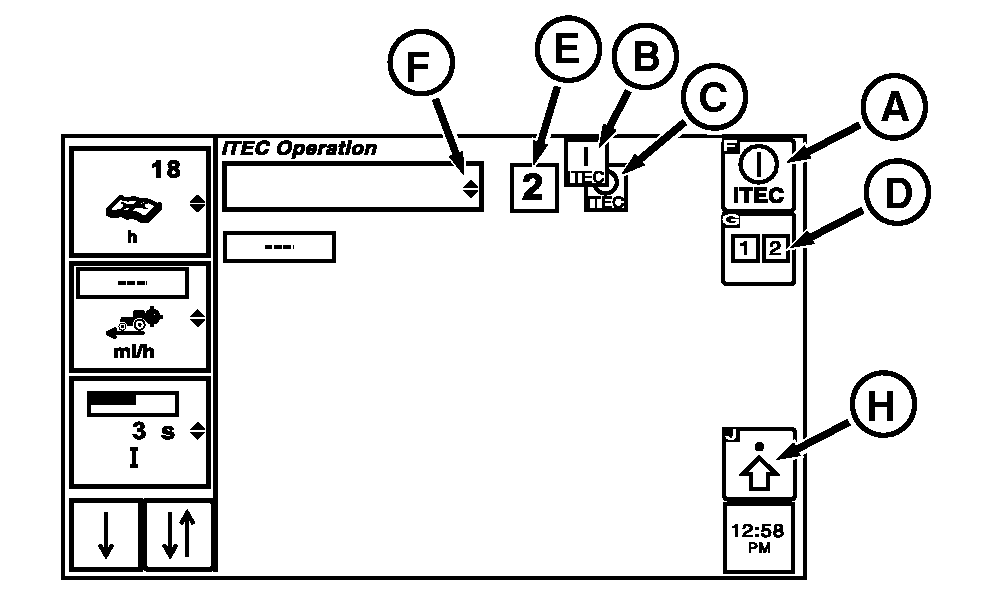
RXA0104369-UN-25AUG09Operations Page
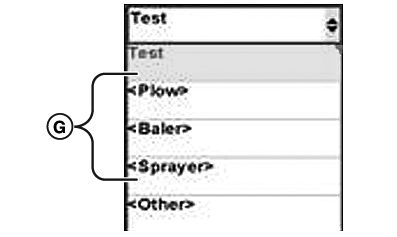
RXA0104305-UN-25AUG09Implement Name Drop Down Box Options
A - iTEC Softkey
B - iTEC ON Indicator
C - iTEC OFF Indicator
D - Sequence Softkey
E - PTO On Icon
F - Implement Name Drop Down Box
G - Loaded Implement Names
H - Advanced Settings Softkey
-
Select iTEC softkey (A).
NOTE: iTEC icon is either ON (B) or OFF (C). When iTEC system is on, icon is highlighted. If iTEC is on and recording, iTEC icon is highlighted and flashing.
-
Check to ensure iTEC ON indicator (B) is displayed.
NOTE: When sequence is selected, that sequence number (E) is displayed on page.
-
Select Sequence softkey (D) for sequence 1 or 2.
-
Scroll thumb wheel to Implement Name drop down box (F) and press Confirm button for list of loaded implement names (G).
NOTE: If implement name has not been loaded, refer to Entering Equipment On iTEC Editing Page in this section of the Operator's Manual.
-
Scroll thumb wheel to selected implement name in drop down box.
-
Select Confirm button.
-
To load program for sequence, 1 or 2, select advanced settings softkey (H).
-
Place tractor in motion.
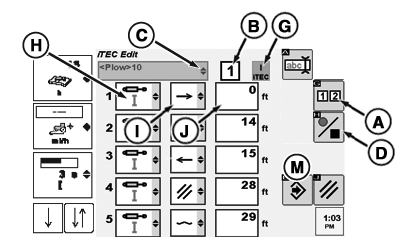
RXA0104374-UN-26AUG09iTEC Edit Page
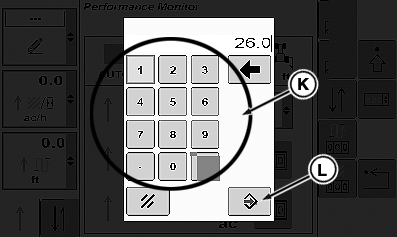
RXA0104376-UN-26AUG09Key Pad
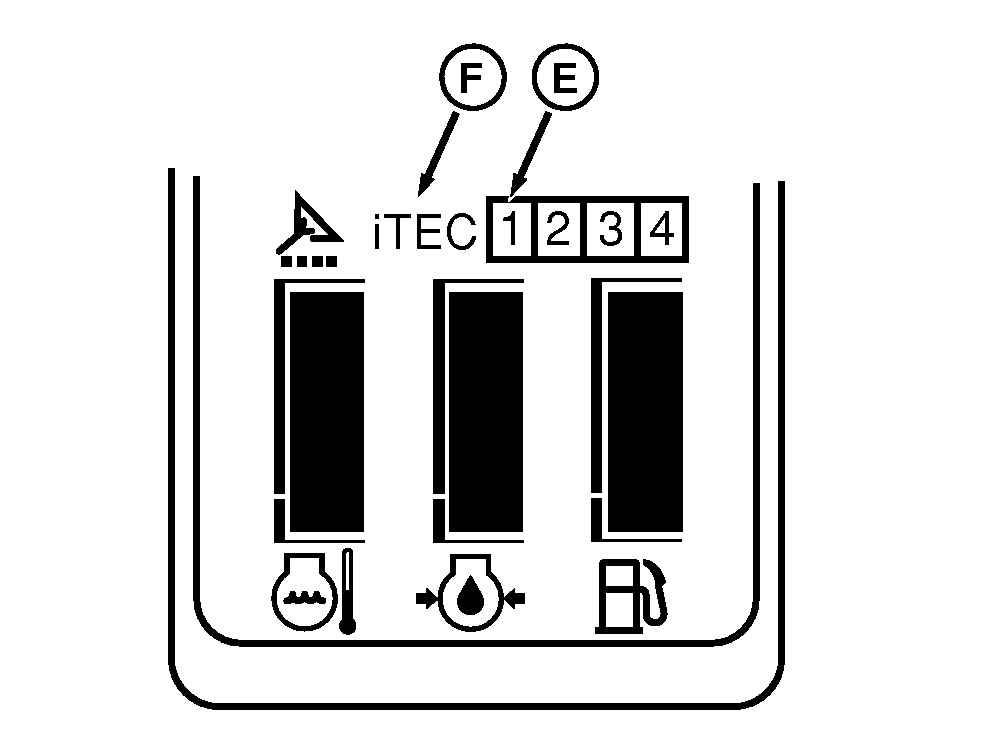
RXA0104524-UN-26AUG09Corner Post Display
A - Sequence Softkey
B - Indicator Box
C - Implement Name Drop Down Box
D - Start/Stop Record Sequence Softkey
E - Corner Post Display iTEC
F - Sequence Number
G - iTEC Indicator
H - Function Drop Down Box
I - Operation Drop Down Box
J - Distance Box
K - Key Pad
L - Save/Enter Softkey
M - Save/Enter Softkey
-
Select Sequence softkey (A) for selected sequence.
-
Make sure sequence is displayed by indictor box (B)
NOTE: If implement is not loaded in Implement Name drop down box (C), see Entering Equipment on iTEC editing page in this section.
-
Make sure implement name is correct and if not, rotate thumb wheel to implement drop down box to select required implement name.
NOTE: When Record On/Off softkey is selected, corner post display iTec (E) light is on and sequence number (F) begins flashing. iTEC indicator (G) begins flashing.
-
Select Record ON/Off softkey (D).
NOTE: For a complete list of functions available, see Description And Display in this section of Operators Manual.
-
Rotate thumb wheel to function drop down box (H) and select SCV 1 for example.
-
Rotate thumb wheel to operation drop down box (I) and select operation, extend for example.
-
Rotate thumb wheel to distance drop down box (J), then select Confirm button.
-
When key pad displays, using key pad keys (K) select distance before function begins.
-
Press Save/Enter key (L).
-
Using the same procedures listed in steps 14 through 17, enter each function up to 20 functions.
-
After all functions are loaded, select Save/Enter softkey (M).
NOTE: The sequence is now in memory. Each consecutive time tractor is at edge of field, select sequence, then functions are executed in the same distance that they were recorded.
Execution of a sequence cannot start below 0.5 km/h (0.3 mph). If during execution a sequence speed drops below 0.5 kph (0.3 mph), no further function execution via iTEC will occur until speed is greater than 0.5 kph (0.3 mph).
|
iTEC is a trademark of Deere & Company |
OURX935,0000156-19-20101109 |