Setting 1-Up Display
1.
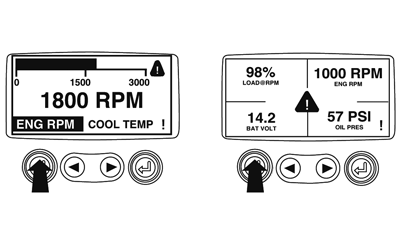
In one or four engine parameter screen, touch "Menu Button".
|
|
|
|
AS60558,00011FD -19-26JAN09-1/14
|
|
2.
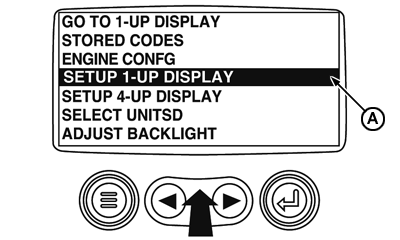
Main menu appears on display. Use "Arrow Buttons" to browse until "Setup 1-Up Display" is highlighted.
A-1-Up display setting icon
|
|
|
|
AS60558,00011FD -19-26JAN09-2/14
|
|
3.
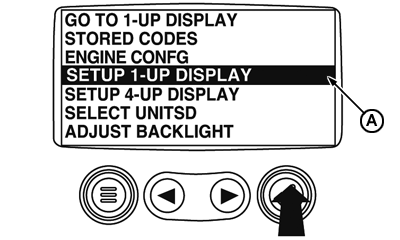
When menu item "Setup 1-Up Display" is highlighted, touch "Enter Button" to access "Setup 1-Up Display" function.
4.
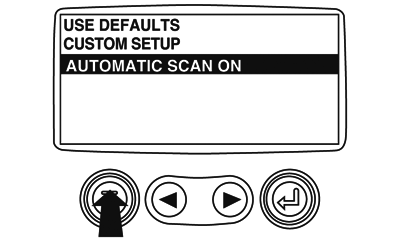
There are three available options for changing 1-Up Display.
a.
Use Defaults:
This option contains a set of engine parameters: Engine Hours, Engine Speed, System Tension, Battery Tension, % of Engine Load at Current Speed, Coolant Temperature, Oil Pressure.
b.
Custom Setup:
This option allows to modify parameters, number of parameters and order of display.
c.
Automatic Scan:
Selecting the Scan function will make 1-Up Display browse through the selected set of parameters, one at a time, stopping for a moment in each of them.
|
A-1-Up display setting icon
|
|
|
AS60558,00011FD -19-26JAN09-3/14
|
|
5.
Custom Setup:
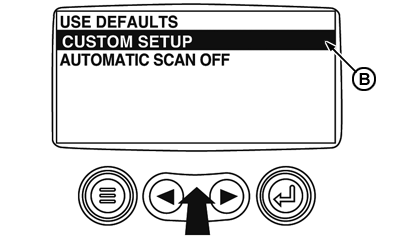
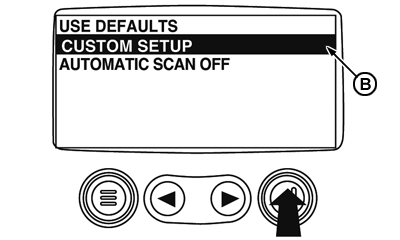
To carry out a custom setting of 1-Up Display, use "Arrow Buttons" to browse and highlight "Custom Setup" on screen.
B-Custom setup icon
|
|
|
|
AS60558,00011FD -19-26JAN09-4/14
|
|
6.
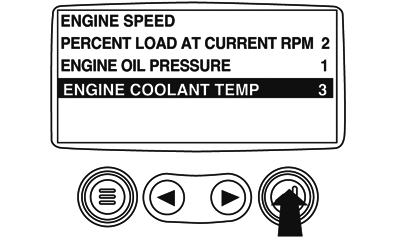
When touching "Enter Button" a list of engine parameters is shown.
B-Custom setup icon
|
|
|
|
AS60558,00011FD -19-26JAN09-5/14
|
|
7.
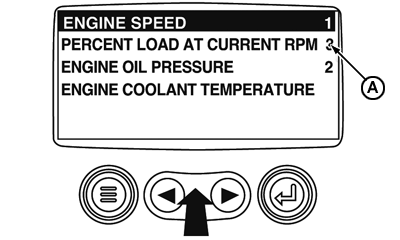
Use "Arrow Buttons" to browse and highlight a selected parameter (the parameter with a # at the right).
A-This number indicates the order of parameter display and that the parameter was selected for display.
|
|
|
|
AS60558,00011FD -19-26JAN09-6/14
|
|
8.
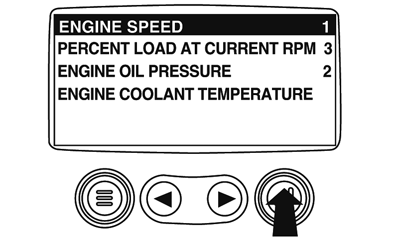
Touch "Enter Button" to uncheck selected parameter, thus removing it from the list of displayed parameters on 1-Up Display.
|
|
|
|
AS60558,00011FD -19-26JAN09-7/14
|
|
9.
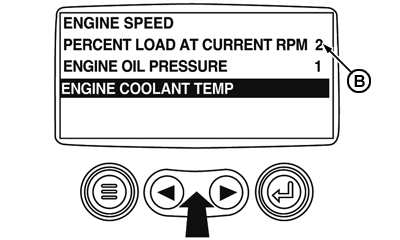
Use "Arrow Buttons" to browse and highlight requested parameters that were not selected for display.
B-Observe that the numbers now indicate the new order of parameter display.
|
|
|
|
AS60558,00011FD -19-26JAN09-8/14
|
|
10.
Touch "Enter Button" to select the highlighted parameter for inclusion in One Engine Parameter Display.
11.
Continue browsing and select additional parameters for custom 1-Up Display. Press "Menu Button" at any time to return to "Custom Setup" menu.
|
|
|
|
AS60558,00011FD -19-26JAN09-9/14
|
|
12.
Automatic Scan:
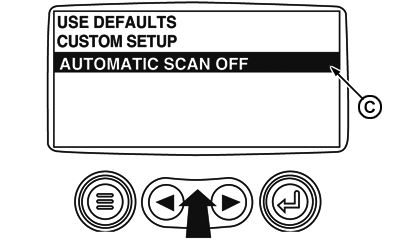
Selecting the Scan function will make 1-Up Display browse through the selected set of parameters, one at a time. Use the "Arrow Buttons" to browse through "Automatic Scan" function.
C-Automatic scan icon
|
|
|
|
AS60558,00011FD -19-26JAN09-10/14
|
|
13.
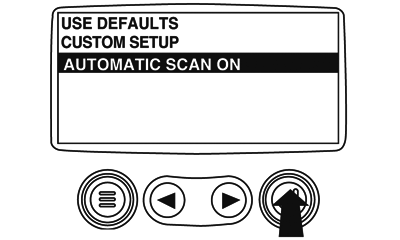
Touch "Enter Button" to enable and disenable "Automatic Scan" function.
|
|
|
|
AS60558,00011FD -19-26JAN09-11/14
|
|
14.
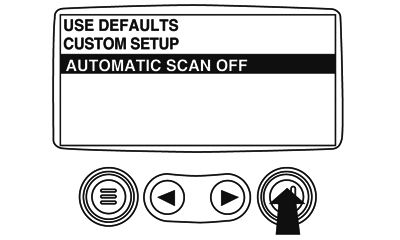
Touching "Enter Button" again disengages "Automatic Scan" function.
|
|
|
|
AS60558,00011FD -19-26JAN09-12/14
|
|
15.
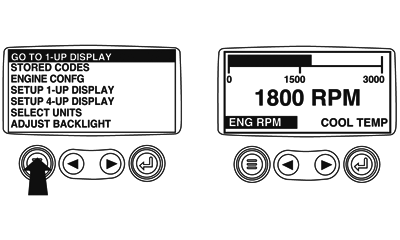
After configuring functions "Use Defaults", "Custom Setup" and "Automatic Scan", touch "Menu Button" to return to main menu.
|
|
|
|
AS60558,00011FD -19-26JAN09-13/14
|
|
16.
Touch "Menu Button" to leave Main Menu and return to engine parameter display.
|
|
|
|
AS60558,00011FD -19-26JAN09-14/14
|
|