Setup 4-Up Display
1.
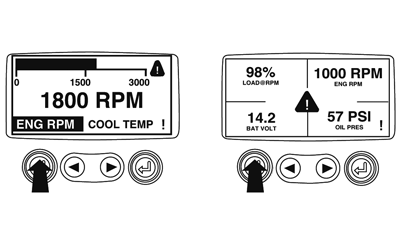
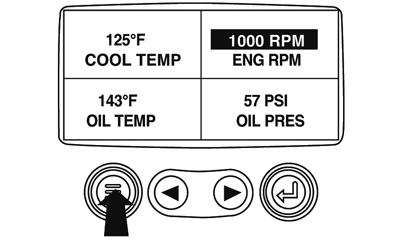
From the single or four engine parameter display touch the "Menu Button".
|
|
|
|
GB52027,000055D -19-23OCT08-1/14
|
|
2.
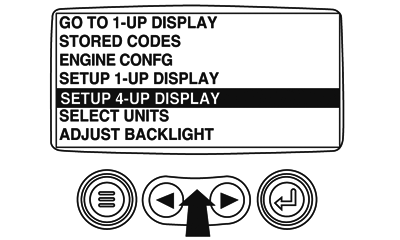
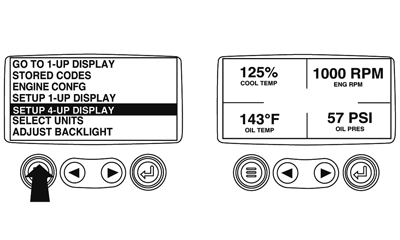
The main menu will pop up on the display. Use the "Arrow Buttons" to scroll through the menu until the "Setup 4-Up Display" is highlighted.
|
|
|
|
GB52027,000055D -19-23OCT08-2/14
|
|
3.
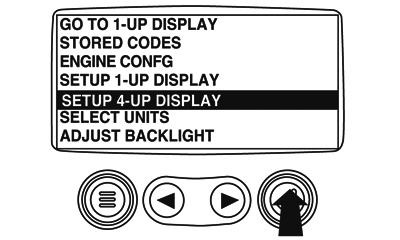
Once the "Setup 4-Up Display" menu item has been highlighted touch the "Enter Button" to activate the "Setup 4-Up Display" menu.
|
|
|
|
GB52027,000055D -19-23OCT08-3/14
|
|
4.
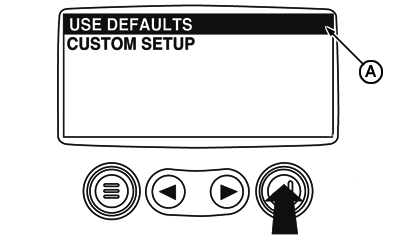
Touch the "Enter Button" to activate the "Use Defaults" function. This action will reset the unit to the factory default.
A-"Use Defaults" icon
|
|
|
|
GB52027,000055D -19-23OCT08-4/14
|
|
5.
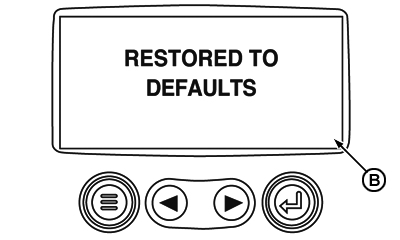
The "Use Defaults" screen will be displayed during the reseting period then will automatically return to the "Setup 4-Up Display" menu.
B-"Restored to Defaults" screen
|
|
|
|
GB52027,000055D -19-23OCT08-5/14
|
|
6.
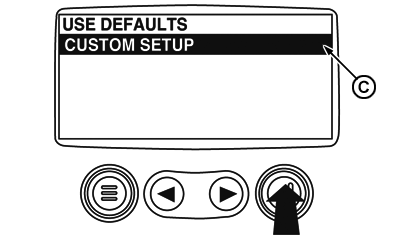
Select the "4-Up Custom Setup" from the "4-Up Setup" menu.
C-"Custom Setup" icon
|
|
|
|
GB52027,000055D -19-23OCT08-6/14
|
|
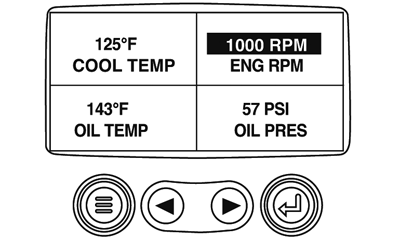
7.
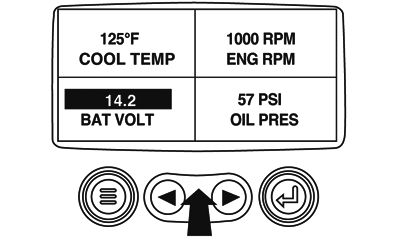
The quadrant with the backlit parameter value is the current selected parameter. Use the "Arrow Buttons" to highlight the parameter value in the quadrant you wish to place a new parameter.
|
|
|
|
GB52027,000055D -19-23OCT08-7/14
|
|
8.
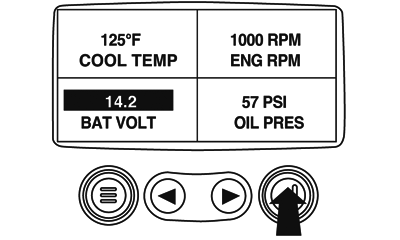
Touch the "Enter Button" and a list of parameters will appear.
|
|
|
|
GB52027,000055D -19-23OCT08-8/14
|
|
9.
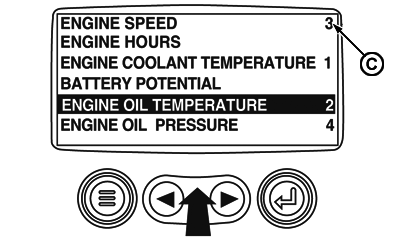
The parameter that is highlighted is the selected parameter for the screen. Use the "Arrow Buttons" to highlight the new parameter to be placed in the quadrant selected in the previous screen.
C-The number to the right of the parameter indicates the quadrant in whitch it is displayed.
1 -Upper left quadrant
2 -Lower left quadrant
3 -Upper Right quadrant
4 -Lower Right quadrant
|
|
|
|
GB52027,000055D -19-23OCT08-9/14
|
|
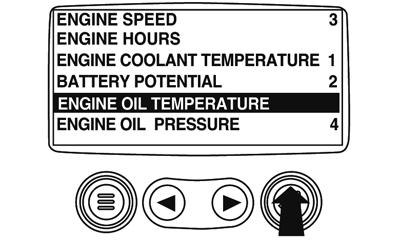
10.
Touch the "Enter Button" to change the selected parameter in the quadrant to the new parameter.
|
|
|
|
GB52027,000055D -19-23OCT08-10/14
|
|
11.
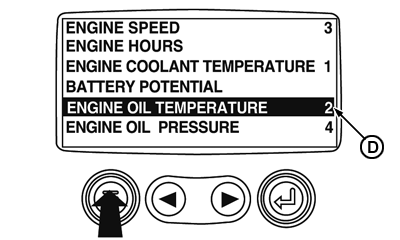
Use the "Menu Button" to return to the "4-Up Custom Setup" screen.
D-Parameter display location
|
|
|
|
GB52027,000055D -19-23OCT08-11/14
|
|
12.
The paramenter in the selected quadrant has changed to the parameter selected in the previous screen.
13.
Repeat the parameter selection process until all spaces are filled.
|
|
|
|
GB52027,000055D -19-23OCT08-12/14
|
|
14.
Touch the "Menu Button" to return to the main menu.
|
|
|
|
GB52027,000055D -19-23OCT08-13/14
|
|
15.
Touch the "Menu Button" to exit the Main menu and return to the engine parameter display.
|
|
|
|
GB52027,000055D -19-23OCT08-14/14
|
|