Diagnostic Readings, About, Display Tests
T8120001781-UN-09OCT12
H95849-UN-31MAR10
Display
Settings Softkey
Select display settings softkey.
Diagnostic Readings:
T8T759-UN-09JUL14
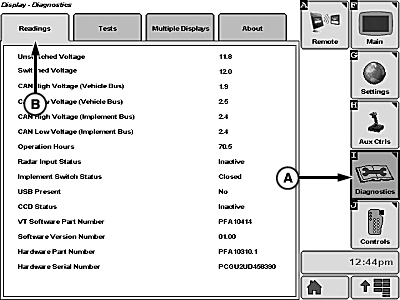
A - Diagnostics Softkey
B - Readings Tab
Select diagnostics softkey (A) and readings tab (B).Screen displays the following:
- Unswitched Voltage
- Switched Voltage
- CAN High Voltage (Vehicle Bus)
- CAN High Voltage (Implement Bus)
- CAN Low Voltage (Vehicle Bus)
- CAN Low Voltage (Implement Bus)
- Display Operation Hours
-
USB Present
NOTE: Universal Serial Bus (USB) connector is located under
armrest. Connector is used for basic diagnostic readings and to transfer
data. Do not plug phone or audio devices into this connector. This
connector is NOT for charging consumer devices.
About Menu:
T8T760-UN-09JUL14
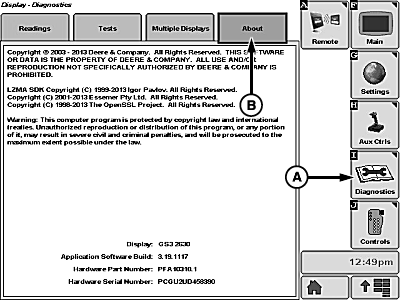
A - Diagnostics Softkey
B - About Tab
Select diagnostics softkey (A) and about tab (B).Screen displays the following:
- Copyright Information
-
Software and Hardware Information
- Hardware Part Number
- Hardware Serial Number
- Software Part Number
- Software Version Number
- Application Build Number
Display Tests:
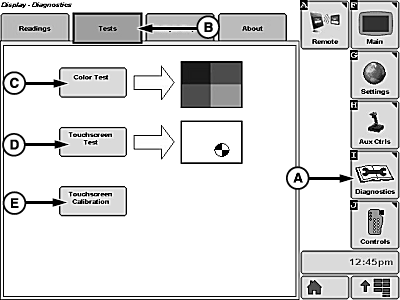
T8T761-UN-09JUL14
A - Diagnostics Softkey
B - Tests Tab
C - Color Test Softkey
D - Touchscreen Test Softkey
E - Touchscreen Calibration Softkey
Select diagnostics softkey (A) and tests tab (B).Display Color Test:
Select color test softkey (C).
- Display tests color of screen (diagram appears with red, blue, and green).
- If you do not see test colors, see your John Deere dealer.
Touchscreen Test:
Select touchscreen test softkey (D).
-
Test allows operator to identify pixel problems on screen.
- When screen is touched a sighting target appears on area touched.
- Continue to touch screen around area of suspected pixel malfunction and see if sighting target appears.
- If sighting target does not appear, see your John Deere dealer.
Touchscreen Calibration:
Select touchscreen calibration softkey (E).
- Another screen appears with an X in upper right corner.
- Press screen at X and continue to follow Xs around screen. Always press screen directly at center of X.
NOTE: Touchscreen calibration cancels any saved calibrations and allows operator to start over and perform a new calibration.
|
WM05597,0001130-19-20141114 |