Set Crop Divider Pressures and Base Cutter Target Height
-
T8T560-UN-13JUN14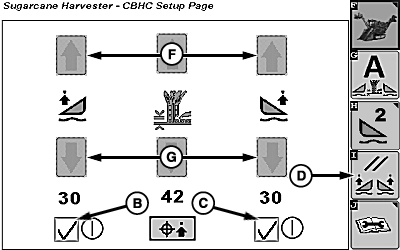
T8T2946-UN-01SEP15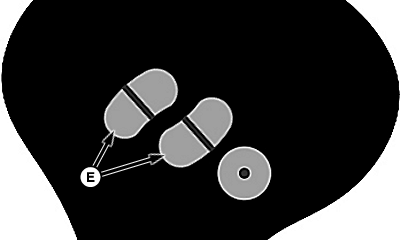
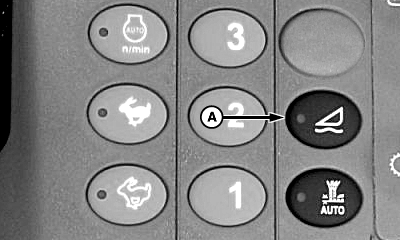
T8T1915-UN-28JAN15A - Switch
B - Left-Hand Floating Crop Divider Enable Box
C - Right-Hand Floating Crop Divider Enable Box
D - Floating Crop Divider Reset Softkey
E - Left-Hand and Right-Hand Crop Divider Down Switch
F - Floating Crop Divider Pressure Increase Softkeys
G - Floating Crop Divider Pressure Decrease Softkeys
Press switch (A) to enable Floating Crop Dividers. -
Verify corresponding enable boxes (B and C) display checkmarks to enable floating crop dividers for desired side or sides.
-
Press floating crop divider reset softkey (D).
-
Turn OFF park brake switch and position harvester at beginning of a previously cut row.
-
Engage harvesting functions in forward motion.
-
Verify that multi-function lever is in neutral or forward position.
-
Press left-hand crop divider down switch (E) once (single-click) to activate both floating crop dividers.
NOTE: If only one crop divider is enabled with box (B or C), only that crop divider floats.
-
Slowly run harvester down previously cut row. If crop dividers are dragging, increase pressure percentage on crop divider by pressing corresponding floating crop divider pressure increase softkeys (F).
-
Set crop divider pressures:
NOTE: When harvester is not moving, system goes into pause mode.
-
Slowly run harvester down previously cut row.
-
Lower base cutter so crop dividers contact ground.
-
Raise base cutter slightly.
-
Crop dividers should fall to ground as base cutter is raised.
-
If crop dividers do not fall when raising base cutter, decrease pressure percentage on crop divider by pressing corresponding floating crop divider pressure decrease softkeys (G).
-
Repeat steps A—E as needed until crop dividers lower sufficiently when base cutter is raised.
-
-
Decrease crop divider pressure percentages slightly to account for pressure from cane stalks.
NOTE: If soil is hard, crop divider pressures may be increased slightly.
If harvester raises a lot while cutting cane, lower crop divider pressures.
-
T8T561-UN-13JUN14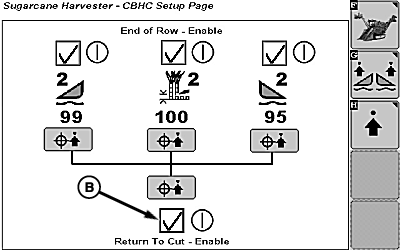
T8T2947-UN-01SEP15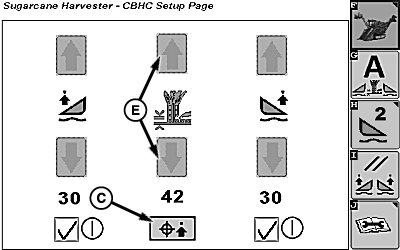
T8T2948-UN-01SEP15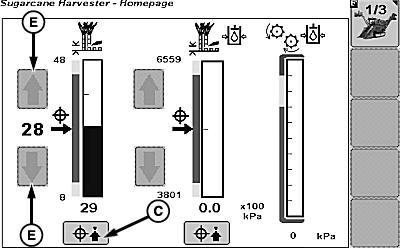
T8T1893-UN-22JAN15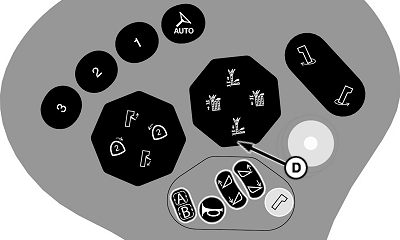
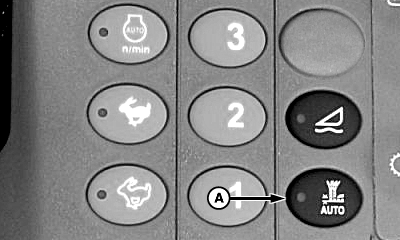
T8T1907-UN-27JAN15A - Switch
B - Return To Cut Enable Box
C - Base Cutter Target Capture Softkey
D - Base Cutter Down Switch
E - Contour Base Cutter Height Control Increase and Decrease Softkeys
Position harvester at beginning of row. -
Verify that floating crop dividers are activated.
-
Press switch (A) to enable Contour Base Cutter Height Control.
-
Return to cut enable box (B) must display checkmark within armrest display.
-
Cut cane manually and find the desired base cutter height.
NOTE: Base cutter target capture and adjustment can be done from base cutter screen or home page.
-
Press base cutter target capture softkey (C).
-
Press base cutter down switch (D) once (single-click) to activate contour base cutter height control.
-
Press contour base cutter height control increase or decrease softkeys (E) to modify base cutter target height.
NOTE: A single select is slow advance. A select and hold is quick advance.
-
If target and actual base cutter values are far apart, select and hold base cutter target capture softkey (C) for five seconds on consistent ground to calibrate and sync target and actual base cutter position. If calibration is successful, a confirmation alarm sounds.
|
WM05597,00013A0-19-20150901 |