Brightness Level and Boundary Box Color
T8120001781-UN-09OCT12
H95849-UN-31MAR10
Display
Settings Softkey
Select display settings softkey.
Brightness Level:
T8T752-UN-08JUL14
T8T753-UN-08JUL14
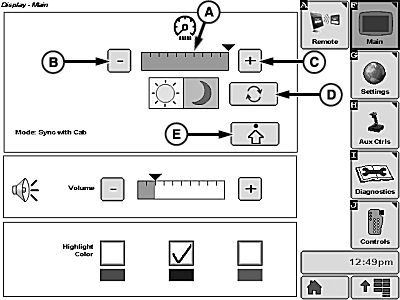
A - Bar Graph
B - Decrease Softkey
C - Increase Softkey
D - Day/Night Softkey
E - Advanced Backlighting Settings Softkey
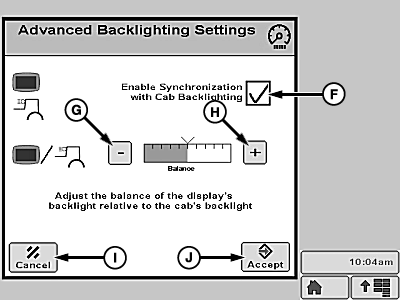
F - Checkbox
G - Decrease Softkey
H - Increase Softkey
I - Cancel Softkey
J - Enter/Accept Softkey
Allows operator to control brightness level of screen.Brightness is displayed on bar graph (A).
Select decrease softkey (B) or increase softkey (C) to select brightness level of screen.
- Increase brightness bar graph to brighten screen.
- Decrease brightness bar graph to darken screen.
Day/Night Settings:
NOTE: Day/Night softkey only appears in standalone mode.
Allows operator to toggle between day or night settings.
Select day/night softkey (D) to toggle between day or night settings.
Sync With Cab/Standalone Modes:
Allows operator to synchronize screen with cab lighting or allows screen to work independently from cab lighting.
Select advanced backlighting settings softkey (E) to advance to next screen.
Select checkbox (F) to toggle synchronization with cab backlighting.
- Checked—synchronizes screen and cab backlighting together.
- Unchecked—screen and cab backlighting work independently from each other.
Select decrease softkey (G) or increase softkey (H) to select balance level of screen.
- Increase bar graph to brighten backlighting.
- Decrease bar graph to darken backlighting.
NOTE: Select cancel softkey (I) to clear balance levels.
Select enter/accept softkey (J) to return to previous screen.
Alarm Volume Setting:
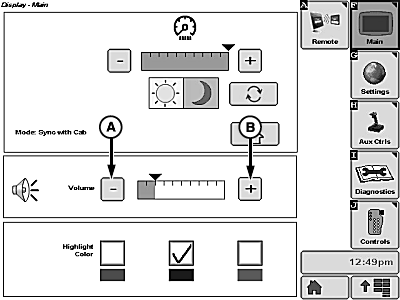
T8T754-UN-08JUL14
A - Decrease Softkey
B - Increase Softkey
Allows operator to set a desired alarm volume.Select decrease softkey (A) or increase softkey (B) to adjust alarm volume.
- Increase bar graph to increase alarm volume.
- Decrease bar graph to decrease alarm volume.
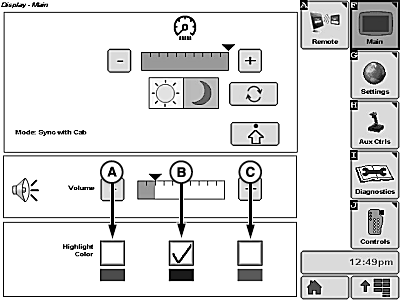
T8T755-UN-08JUL14
A - Green Highlight
B - Blue Highlight
C - Red Highlight
Boundary Box Color Settings:
Allows operator to choose color of boundary box.
NOTE: Color defaults to red at initial power-up of screen.
Select desired color box.
- Green (A)
- Blue (B)
- Red (C)
Box displays a checkmark indicating which color was selected.
|
WM05597,00013FB-19-20151214 |