VisionTrak™ Performance Monitor—Operating

H94473-UN-31MAR10
Combine Setup Icon
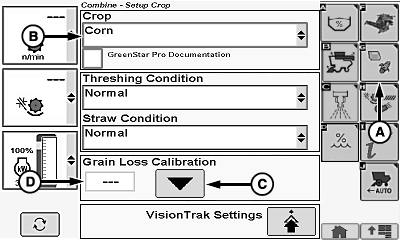
H111423-UN-12JUN14
A - Crop Setup Icon
B - Crop Menu
C - Calibration Icon
D - Grain Loss Calibration Value
VisionTrak™ Performance Monitor is active when:- Header is engaged.
Touch or press confirm switch when combine setup icon is highlighted.
Touch or press confirm switch when crop setup icon (A) is highlighted.
Touch or press confirm switch when crop menu (B) is highlighted.
Crop menu displays the following:
|
Alfalfa |
Lentils |
Rye |
|
Barley |
Lupins |
Safflower |
|
Barley - Spring1 |
Millet |
Sorghum |
|
Barley - Winter1 |
Mustard |
Soybeans |
|
Canola |
Navy Beans |
Sunflower |
|
Chickpeas |
Oats |
Triticale1 |
|
Corn |
Peas |
Wheat-Spring |
|
Edible Beans |
Popcorn |
Wheat-Winter |
|
Flax |
Rape Seed1 |
|
|
Grass Seeds |
Rice |
Once desired crop is chosen, touch or press confirm switch.
Grain Loss Calibration:
Adjust machine and header to acceptable loss levels for particular crop and condition.
Touch or press confirm switch when calibration icon (C) is highlighted.
NOTE: This enters current operating characteristics into memory and centers total loss activity indicator on cornerpost.
Calibration Reference Number:
Touch or press confirm switch when grain loss calibration value (D) is highlighted.
Non-Touchscreen or Touchscreen: Rotate selection dial until desired calibration reference value is shown. Press confirm switch to save value.
Touchscreen Only: Enter desired calibration reference value on numeric display. Touch enter/accept icon to save value.
Shoe/Separator Balance
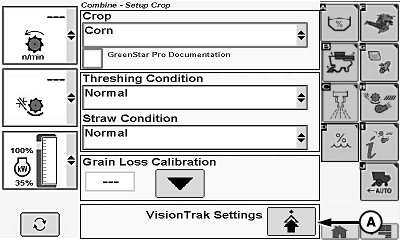
H111420-UN-12JUN14
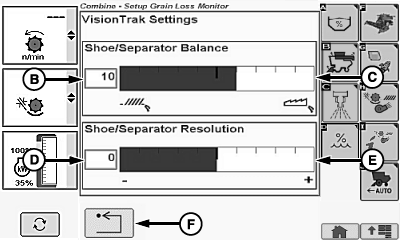
H108629-UN-26JUL13
A - VisionTrak™ Settings Icon
B - Shoe/Separator Balance Box
C - Shoe/Separator Balance Bar Graph
D - Shoe/Separator Resolution Box
E - Shoe/Separator Resolution Bar Graph
F - Return/Back Icon
Adjusts balance of bars between shoe loss indicator and separator loss indicator located on VisionTrak™ display. Adjustment can be used to fine-tune display if losses appear to come from one area of the machine, but more losses are displayed in other area of machine due to crop conditions.
Touch or press confirm switch when VisionTrak™ settings icon (A) is highlighted.
Touch or press confirm switch when shoe/separator balance box (B) or shoe/separator balance bar graph (C) is highlighted.
Shoe/Separator Balance Box Adjustment:
Non-Touchscreen or Touchscreen: Rotate selection dial until desired shoe/separator balance value is shown. Press confirm switch to save value.
Touchscreen Only: Touch or press confirm switch when plus (+) icon or minus (-) icon is highlighted until desired shoe/separator balance value is shown.
Shoe/Separator Balance Bar Graph Adjustment:
Non-Touchscreen or Touchscreen: Rotate selection dial to increase or decrease shoe/separator balance bar graph to desired value. Press confirm switch to save value.
Touchscreen Only: Touch or press confirm switch when plus (+) icon or minus (-) icon is highlighted until desired shoe/separator balance value is shown.
Touch or press confirm switch when return/back icon (F) is highlighted to return to previous page.
Shoe/Separator Resolution
Allows operator to modify number of bars shown on VisionTrak™ display for shoe loss indicator and separator loss indicator (independent of number of center bars).
Touch or press confirm switch when VisionTrak™ settings icon (A) is highlighted.
Touch or press confirm switch when shoe/separator resolution box (D) or shoe/separator resolution bar graph (E) is highlighted.
Shoe/Separator Resolution Box Adjustment:
Non-Touchscreen or Touchscreen: Rotate selection dial until desired shoe/separator resolution value is shown. Press confirm switch to save value.
Touchscreen Only: Touch or press confirm switch when plus (+) icon or minus (-) icon is highlighted until desired shoe/separator resolution value is shown.
Shoe/Separator Resolution Bar Graph Adjustment:
Non-Touchscreen or Touchscreen: Rotate selection dial to increase or decrease shoe/separator resolution bar graph to desired value. Press confirm switch to save value.
Touchscreen Only: Touch or press confirm switch when plus (+) icon or minus (-) icon is highlighted until desired shoe/separator resolution value is shown.
Touch or press confirm switch when return/back icon (F) is highlighted to return to previous page.
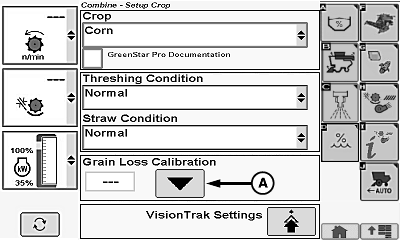
H111424-UN-12JUN14
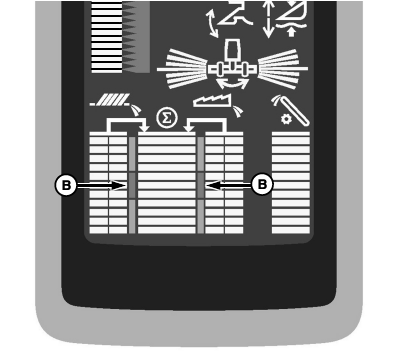
H105941-UN-08OCT12
A - Calibration Icon
B - Normal Range
Set the following on display:-
Select desired crop to be harvested from crop menu.
-
Adjust machine and header to acceptable loss levels for particular crop and condition.
NOTE: Ignore center bar graph on cornerpost at this time.
-
Operate machine at acceptable loss level.
-
Touch or press confirm switch when calibration icon (A) is highlighted to center total loss in the normal range (B). Bar graph indicates machine is operating at total loss levels acceptable by operator in step 3.
-
NOTE:
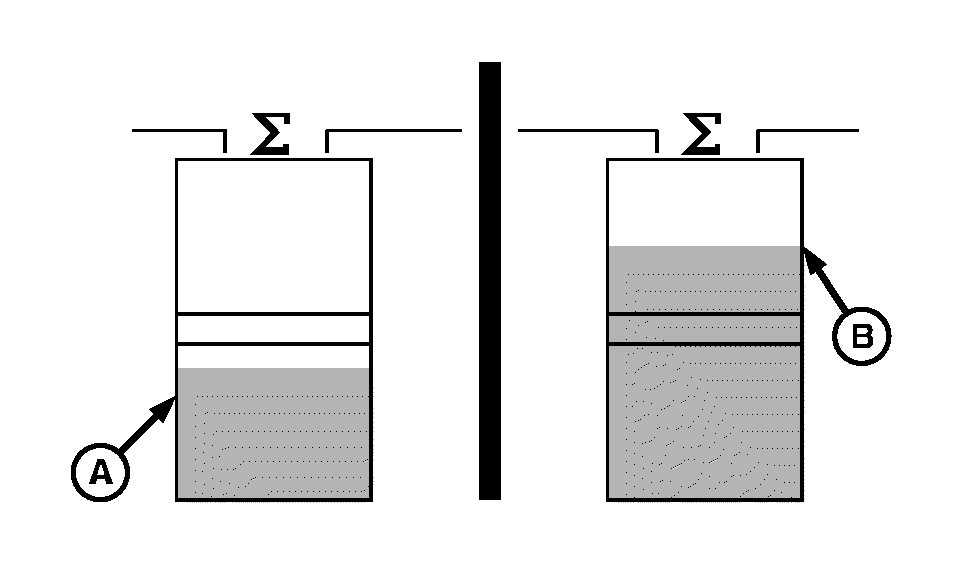
H87033-UN-30NOV06A - Decrease
B - Increase
Bar graph is now a visual guide. Operator can refer to display periodically to know when a decrease (A) or increase (B) in total loss amount occurs. More detailed monitoring can be obtained by monitoring loss levels of the cleaning shoe and separator.When crop conditions change during the day (straw moisture, dew, etc.), make occasional loss checks to determine if readjustment is necessary.
|
VisionTrak is a trademark of Deere & Company 1 European crop listing only. |
OUO6075,0001836-19-20140612 |