iTEC - Main Page, Enter Program Mode

LX1045739-UN-18AUG10
LX1045713-UN-16AUG10
iTEC Main Page
LX1045731-UN-16AUG10
Select Implement
LX1045714-UN-15JUL10
-
Select the iTEC main page via the CommandCenter menu or by pressing the iTEC hotkey on the right console. For more information, see iTEC - CommandCenter Menu and iTEC - Description, Controls and Functions in this Section.
-
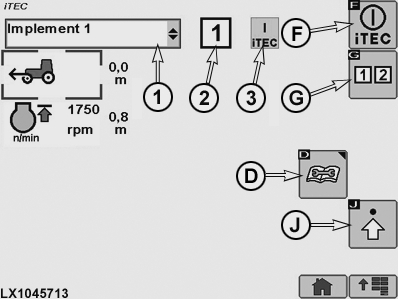
Select iTEC ON/OFF softkey (F) to switch on iTEC.
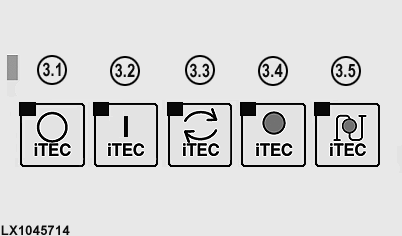
NOTE: iTEC display (3) indicates whether iTEC is switched on or off. When the iTEC system is switched on, the display changes and at the same time the iTEC indicator light comes on on the instrument panel. For more information, see iTEC - Indicator Light on Instrument Panel in this Section.
-
Make sure that iTEC is switched on.
-
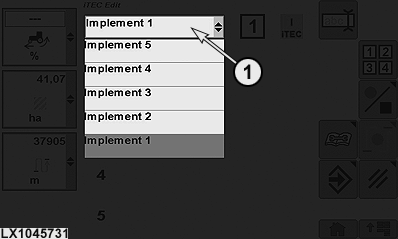
Using thumb wheel, navigate to drop-down box (1, implement selection), then press Confirm button.
-
Select the desired implement from the list and press the Confirm button.
NOTE: The implement can be renamed using the softkey keyboard. See Rename iTEC Implement/Sequence in this Section.
-
Use sequence softkey (G) to select Sequence 1 or 2. When the sequence has been selected, the relevant display appears (2).
-
Select softkey (J; advanced settings) to navigate to the iTEC editing page on which the sequence can be edited. See also iTEC - Editing Mode, Set Up a Sequence While Stationary in this Section.
NOTE: Current status of available functions can be displayed by selecting softkey (D). See also iTEC - Status Page in this Section.
|
1 |
Drop-down box for implement selection |
Indicates the selected implement. To rename, see Rename iTEC Implement/Sequence. |
|
2 |
Sequence display |
Indicates the selected sequence. |
|
3 |
iTEC display |
Indicates status of iTEC. |
|
3.1 |
iTEC display |
iTEC OFF |
|
3.2 |
iTEC display |
iTEC ON |
|
3.3 |
iTEC display |
Sequence is currently executing. |
|
3.4 |
iTEC display |
Learning mode |
|
3.5 |
iTEC display |
Learn distances |
|
D |
Status Softkey |
Select to show current status of available functions. |
|
F |
iTEC ON/OFF softkey |
Use the softkey or the selection wheel in conjunction with the confirm button to switch iTEC on or off. |
|
G |
Sequence softkey |
Use the softkey or the selection wheel in conjunction with the confirm button to select sequence 1 or 2. |
|
J |
Softkey for advanced settings |
Use the softkey or the selection wheel in conjunction with the confirm button to select advanced settings. |
|
OULXA64,0002698-19-20120622 |