CommandCenter™ - Controls and Navigating
NOTE: Viewing information on the CommandCenter™ is similar to viewing information in a book. As you page forward more information is presented. Likewise every display of new information is another page in the CommandCenter™ allowing operator to fine-tune tractor functions.
LX1045872-UN-15FEB11
LX1045873-UN-18FEB11
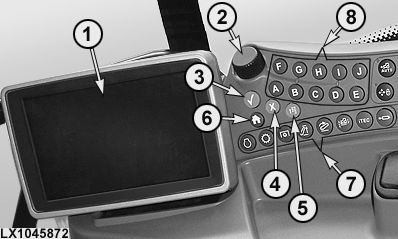
CommandCenter™ (1) allows the operator to access and view
pages and to alter settings required to operate the tractor.
There are three methods of navigating through CommandCenter™
pages:
-
Navigating with thumb wheel (2) and confirm
button (3)
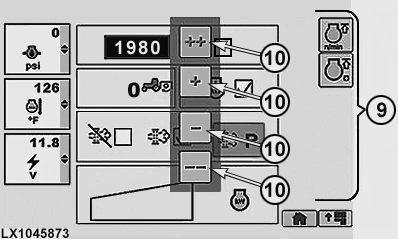
Use thumb wheel (2) to select a specific box or softkey (9) and press confirm button (3). This directs the tractor to perform a function. Press cancel button (4) to void a command. -
Navigating with thumb wheel (2) and hotkeys
(7) and (8)
Use hotkeys (7) to navigate quickly through the system to a page, then use hotkeys (8) or thumb wheel (2) and confirm button (3) to select a specific box or softkey on this page. NOTE: Hotkeys A to J (8) correlate to softkeys (9) on CommandCenter™ pages.
-
Navigating with TouchScreen
The CommandCenter™ may be equipped with TouchScreen. To select the softkeys, touch the softkeys, buttons or icons. To change a setting on a bar graph or box, use the increase or decrease buttons on the keypad, or use the thumb wheel.
There are a variety of input boxes and buttons that allow the
operator to navigate through pages to direct tractor functions.
Primary navigational tools for the controls are listed below:
1 — CommandCenter™ This allows operator to monitor and receive immediate visual feedback on all monitored functions associated with tractor operations.
2 — Thumb wheel This can be turned to allow navigation to the various fields on the pages; it also allows settings in the input boxes to be altered. Rotating thumb wheel forward raises input box values. Rotating thumb wheel rearward lowers input box values.
3 — Confirm button Used to confirm the selected box, input value or softkey.
4 — Cancel Button Cancels or deselects action previously selected.
5 — Menu Button This gives access to the menu and displays the softkeys for the various tractor functions.
6 — Button for CommandCenter™ home page This gives access to the home page and indicates the current status of the various tractor functions.
7 — Hotkeys These enable the operator to gain quick access to a specific function page.
8 — Hotkeys For activating the relevant softkey on the function page.
9 — Hotkeys A- J These enable the operator to gain quick access to a specific function page.
10 — Increase/Decrease value buttons These enable the operator to alter settings by touching the relevant boxes. The ++ and - - allow the operator to make larger incremental changes, while + and - enable the operator to make changes in smaller increments.
|
OULXA64,0002732-19-20120622 |