CommandCenter™ - Set Up Background Lighting of Display
-
RXA0098156-UN-07NOV08Menu Button
RXA0099747-UN-14JUL10Display
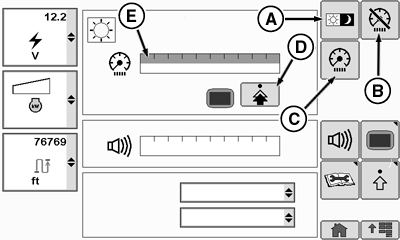
RXA0112572-UN-22DEC10Display Main Page — Background Lighting, Daytime
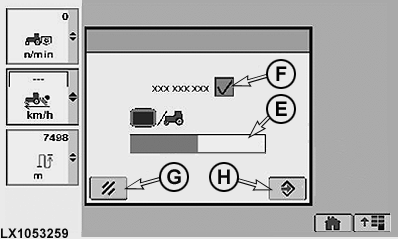
LX1053259-UN-04AUG11Background Lighting Settings Page
A - Softkey for Day/Night Lighting
B - Softkey for Dim Mode
C - Softkey for Dimming Cab Lighting
D - Softkey for Setting Background Lighting
E - Bar Graph for Dimming Cab Lighting
F - Checkbox for Synchronizing Background and Cab Lighting
G - Cancel Softkey
H - Confirm Softkey
Press the menu button. -
Select a display.
-
Selecting softkey (A) for day/night lighting darkens or brightens the CommandCenter™ display for daytime or nighttime operation. This option is only available when the independent mode is activated in the menu for setting background lighting.
-
Selecting Dim Mode softkey (B) darkens CommandCenter™.
This feature allows operator to go from field operations when CommandCenter™ is required to driving on road without CommandCenter™ when illumination may affect driver's night vision.
NOTE: This can also be done by pressing the home page quick button on the CommandARM™ for five seconds.
-
Selecting softkey (C) for dimming cab lighting will display bar graph (E).
NOTE: As bar graph value goes up, cab lighting brightens. As bar graph value goes down, cab lighting darkens.
-
Select softkey (D) for setting background lighting to access the background lighting settings page.
-
Change from "independent mode" to "synchronize with cab" by selecting box (F).
-
Selecting "synchronize with cab" activates bar graph (E) for dimming.
Select softkey (H) for saving the changes. Select softkey (G) for canceling.
|
OULXA64,0002743-19-20120622 |