CommandCenter™ - GreenStar™, Connecting ISOBUS Implements and Multiple ISOBUS Displays
 CAUTION:
RXA0098156-UN-07NOV08
Menu Button
RXA0103918-UN-02AUG10
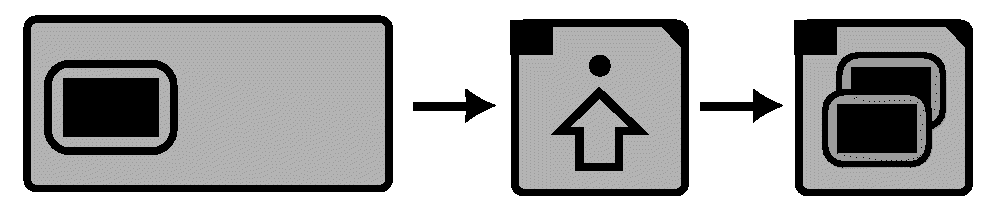
Display → Advanced Settings → Multiple Display
LX1053240-UN-05JUL11
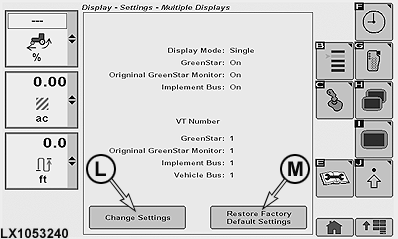
Factory Settings for Multiple Display
LX1053241-UN-05JUL11
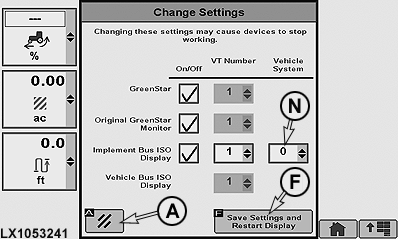
A - Cancel Softkey
F - Softkey for Saving Settings and Restarting Display
L - Softkey for Changing Settings
M - Softkey for Restoring Factory Settings
N - Vehicle Systems Drop-Down List
Implement Detected.Improper operation can cause unintended implement movement.
To avoid death or serious injury to a bystander, understand how this display operates the functions of the implement.
Read and understand the implement Operator's Manual.
This message occurs when the system detects an ISOBUS implement. For more information, READ OPERATOR'S MANUALS FOR ISOBUS IMPLEMENTS.
In some cases it may be necessary to operate with more than one ISOBUS display. In such cases configure CommandCenter™ to recognize and operate in conjunction with a second ISOBUS display.
General Recommendations:
- Ensure ignition is in OFF position when connecting auxiliary ISOBUS displays or ISOBUS implements.
- Restore factory settings before disconnecting an external ISOBUS display.
|
Guide For Display Settings for Multiple Display Pages |
|
|
GreenStar™ Applications |
GreenStar™ applications cannot operate simultaneously on two displays. |
|
Original GreenStar™ |
Original GreenStar™ monitor cannot operate simultaneously on two displays. NOTE: All Original GreenStar™ monitor functions can only be viewed via Original GreenStar™ display, if equipped. |
|
Implement Bus Virtual Terminal |
Implement Bus Virtual Terminal can be active on two ISOBUS displays.
NOTE: Functional instance box may change depending on ISOBUS implement. Consult ISOBUS implement manual. |
|
Vehicle Bus Virtual Terminal |
Vehicle Bus Virtual Terminal cannot be disabled. No adjustment required. |
Connecting and activating ISOBUS implements and multiple ISOBUS displays
-
Press the menu button.
-
Select a display.
-
Select Advanced Settings softkey.
-
Select softkey for multiple displays. The multiple display settings page will be displayed.
Changing these settings may cause implements to stop working.
-
Select softkey (L) for changing settings.
NOTE: When softkey (F) for saving settings and restarting display is selected, the display will be restarted and the new settings will become active.
-
Configure the page as desired and then select softkey (F) for saving settings and restarting display.
To cancel the input procedure, select cancel softkey (A). The page for multiple display settings is displayed.
Single display mode: No other ISOBUS display is connected. GreenStar™ will run on GS3 CommandCenter™.
If a connected ISOBUS implement is not displayed on the GS3 CommandCenter™, the cause for this may be that the implement cannot communicate with the GS3 CommandCenter™. In this case, change the factory settings on the page for multiple display settings.
For establishing the communication between implement and GS3 CommandCenter™, change the value 1 in the vehicle systems drop-down list (N) to 0 and select softkey (F) for saving settings and restarting display.
NOTE: This option will only appear on the change settings page.
Multiple display mode: When an ISOBUS display was connected, a message will appear after 90 seconds informing the operator that a second display was detected. The operator is informed to cycle the key switch. GreenStar™ will run on the second ISOBUS display that is connected.
Custom display mode: Whenever the operator changes a setting on the multiple display settings page, the display changes to custom display mode. When removing the ISOBUS display, while the custom display mode is active, GreenStar™ will no longer appear on the GS3 CommandCenter™.
NOTE: The checkbox for implement bus must be activated when the operator intends to use the next virtual terminal to display an ISOBUS implement, a receiver, SeedStar™ II etc. on the GS3 CommandCenter™.
Removing an ISOBUS display: On the multiple display settings page, select the softkey for restoring factory settings. This key will only appear when settings have been changed. When an ISOBUS display has been removed, a message will appear 90 seconds after starting informing the operator that a display was removed. The GS3 CommandCenter™ will cycle automatically to return to the single display mode.
IMPORTANT: Do not remove displays unless the key switch is in OFF position.
|
OULXA64,000274C-19-20120625 |