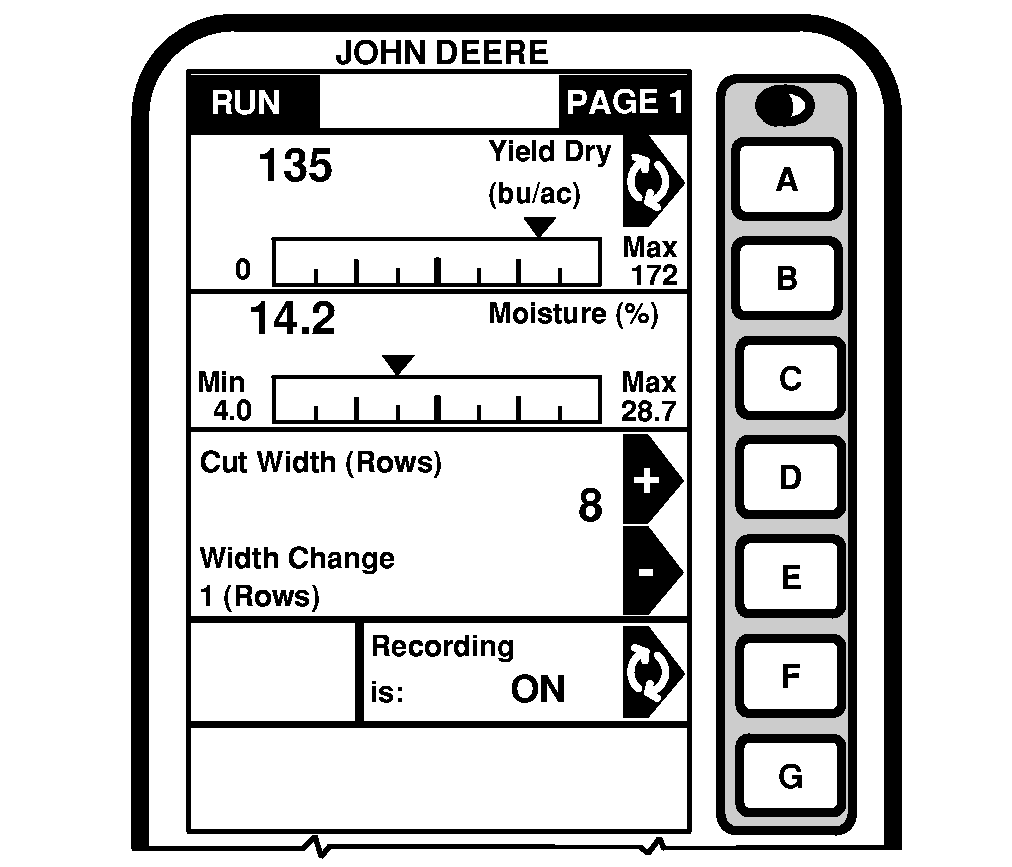
RUN - PAGE 1RUN - PAGE screen can be customized by the operator to display various types of information. Each cell can by customized to perform various functions. The screen shown here is the default RUN PAGE screens (PAGE 1 and PAGE 2). (See Setup Harvest Monitor Setup Functions section). RUN - PAGE 1 screen displays the following information: Yield Dry/WetNOTE: When recording, Yield Wet and Yield Dry are displayed as instantaneous readings. When recording has stopped, yield values represent field averages for both Yield Wet and Yield Dry. See HARVEST MONITOR Specification section for Dry/Wet Weight Tables for specific crops. To change Moisture Correction settings, see Moisture Correction in HARVEST MONITOR Setup Functions section. Yield Dry cell shows number of yield units per number of area units. Yield Dry is the yield units after taking into consideration the removal of moisture. NOTE: When recording is stopped, bar graph will display current yield value as field average. Bar graph displays the current yield of crop being harvested. The pointer will move in relationship to the amount of crop impacting the mass flow sensor. The screen will also display the maximum yield recorded by the sensor. Press letter button next to "Yield Dry/Yield Wet" to toggle between these two settings. |
|
OUO6075,0003102 -19-10OCT03-1/3 |
|
Moisture
NOTE: When recording, moisture is displayed as an instantaneous reading. When recording has stopped, moisture value represents an average moisture for the field. See HARVEST MONITOR Specification section for Dry/Wet Weight Tables for specific crops. To change Moisture Correction settings, see Moisture Correction in HARVEST MONITOR Setup Functions section. This cell shows the moisture content of the grain. IMPORTANT: An asterisk behind current moisture value indicates the value is above or below moisture sensor accuracy limits (see crop curve table for accuracy limits in HARVEST MONITOR Specification section). NOTE: When recording is stopped, current moisture values will be displayed in the bar graph as field average. The bar graph displays current moisture of the crop being harvested. Pointer will move in relation to the current moisture in the moisture sensor. The screen will also display the minimum and maximum moisture as recorded by the sensor. Cut Width / Width ChangeCut width shows the number of rows being harvested or width of cut. Default header width is entered on SETUP - Harv Mon - PAGE 1. If point rows or less than full header width harvest is encountered, the actual number of rows or estimated cut width should be entered to accurately calculate yield/area data. Cut width can be changed by pressing letter button next to plus (+) or minus (-). The width will change in the increments setup in setup Harvest Monitor. To change the setting for cut width see Harvest Monitor SETUP section. |
|
OUO6075,0003102 -19-10OCT03-2/3 |
|
Recording
Recording screen shows the data recording status. To start recording data, all of the following must occur: 1.
Separator engaged.
To stop recording, one of following must occur: 1.
Header raised past Record Stop Height set point; or material is not impacting the mass flow sensor. (See Harvest Monitor SETUP section).
Recording can be manually stopped and restated without raising the header or shutting off the separator (for example, when approaching areas such as headlands, end rows already harvested, waterways, etc., for which recording data is not desired. This is an automatic feature when using recording by material). Press letter button next to "Recording is ON/OFF" to manually stop recording. Display will toggle to RECORDING IS: OFF. Press letter button next to "Recording is ON/OFF" (display will toggle to RECORDING IS: ON) to manually resume recording data. Push header lower button on the combine multi-function handle (a slight touch to the header lower button will start recording data). If recording by material is selected on SETUP - Harv Mon - PAGE 1 recording will start and stop when crop material is impacting the mass flow sensor. |
|
OUO6075,0003102 -19-10OCT03-3/3 |