Select "Apply" to have ICA adjust settings using the shown solution.
"Select "Apply" to have ICA adjust settings using the shown solution." allows you to apply Interactive Combine Adjustment (ICA) recommended solutions.
H116308-UN-25JAN17
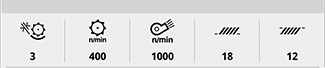
Current Settings
Items Accessible on "Select "Apply" to have ICA adjust settings using the shown solution." Page:Current Settings— communicates the current selected settings.
H116322-UN-25JAN17
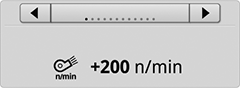
Recommended Solution
Recommended Solutions— allows you to toggle through the system recommended solutions and apply them to the system.

H116582-UN-30JAN17
Edit Issues
Edit Issues— allows you to begin a new session and change the reported issues or return to the previous display.

H116292-UN-30JAN17
Stop Session
Stop Session— select to end session and return to Select areas to improve.Stop Session is the best method to close the application without resolving all issues and starting over if you re-open the application. Adjustments that were made by ICA will not be undone if Stop Session is chosen to close the system.

H116318-UN-25JAN17
Apply
Apply— select to apply the currently selected recommended solution.When "Apply" is clicked after an in-cab adjustment, ICA will close out.
Once Apply is selected and a machine automated adjustment is to be made, a message appears on the display, which can be viewed in the Status Center on the display.
After ICA has applied the recommended solution, ICA begins to monitor performance.

H116310-UN-30JAN17
Close
Select to close the ICA application.ICA will resume in the same place when you re-enter after closing.
|
SS43267,000092E-19-20170621 |