CommandCenter Display
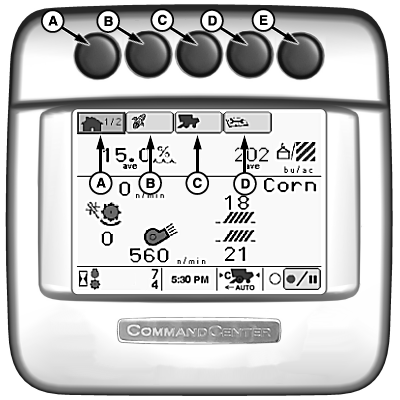
H87480-UN-23APR07
Once information type is selected, press button again to advance through available pages.
Details on each of these pages are given later in this section.
Display Navigation | |||||
|---|---|---|---|---|---|
Button | PAGE 1 | PAGE 2 | PAGE 3 | PAGE 4 | PAGE 5 |
(A) Home | View Harvest Monitor information, crop and machine settings | Viewable machine settings (six reconfigure windows) | |||
(B) Harvesting Information | View Yield and moisture, select and change cut width | View and zero values of fuel use, area/distance, weight and moisture | View and change field totals1 | View and change crop totals1 | |
(C) Combine Setup | Change current machine settings | Select crop, grain seed size, farm and field2 | Select/Change current header settings View header hours | Select/Change moisture alarm min/max, moisture correction and yield units3 | Change Harvest Smart (max harvest speed, target engine speed, response rate, target pressure)4 |
(D) Diagnostics and Calibration | Active Alarms | Calibrations | Diagnostic Readings | Special Tests | |
(E) | Not currently used. | ||||
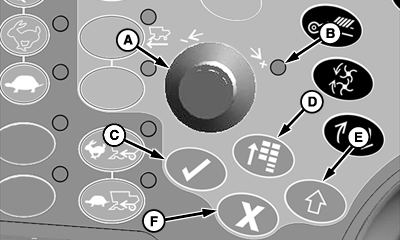
H86932-UN-20NOV06
A - Selection Dial
B - Indicator Light
C - Confirm Switch
D - Main Menu Switch
E - Display Select Switch
F - Cancel Switch
Once desired CommandCenter display page is selected, the display is navigated using the following dial and switches on the armrest:- Selection Dial (A): Rotate dial to:
- Scroll through available items on selected page
- Increase or decrease values in a selected item
- Indicator Light (B): indicates that a switch was selected and now can be adjusted to operator desired position or setting.
- Confirm Switch (C): Once an available item is highlighted on display using selection dial, press switch to:
- Select that item
- Toggle between available selections within that item
- Enter/save a value
- Main Menu Switch (D): Press switch to change active application that display is running. Items or applications in menu include:
- Combine
- On Board Diagnostics Tool (OBDT)
- Display Settings
- NOTE: Display select switch must be activated to navigate between CommandCenter and GreenStar display (if equipped), see your John Deere dealer for further information.
Display Select Switch (E): Press switch to toggle selection dial control between CommandCenter display or GreenStar display (if equipped). - Cancel Switch (F): Press switch to cancel a current selection.
1 Information appears on GreenStar display (if equipped) instead of on CommandCenter. | OUO6075,00000BA-19-20080421 |