Backlight Level Control and Boundary Box Color
H86938-UN-20NOV06
H86231-UN-10JAN07
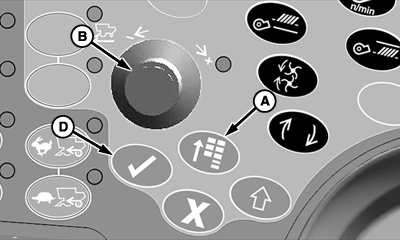
A - Main Menu Switch
B - Selection Dial
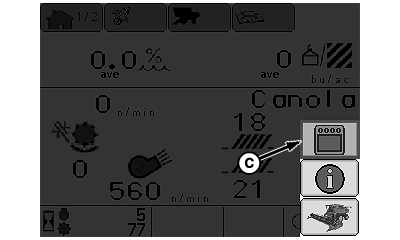
C - Display Settings Icon
D - Confirm Switch
Backlight Setting: controls brightness of screen.Press main menu switch (A) and rotate selection dial (B) until display settings icon (C) is highlighted.
Press confirm switch (D).
H86232-UN-07MAR07
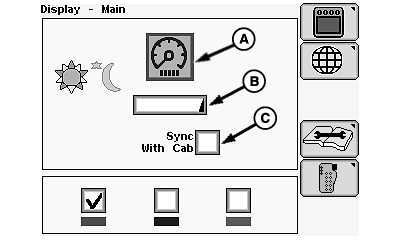
A - Panel Dim Icon
B - Adjusting Indicator
C - Synchronize With Cab Box
Rotate selection dial until panel dim icon (A) is highlighted and press confirm switch.Panel Dim quickly darkens display screen with one button push. When selected, panel dim feature temporarily darkens display screen in order to reduce glare. Screen resumes normal brightness when an alarm condition exists or activates any button on display control.
Rotate selection dial until adjusting indicator (B) is highlighted and press confirm switch.
Rotate selection dial to select brightness level of display.
- Clockwise brightens screen.
- Counterclockwise will darken screen.
Synchronize with Cab synchronizes CommandCenter display with dimmer switch in cab overhead when lights are ON.
Rotate selection dial until synchronize with cab box (C) is highlighted and press confirm switch.
H87036-UN-07MAR07
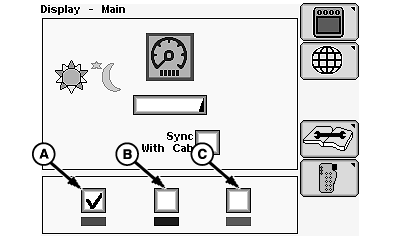
A - Red Highlight
B - Blue Highlight
C - Green Highlight
Boundary Box Color Setting: allows operator to choose color of boundary box.NOTE: Color defaults to red at initial power-up of display.
Rotate selection dial to select color of boundary box:
- Red (A)
- Blue (B)
- Green (C)
Press confirm switch to check desired color.
H86938-UN-20NOV06
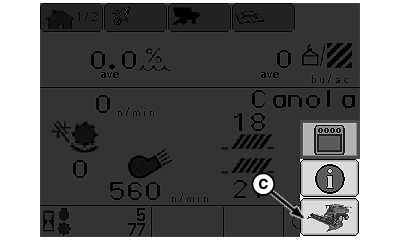
H86236-UN-10JAN07
A - Main Menu Switch
B - Selection Dial
C - Combine Main Page Icon
D - Confirm Switch
Press main menu switch (A) and rotate selection dial (B) until combine main page icon (C) is highlighted.Press confirm switch (D) to return to home page.
OUO6075,00009C7-19-20070330 |