Access Manager Application
H95878-UN-29MAR10
Main Menu Icon (Display) / Main Menu Switch (Armrest)

H95852-UN-31MAR10
Access Manager
Application Icon
Touch or press confirm switch when access manager icon is highlighted.
H95814-UN-05OCT10
H95823-UN-05OCT10
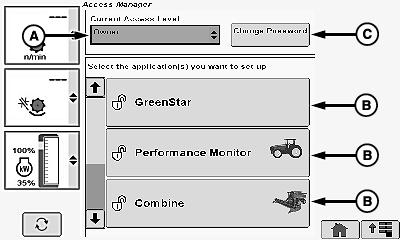
A - Access Level Menu
B - Application
C - Change Password Icon
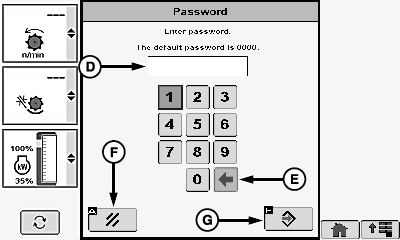
D - Password Menu
E - Back Arrow Icon
F - Cancel Icon
G - Enter/Accept Icon
Access Level Settings:
Allows owner of machine to lock/unlock certain features. If feature is locked, only the owner is able to make changes/adjustments. If feature is unlocked, both the owner and operator are able to make changes/adjustments.
Touch or press confirm switch when access level menu (A) is highlighted.
Screen displays the following:
NOTE: Must be in owner mode to lock/unlock application (B). Password is required when changing from operator mode back to owner mode.
- Operator Mode - certain changes/adjustments are made available when set by owner.
- Owner Mode - determines which changes/adjustments are made available to operators.
Touch or press confirm switch when desired access level is highlighted.
Change Password:
Allows owner of machine to set password preventing operator from making changes/adjustments previously set by owner.
NOTE: If password is lost or forgotten, see your John Deere dealer for further information.
Touch or press confirm switch when change password icon (C) is highlighted.
Touch or press confirm switch to enter digits from calculator into password menu (D).
NOTE: Touch or press confirm switch when back arrow icon (E) is highlighted to delete digits if a mistake is made.
Touch or press confirm switch when cancel icon (F) is highlighted to cancel and return to previous screen.
Touch or press confirm switch when enter/accept icon (G) is highlighted.
H95824-UN-05OCT10
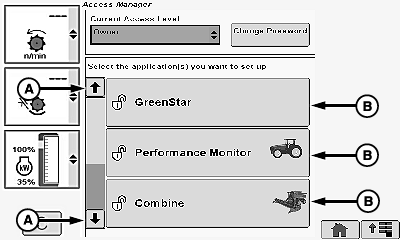
A - Up/Down Arrow Icons
B - Application
Lock/Unlock Applications:
Allows owner the ability to lock/unlock certain features. When locked only certain features are made visible to operator.
Touch or press confirm switch when up/down arrow icon (A) is highlighted to scroll through different applications.
Combine | Display |
Message Center | Layout Manager |
Performance Monitor | Video |
GreenStar | Access Manager |
Touch or press confirm switch when desired application (B) is highlighted.
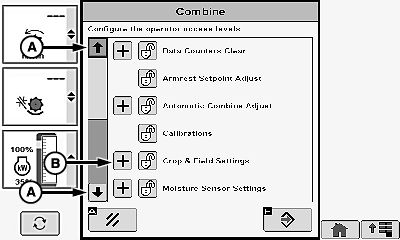
H95825-UN-05OCT10
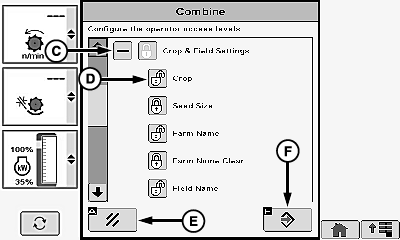
H95826-UN-05OCT10
A - Up/Down Arrow Icons
B - Plus Icon
C - Minus Icon
D - Lock/Unlock Icon
E - Cancel Icon
F - Enter/Accept Icon
Touch or press confirm switch when up/down arrow icons (A) are highlighted to scroll through application sub-functions.Touch or press confirm switch when plus icon (B) (expands sub-function) or minus icon (C) (collapses sub-function) is highlighted.
Touch or press confirm switch when desired sub-function is highlighted.
NOTE: Sub-function toggles between lock/unlock icon (D).
Gray lock means that only some sub-functions are locked.
- Lock Icon - operator will not be able to make changes/adjustments. Owner is only able to make changes/adjustments.
- Unlock Icon - both owner and operator are able to make changes/adjustments.
Repeat as needed for remaining applications.
NOTE: Touch or press confirm switch when cancel icon (E) is highlighted to cancel changes and return to previous screen.
Touch or press confirm switch when enter/accept icon (F) is highlighted.
H95878-UN-29MAR10
Main Menu Icon (Display) / Main Menu Switch (Armrest)
H95845-UN-31MAR10
Combine Main Page
Application Icon
Touch or press confirm switch when combine main page icon is highlighted.
OUO6075,00006F8-19-20101007 |