Harvest Smart Feed Rate—Smart or Capacity Modes
H95948-UN-06APR10
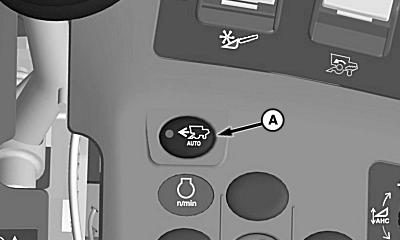
A - Harvest Smart Feed Rate Enable Switch
Press Harvest Smart feed rate enable switch (A) until Smart or Capacity mode is shown on display.Smart Mode:
NOTE:

H94473-UN-31MAR10
Combine Setup Icon
H95949-UN-05OCT10
H95980-UN-05OCT10
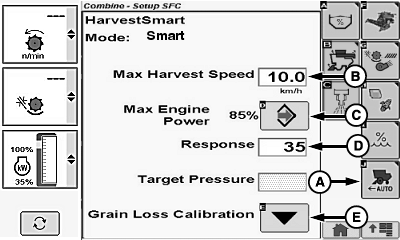
A - Harvest Smart Feed Rate Setup Icon
B - Max Harvest Speed
C - Max Engine Power Icon
D - Response
E - Grain Loss Calibration Icon
Smart mode is the preferred operating method for controlling the machine.Smart mode monitors loss levels with VisionTrak to ensure that system is at operator designated level (loss monitor calibrated). System is set when grain loss calibration icon is selected. When loss monitor levels are consistently above or below operator desired levels, system increases or decreases material flow levels, bringing loss levels back into desired range.
Touch or press confirm switch when combine setup icon is highlighted.
Touch or press confirm switch when Harvest Smart Feed Rate setup icon (A) is highlighted.
Touch or press confirm switch when one of the following is highlighted:
- Max Harvest Speed (B) - sets maximum allowable ground speed for Harvest Smart to travel. System will not exceed setting, regardless of crop volume.
-
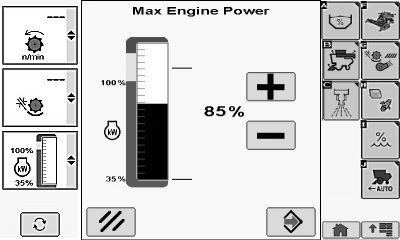
Max Engine Power Icon (C) - sets maximum allowable engine load
at which Harvest Smart is allowed to operate.
- Touch or press confirm switch when plus (+) icon (D) or minus (-) icon (E) is highlighted to increase or decrease maximum engine power.
-
Touch or press confirm switch when enter/accept icon is highlighted.
NOTE: Touch or press confirm switch when cancel icon is highlighted
to return to previous screen.
- Response (D) - sets aggressiveness of Harvest Smart response to crop density changes. High response settings cause machine to make abrupt changes to ground speed maintaining crop volume. Low response settings cause machine to make less aggressive changes.
- Target Pressure - not selectable in Smart mode.
- Grain Loss Calibration Icon (E) - desired grain loss values are set.
Non-Touchscreen or Touchscreen: Rotate selection dial until desired machine value is shown. Press confirm switch to save value.
Touchscreen Only: Enter desired machine value on numeric display. Touch enter/accept icon to save value.
Repeat as needed for other machine settings.
Capacity Mode:
NOTE:
H94473-UN-31MAR10
Combine Setup Icon
H95950-UN-05OCT10
H95980-UN-05OCT10
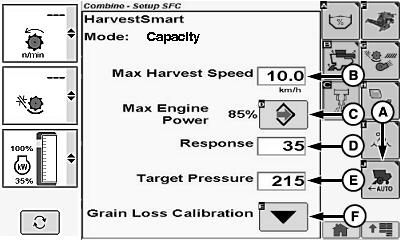
A - Harvest Smart Feed Rate Setup Icon
B - Max Harvest Speed
C - Max Engine Power Icon
D - Response
E - Target Pressure
F - Grain Loss Calibration Icon
Capacity mode should only be used when VisionTrak loss monitor is not reliable (sensors matting over with crop material).Capacity mode maintains a constant material flow allowing machine to increase ground speed when crop materials are lighter and decrease ground speed when crop material are heavier. Capacity mode does not adjust VisionTrak monitor settings, since mode is only maintaining a constant material flow.
Touch or press confirm switch when combine setup icon is highlighted.
Touch or press confirm switch when Harvest Smart Feed Rate setup icon (A) is highlighted.
Touch or press confirm switch when one of the following is highlighted:
- Max Harvest Speed (B) - sets maximum allowable ground speed for Harvest Smart to travel. System will not exceed setting, regardless of crop volume.
-
Max Engine Power Icon (C) - sets maximum allowable engine load
at which Harvest Smart is allowed to operate.
- Touch or press confirm switch when plus (+) icon (D) or minus (-) icon (E) is highlighted to increase or decrease maximum engine power.
-
Touch or press confirm switch when enter/accept icon is highlighted.
NOTE: Touch or press confirm switch when cancel icon is highlighted
to return to previous screen.
- Response (D) - sets aggressiveness of Harvest Smart response to crop density changes. High response settings cause machine to make abrupt changes to ground speed maintaining crop volume. Low response settings cause machine to make less aggressive changes.
- Target Pressure (E) - allows operator to adjust target volume without changing VisionTrak loss monitor settings. Target volume measures amount of material entering separator by monitoring rotor pressure.
- Grain Loss Calibration Icon (F) - desired grain loss values are set.
Non-Touchscreen or Touchscreen: Rotate selection dial until desired machine value is shown. Press confirm switch to save value.
Touchscreen Only: Enter desired machine value on numeric display. Touch enter/accept icon to save value.
Repeat as needed for other machine settings.
|
OUO6075,0000707-19-20120627 |