Operating the Phone (Premium Radio)
NOTE:
H95878-UN-29MAR10
Main Menu Icon (Display) / Main Menu Switch (Armrest)
H105093-UN-28MAR12
Phone Application Icon
H105090-UN-27MAR12
Press main menu icon or switch.
Touch or press confirm switch when phone application icon is highlighted.
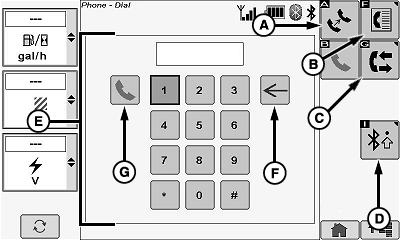
Transfer Call Icon (A)
Allows operator to transfer a call to a connected phone for privacy.
Touch or press confirm switch when transfer call icon is highlighted.
Phone Book Icon (B)
Allows operator to view a synchronized phone book (see Phone Book in this section for further information).
Touch or press confirm switch when phone book icon is highlighted.
Call History Icon (C)
Allows operator to view missed calls, dialed call, and received call (see Call History in this section for further information).
Touch or press confirm switch when call history icon is highlighted.
Bluetooth® Settings Icon (D)
Allows operator the ability to change Bluetooth® settings (see Phone Settings (Premium Radio) in this section for additional information).
Touch or press confirm switch when Bluetooth® settings icon is highlighted.
Telephone Numeric Keypad (E)
Allows operator to dial a telephone number using the display screen.
Touch or press confirm switch when desired numbers are highlighted. Repeat until desired telephone number is shown.
Delete Icon (F)
Allows operator to delete a number while dialing a telephone number.
Touch or press confirm switch when delete icon is highlighted.
Call Icon (G)
NOTE: Screen appears with contacts name and telephone number while call is being made.
Certain icons are not available while in a call. Use your cell phone if you need to use numbers while in a call.
Allows operator to dial the telephone number previously entered using the telephone numeric keypad.
Touch or press confirm switch when call icon is highlighted.
|
Bluetooth is a registered trademark of Bluetooth SIG |
OUO6075,0000E4B-19-20120625 |