Display Navigation Layouts
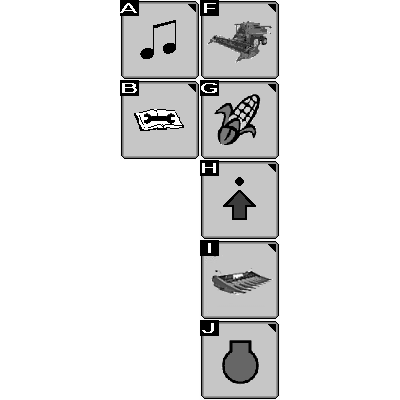
H95608-UN-30APR10
|
Infotainment (A) |
|
Diagnostic and Calibrations (B) |
|
Combine Main (F) |
|
Harvesting Information (G) 1 |
|
Combine Setup (H) |
|
Header Setup (I) 2 |
|
Engine Information (J) |
Touch or press confirm switch when desired icon is highlighted to advance to next display screen. See following information for further screen navigation.
Infotainment
NOTE:
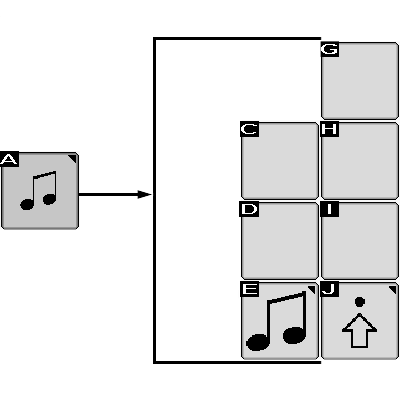
H105326-UN-01MAY12
|
Infotainment (A) |
Touch or press confirm switch when desired icon is highlighted to advance to next display screen. See following information for further screen navigation.
Diagnostic and Calibrations
H95605-UN-05MAR10
|
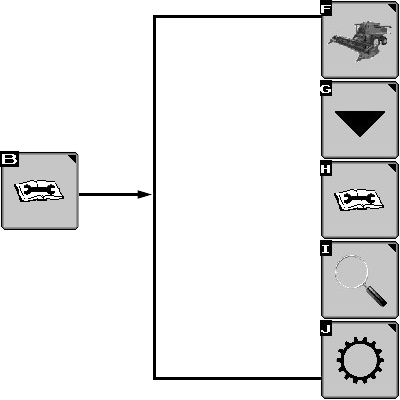
Diagnostic and Calibrations (B) |
||
|
Icon (F) |
Icon (G) |
Icon (H) |
|
Combine Main |
Calibrations |
Diagnostic Readings |
|
Icon (I) |
Icon (J) 3 |
|
|
Special Tests |
Tow Mode Setup |
|
Touch or press confirm switch when desired icon is highlighted to advance to next display screen. See following information for further screen navigation.
Combine Main
NOTE:
H95612-UN-30APR10
|
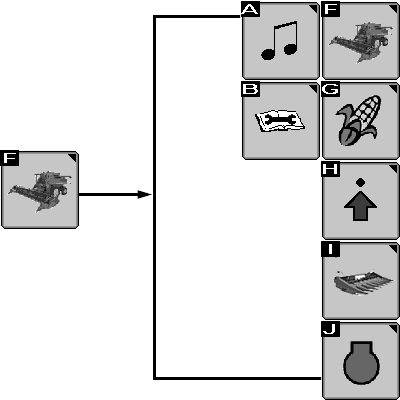
Combine Main (F) |
|
|
Icon (A) |
Infotainment |
|
Icon (B) |
Diagnostic and Calibrations |
|
Icon (F) |
Combine Main |
|
Icon (G) |
Harvesting Information 1 |
|
Icon (H) |
Combine Setup |
|
Icon (I) |
Header Setup 2 |
|
Icon (J) |
Engine Information |
Touch or press confirm switch when desired icon is highlighted to advance to next display screen. See following information for further screen navigation.
Harvesting Information
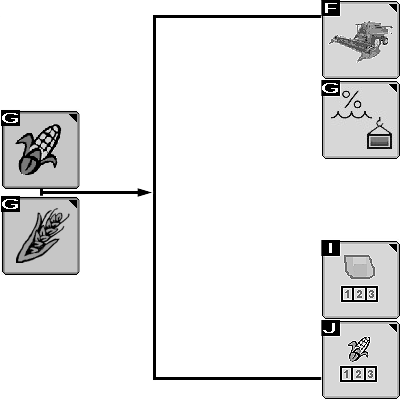
H95601-UN-04OCT10
|
Harvesting Information (G) 1 |
|
|
Icon (F) |
Icon (G) |
|
Combine Main |
Yield Information |
|
Moisture Information |
|
|
Change Cut Width/Rows4 |
|
|
Icon (I)5 |
Icon (J)5 |
|
Field Totals |
Crop Totals |
Touch or press confirm switch when desired icon is highlighted to advance to next display screen. See following information for further screen navigation.
Combine Setup
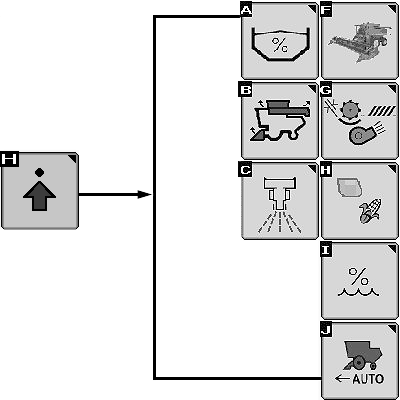
H95602-UN-04MAR10
|
Combine Setup (H) |
|||
|
Icon (A) |
Icon (B) |
Icon (C) |
Icon (F) |
|
Grain Tank Level Setup |
Folding Functions Setup6 |
Residue Management Setup7 |
Combine Main |
|
Icon (G) |
Icon (H) |
Icon (I) |
Icon (J) |
|
Automatic Combine Adjust Setup |
Crop Setup8 |
Moisture Alarm |
Harvest Smart Feed Rate Setup9 |
|
Seed Size Setup |
Moisture Correction (Offset) |
||
|
Grain Loss Calibration |
Yield Units |
||
Touch or press confirm switch when desired icon is highlighted to advance to next display screen. See following information for further screen navigation.
Header Setup
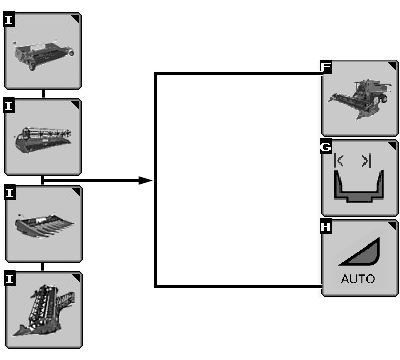
H95603-UN-30APR10
|
Header Setup (I) 2 |
|
|
Icon (F) |
Icon (G) 2 |
|
Combine Main |
Header Width Setup |
|
Header Hours |
|
|
Record Stop Height |
|
|
Icon (H) |
|
|
Automatic Header Height Modes |
|
Touch or press confirm switch when desired icon is highlighted to advance to next display screen. See following information for further screen navigation.
Engine Information
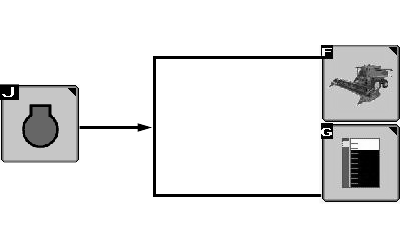
H95604-UN-04MAR10
|
Engine Information (J) |
|
|
Icon (F) |
Icon (G) |
|
Combine Main |
Engine and Separator Hours |
|
Power Meter |
|
|
Exhaust Filter Cleaning 10 |
|
Touch or press confirm switch when desired icon is highlighted to advance to next display screen. See following information for further screen navigation.
|
1 Icon switches
between corn and wheat based on type of header connected to machine.
|
OUO6075,00010FF-19-20120501 |