XM® Radio Services Home Page (Premium Radio) (United States/Canada Only)
H105093-UN-28MAR12
Infotainment Icon / Audio Application Icon
H105286-UN-26APR12
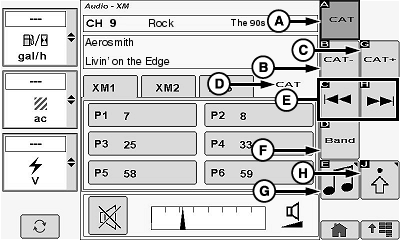
(CAT) Category Mode Icon (A)
NOTE: (CAT-) category previous icon disappears when mode is disabled and (CAT+) category next icon changes to scan icon.
Scan is disabled by touching or pressing confirm switch when icon is highlighted.
Allows operator to enable/disable category mode.
Touch or press confirm switch when (CAT) category mode icon is highlighted.
(CAT-) Category Previous Icon (B)
Allows operator to select the previous category.
Touch or press confirm switch when (CAT-) category previous icon is highlighted.
(CAT+) Category Next Icon (C)
Allows operator to advance to the next category.
Touch or press confirm switch when (CAT+) category next icon is highlighted.
(CAT) Category Indicator (D)
Only displays when (CAT) category mode is enabled.
Previous Channel Icon/Next Channel Icon (E)
Allows operator to select the previous channel or next available channel.
Touch or press confirm switch when desired previous channel icon or next channel icon is highlighted.
Band Icon (F)
-
NOTE: XM® Radio Services is the last tab of presets that was active. All the
rest cycle to the first tab of each band.
FM1, AM, WX, XM
Band Icon (Armrest Display Screen):
Allows operator to toggle through available radio bands on the armrest display screen.
Touch or press confirm switch when band icon is highlighted to toggle through available radio bands.
- FM1, FM2, FMT, AM, AMT, WX or XM1, XM2, XM3 (if first selected by source (SRC) key on radio)
Band (BND) Key (On Radio):
Allows operator to toggle through available radio bands through the radio.
Press band (BND) key on radio to toggle through available radio bands.
Source Select Icon (G)
Allows operator the ability to cycle through radio tuner sources and external sources (see Radio Source Select in this section for additional information).
Touch or press confirm switch when select source icon is highlighted to cycle through available choices.
Audio Settings Icon (H)
Allows operator the ability to change audio settings (see Radio Settings in this section for additional information).
Touch or press confirm switch when select audio settings icon is highlighted.
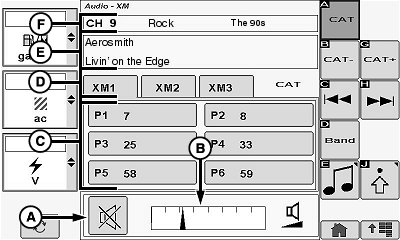
Mute Icon (A)
H105287-UN-02MAY12
Touch or press confirm switch when mute icon is highlighted.
Volume Bar Graph Area (B)
Allows operator to adjust current sound level.
Touch plus (+) symbol or minus (-) symbol or rotate selection dial to increase or decrease bar graph settings.
Channel Presets 1—6 (C)
Allows operator to select preset stations (Channel 1 is default).
Touch or press confirm switch when desired preset channel is highlighted.
Press and hold (screen icon or confirm button) for two seconds to store active channel to preset.
Radio and display buttons are synchronized.
Radio Band Tabs (XM1, XM2, XM3) (D)
Allows operator to view additional preset channels on other tabs.
Touch or press confirm switch when desired radio band tab is highlighted cycle through additional preset channels.
Radio will change channels, but remain on selected preset as operator navigates through tabs.
Artist/Song Name Display Area (E)
Allows operator to view artist name and song name from current channel.
Channel Number/Category Name/Channel Name (F)
Allows operator to view channel number, preset number, category name, and channel name from current radio station.
|
XM is a registered trademark of SIRIUS XM Radio Inc. |
OUO6075,0001126-19-20120625 |