Phone Settings (Premium Radio)
H95878-UN-29MAR10
Main Menu Icon (Display) / Main Menu Switch (Armrest)
H105094-UN-28MAR12
Phone Application Icon
H104867-UN-27MAR12
H105288-UN-26APR12
Touch or press confirm switch when phone application icon is highlighted.
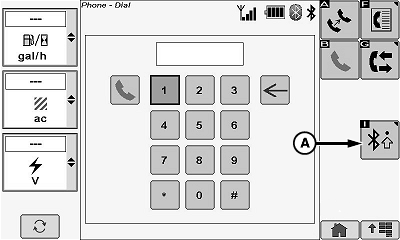
Touch or press confirm switch when Bluetooth® settings icon (A) is highlighted.
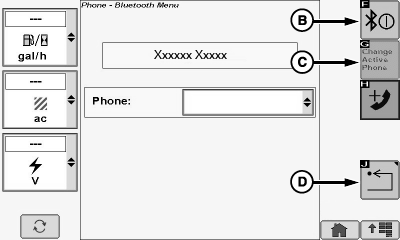
Bluetooth® Enable/Disable Icon (B)
NOTE: When radio Bluetooth® feature is enabled, Bluetooth® power indicator appears on display.
Allows operator to enable/disable Bluetooth® feature.
Touch or press confirm switch when Bluetooth® enable/disable icon is highlighted.
Change Active Phone Icon (C)
NOTE: First phone in phone device list is the current active phone.
Up to 5 cell phone pairings can be stored
Allows operator to select a different cell phone from the phone device list. Once desired cell phone is selected from list, select change active phone icon.
Return/Back Icon (D)
Allows operator to return to the previous page.
Touch or press confirm switch when return/back icon is highlighted.
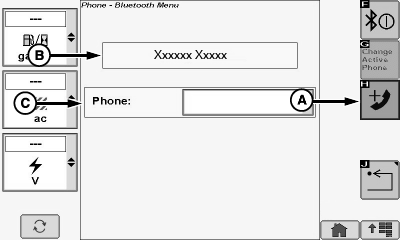
Add Phone Icon (A)
NOTE:
H105289-UN-26APR12
Allows operator to add a different cell phone.
- Select Add Phone icon.
- Adding Phone is displayed in message box (B) followed by a pin number “PIN XXXX” in message box (B).
- From your cell phone, select Add New Device in Bluetooth® menu.
- Select Bosch-BT from list of available Bluetooth® devices on your cell phone.
- Select Bond With Device on your cell phone.
- Enter PIN shown in message box (B) (pin also displays on radio faceplate).
- Paired Bluetooth® indicator is active when a cell phone is actively connecting to the radio.
- Phone Connected is shown in message box when cell phone is connected successfully.
NOTE: The cells phone book automatically syncs with the radio phone book.
Radio sends a “BT phonebook” request before sync starts. If that request is not accepted on your phone, the phone book feature will be disabled.
Re-sync Cell Phone
NOTE: Make sure that cell phones Bluetooth® is enabled when trying to pair a cell phone to the radio Bluetooth®.
- Turn cell phone OFF and then back ON.
Delete A Cell Phone
Turn Bluetooth® OFF.
Touch or press confirm switch when Bluetooth® enable/disable icon is highlighted to disable Bluetooth®.
Delete Phone From Display
Within Bluetooth® setup menu, select unpair/disconnect from Bosch Radio.
Message Box (B)
Displays messages to operator while trying to sync a cell phone.
Phone Device List (C)
Allows operator to select a different cell phone from the list.
Touch or press confirm switch when phone device list is highlighted.
Touch or press confirm switch when desired phone device is highlighted in menu.
|
Bluetooth is a registered trademark of Bluetooth SIG |
OUO6075,0001131-19-20120625 |