Operate Bin Chaining
Bin chaining allows spreading with a dual-bin dry spreader to be switched from one bin to another with minimal effort. This feature allows one as-applied map to be created with a dual-bin dry spreader when using Documentation.
NOTE: The bin chaining mode (Inactive, Manual: 1 to 2, Manual: 2 to 1, Auto: 1 to 2, or Auto: 2 to 1) may only be switched with the spinner switch (solution pump switch) in the off position.
Bin identification:
- Bin 1: Front bin
- Bin 2: Rear bin
Setup and Operate in Manual: 1 to 2 Mode
-
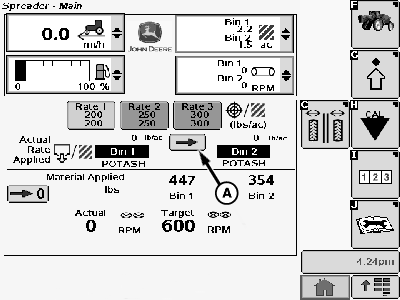
N91119-UN-16FEB11A - Bin Chain Button
Select bin chaining mode Manual: 1 to 2 from the Spreader Bin Setup screen. -
Select a product number for both bins on the Spreader Bin Setup screen.
-
Spread product out of bin 1.
-
Press the bin chain button (A) when a bin switch is desired. Bin 1 conveyor will stop and bin 2 conveyor will start.
-
Spread product out of bin 2. Shut off spreading with Master Switch when desired.
Setup and Operate in Manual: 2 to 1 Mode
-
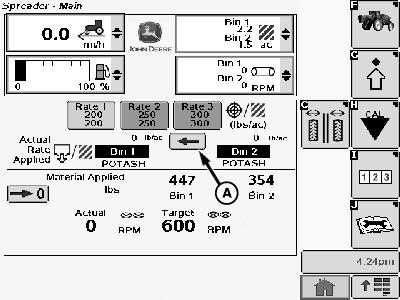
N91120-UN-16FEB11A - Bin Chain Button
Select bin chaining mode Manual: 2 to 1 from the Spreader Bin Setup screen. -
Select a product number for both bins on the Spreader Bin Setup screen.
-
Spread product out of bin 2.
-
Press the bin chain button (A) when a bin switch is desired. Bin 2 conveyor will stop and bin 1 conveyor will start.
-
Spread product out of bin 1. Shut off spreading with Master Switch when desired.
Setup and Operate in Auto: 1 to 2 Mode
-
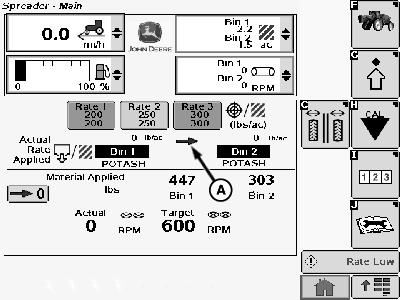
N91121-UN-16FEB11A - Bin Chain Icon
Select bin chaining mode Auto: 1 to 2 from the Spreader Bin Setup screen. Bin chaining icon (A) shows chaining sequence. -
Select a product number for both bins on the Spreader Bin Setup screen.
-
Spread product out of bin 1.
-
Spreading is automatically switched to bin 2 when bin sensor shows bin 1 is empty. Bin 1 conveyor will stop and bin 2 conveyor will start.
NOTE: Product may still be remaining in bin 1 below the bin empty sensor. To completely empty the contents of bin 1, the operator would be required to disable bin chaining or select manual mode.
-
Spread product out of bin 2. Shut off spreading with Master Switch when desired.
Setup and Operate in Auto: 2 to 1 Mode
-
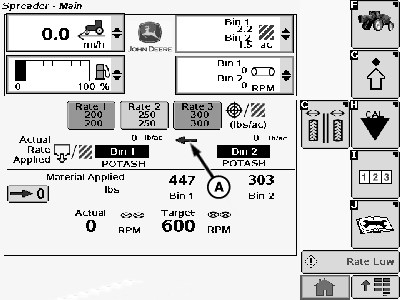
N91122-UN-16FEB11A - Bin Chain Icon
Select bin chaining mode Auto: 2 to 1 from the Spreader Bin Setup screen. Bin chaining icon (A) shows chaining sequence. -
Select a product number for both bins on the Spreader Bin Setup screen.
-
Spread product out of bin 2.
-
Spreading is automatically switched to bin 1 when bin sensor shows bin 2 is empty. Bin 2 conveyor will stop and bin 1 conveyor will start.
NOTE: Product may still be remaining in bin 2 below the bin empty sensor. To completely empty the contents of bin 2, the operator would be required to disable bin chaining or select manual mode.
-
Spread product out of bin 1. Shut off spreading with Master Switch when desired.
Resuming Bin Chaining
If the spinner switch (solution pump switch) is cycled off/on or the machine is keyed off/on with bin chaining active, the following will occur:
-
The first bin in a bin chaining sequence will be selected for spreading.
-
If the bin sensor shows that the first bin is empty:
-
Automatic bin chaining will switch to the second bin.
-
Manual bin chaining will continue spreading with the first bin until the bin chain button is pressed.
-
|
OUO6092,00004E8-19-20110216 |