Job Summaries and Current Totals
Current Totals
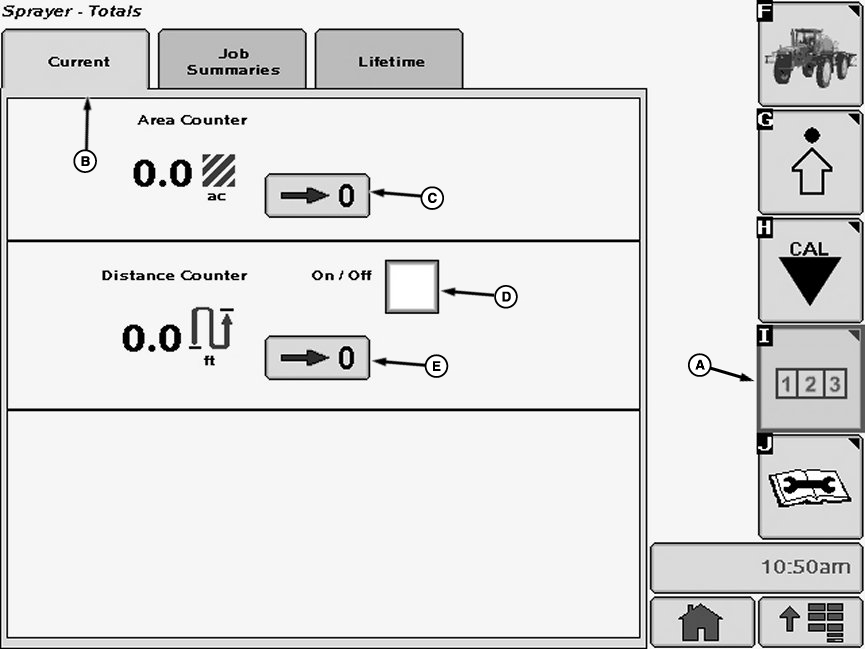
N74861-UN-05FEB07
Current Tab
A - Reports and Totals Softkey
B - Current Tab
C - Reset Button
D - Check Box
E - Reset Button
-
Select the Reports and Totals softkey (A) to view the sprayer totals menu.
-
Select the “Current Tab” tab (B). The current totals page will display instant values.
-
Press check box (D) to enable distance counter. A check will appear in box signifying the counter is enabled. Press check box again to disable.
-
Press reset buttons (C or D) to reset acre counter or distance counter to zero.
Job Summaries
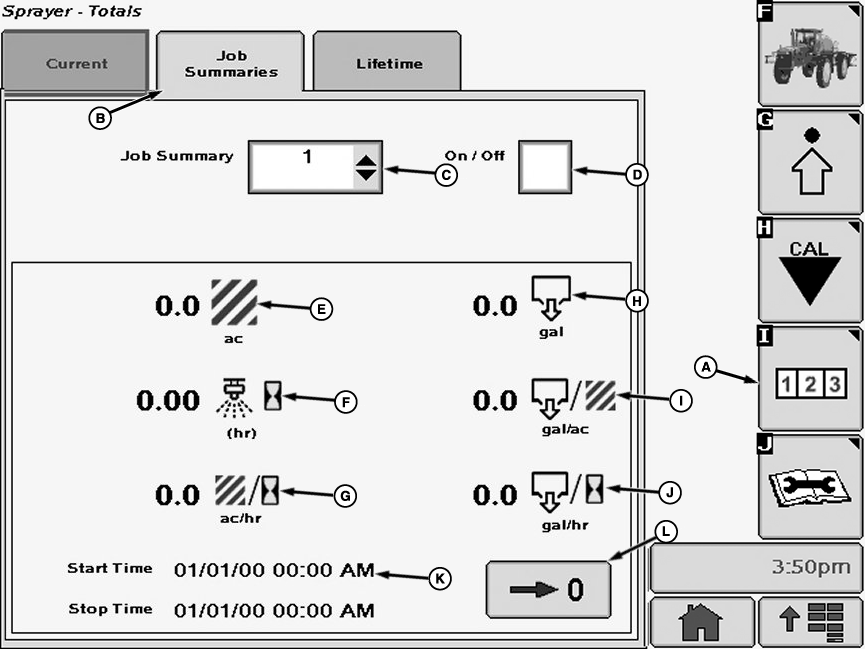
N74862-UN-14AUG07
Current Tab
A - Reports and Totals Softkey
B - Job Summaries Tab
C - Job Summary Drop Down Menu
D - Check Box
E - Area (ac)
F - Time Spent Spraying
G - Area Per Hour
H - Volume
I - Volume Per Area
J - Volume Per Hour Sprayed
K - Start and Stop Times
L - Zero Button
-
Select the Reports and Totals softkey (A) to view the sprayer totals menu.
-
Select the “Job Summaries” tab (B). The job summaries page will keep track of all totals listed on the job page.
- Select the Job Summary drop-down box (C).
- Select the desired job from the job summary drop down menu.
- Select the On\Off check box (D) to show a check mark. When this box shows a check, the info for that job has started to record.
To create a new job follow these steps:
Jobs can be reset to zero by pressing the zero button.
Lifetime Totals
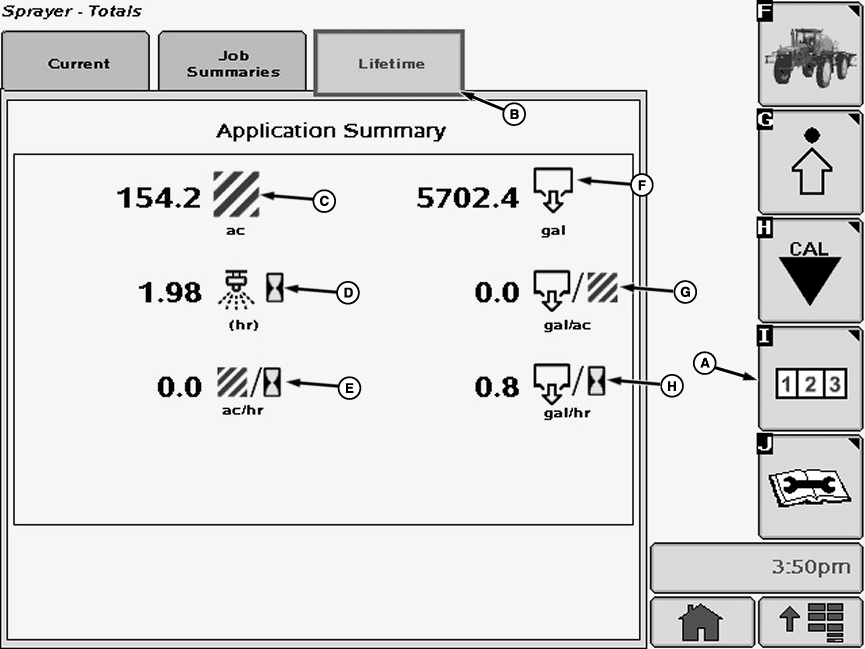
N74863-UN-14AUG07
Lifetime Tab
A - Reports and Totals Softkey
B - Lifetime Tab
C - Area
D - Time Spent Spraying
E - Area Per Hour
F - Volume
G - Volume Per Area
H - Volume Per Hour Sprayed
The “Lifetime” page acts as a general history of job summaries. It will keep track of total area covered, time spent spraying, total volume sprayed, and machine hours.
|
CS12167,000035A-19-20130613 |