Control Radio with GreenStar™ 3 2630 Display
-
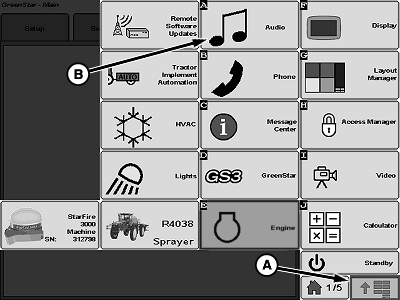
N110822-UN-10MAR14A - Menu Button
B - Audio Button
Press menu button (A). -
Press audio button (B) to access radio controls.
-
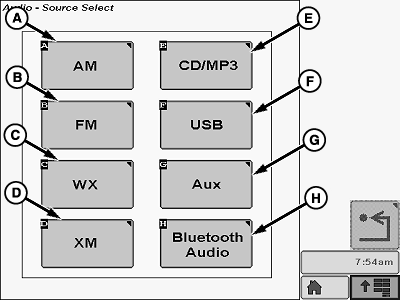
N110826-UN-10MAR14A - AM Radio
B - FM Radio
C - Weatherband Radio
D - Satellite Radio
E - CD/MP3 Player
F - USB Input
G - Auxiliary Input
H - Bluetooth Audio Input
Select desired input (A - H). -
N110827-UN-10MAR14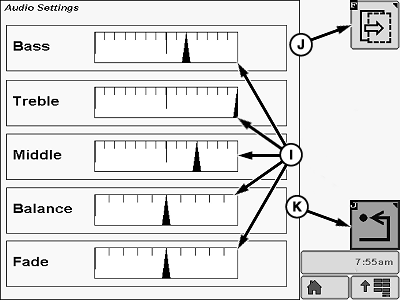
N110828-UN-10MAR14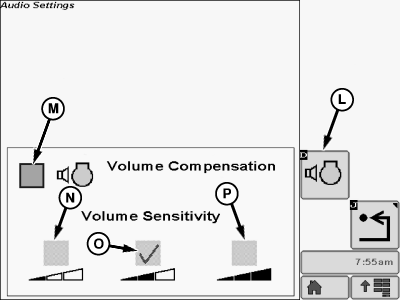
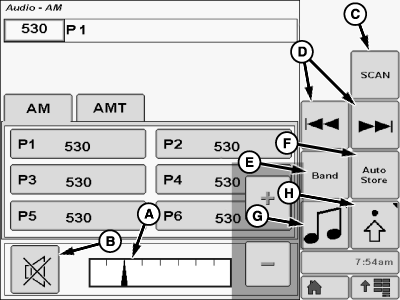
N110829-UN-10MAR14A - Volume Display
B - Mute Button
C - Scan Softkey
D - Manual Tune Softkeys
E - Band Softkey
F - Auto Store Softkey
G - Audio Softkey
H - Setup Softkey
I - Sound Setting Display
J - Next Page Softkey
K - Return Softkey
L - Volume Compensation Softkey
M - Check Box
N - Low Sensitivity Check Box
O - Medium Sensitivity Check Box
P - High Sensitivity Check Box
Select volume display (A) and use pop up buttons to adjust volume to desired level. -
Press mute button (B) to silence audio system.
-
Press scan softkey (C) to search for available stations automatically. Each station will play for 5 seconds before proceeding to the next available station.
-
Use manual tune softkeys (D) to select the desired station.
-
Press band softkey (E) to chose between available frequency bands. Operator can choose from FM, AM, Weather, and XM—if equipped.
-
Press auto store softkey (F) to automatically store the six strongest stations in that region as presets.
-
Press audio softkey (G) to return to audio home screen.
-
Press setup softkey (H) to adjust audio settings.
-
Select the desired sound setting display (I) and use the pop-up buttons to adjust as desired.
-
Select next page softkey (J) to display more setting options.
-
Press return softkey (K) to return to previous screen.
-
Press volume compensation softkey (L) or select check box (M) to enable or disable volume compensation. When volume compensation is enabled audio volume will increase automatically when background noise increases.
-
Select check box (N - P) to set volume sensitivity. Setting (N) is the lowest sensitivity setting and setting (P) is the highest sensitivity.
-
|
GreenStar is a trademark of Deere & Company |
CS12167,000055F-19-20140310 |