Display Settings Application
N108340-UN-06JAN14
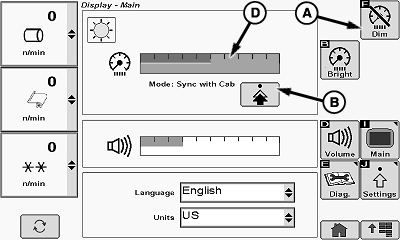
Display Settings Main Screen
N108341-UN-21NOV13
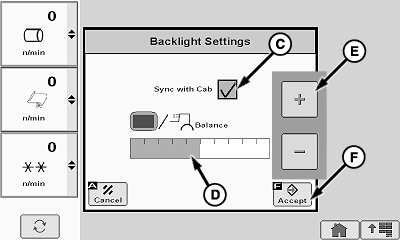
Backlight Settings Screen
A - Dim Mode Button
B - Backlight Settings Button
C - Sync With Cab Box
D - Brightness Balance Indicator Bar
E - Brightness Adjustment Buttons
F - Accept Button
The display settings application consists of three primary functions:
- Basic display settings
- Advanced display settings
- Display diagnostics
Select display settings button on the application menu screen to open the application. Display settings main screen appears on display.
Basic Display Settings
The display settings main screen provides for the following adjustments and settings:
- Dim mode
- Day and night backlighting
- Screen brightness
- Alarm volume
- Language
- Units
Dim Mode:
Dim mode allows the operator to darken display screen quickly to reduce glare.
Select dim mode button (A) to darken screen quickly.
To restore screen brightness, touch screen at any location or press any button on armrest control console. If any alarm occurs, screen automatically resumes normal brightness.
Backlighting Settings (Sync with Cab Mode):
Display screen backlighting can be set to synchronize with cab lighting or can be set to operate in a standalone mode. When set to synchronize with cab lighting, there is one setting to control the balance between display lighting and cab lighting. When set to the standalone mode, day lighting and night lighting can be set individually.
Change settings as follows:
-
Select backlight settings button (B) on display settings main screen. Backlight settings screen appears on display.
-
Select sync with cab box (C) to change backlighting mode.
- When checkmark appears in box, backlighting is synchronized with cab lighting.
- When box is unchecked, backlighting is in standalone mode.
-
If sync with cab mode is chosen, adjust backlighting balance as follows:
-
Select brightness balance bar (D). Plus (+) and minus (—) adjustment buttons (E) pop up on screen.
-
Select plus button or minus button to change brightness as desired.
-
When desired mode and brightness balance have been set, select accept button (F) to save settings and return to previous screen.
-
-
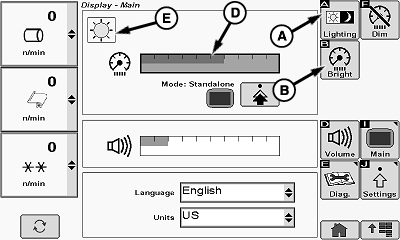
If standalone mode is selected on backlight settings screen, the main screen is revised as follows:
- Lighting button appears in the menu area
- Mode description beneath brightness bar changes
- Display screen icon appears beside backlight settings button
N108342-UN-06JAN14
Display Settings Main Screen-Standalone Mode
N108343-UN-06JAN14
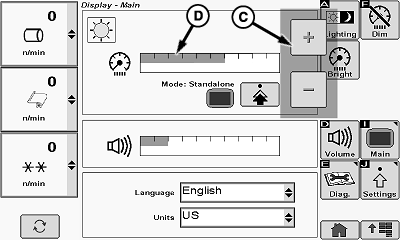
Daytime Brightness Adjustment
N108344-UN-06JAN14
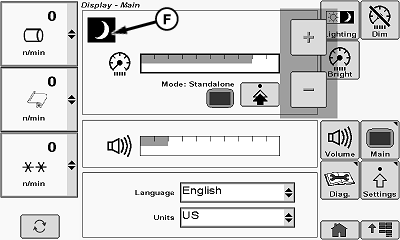
Nighttime Brightness Adjustment
A - Day-Night Lighting Button
B - Brightness Button
C - Brightness Adjustment Buttons
D - Brightness Indicator Bar
E - Day Icon
F - Night Icon
Screen Brightness Adjustment (Standalone Mode):In standalone mode, operator can adjust day and night screen brightness individually. Operator can toggle between day and night backlighting settings by selecting lighting button (A).
Adjust daytime brightness as follows:
-
Select brightness button (B). Plus and minus adjustment buttons (C) pop up on screen.
-
Select plus button or minus button to adjust brightness as desired. Brightness level is indicated on brightness indicator bar (D).
-
Select brightness button or main display button to save setting.
To adjust nighttime brightness:
-
Select lighting button (A). Day icon (E) changes to night icon (F).
-
Select brightness button (B). Adjust brightness level using plus or minus button on pop-up display.
-
Select brightness button or main display button to save setting.
N108345-UN-21NOV13
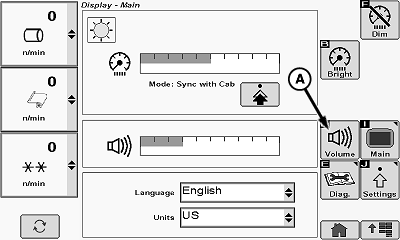
Volume Button
N108346-UN-21NOV13
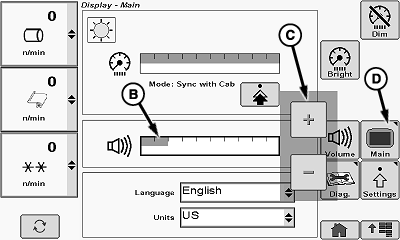
Volume Adjustment
A - Alarm Volume Button
B - Volume Indicator Bar
C - Adjustment Buttons
D - Main Display Button
Alarm Volume Adjustment:Audible alarms are generated to alert the operator when a diagnostic trouble code (DTC) or an internal alarm occurs. Alarm volume and tone varies with the severity and type of the alarm. The operator can set the maximum volume level. Maximum volume is used for the most severe alarm. The system adjusts the volume to lower levels for less severe alarms.
To adjust alarm volume:
-
Select alarm volume button (A) on display settings main screen. Volume indicator bar (B) is highlighted and volume adjustment buttons (C) pop up on screen.
-
Select plus button or minus button to change volume setting. Volume indicator bar changes to show new setting.
-
Select main display button (D) to save new setting and return to main display screen.

N108347-UN-21NOV13
Language Setting
N108348-UN-21NOV13
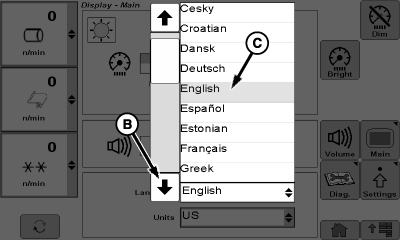
Language Menu
A - Language Setting
B - Scroll Arrow
C - Language Selection
Regional Language Setting:Operator can select desired language to appear on display screens:
-
Select language setting box (A) on display settings main screen. Menu of available languages appears on screen.
-
Select scroll arrow (B) at bottom or top of scroll bar to find desired language on menu.
-
Select desired language (C) on menu. Screen updates to display new language.
N108349-UN-21NOV13
Units of Measure Setting
N108350-UN-21NOV13
Units of Measure Menu
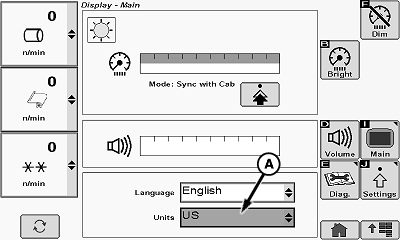
A - Units Setting Box
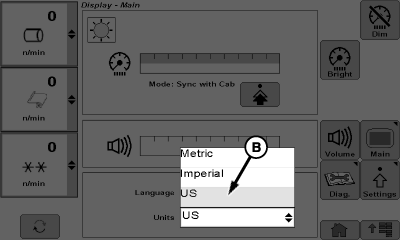
B - Units of Measure Selection
Regional Units of Measure Setting:Operator can select desired units of measure to appear on display screens:
-
Select units setting box (A) on display settings main screen. Menu of available settings appears on screen.
-
Select desired units of measure (B) on menu. Screen updates to show measurements in selected units.
Advanced Display Settings
N108351-UN-26NOV13
Display Settings Main Screen
N108352-UN-26NOV13
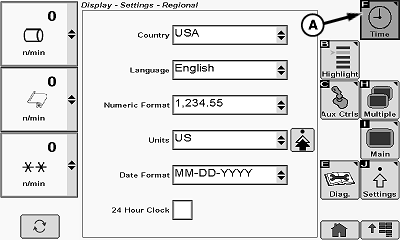
Regional Display Settings Screen
N108353-UN-26NOV13
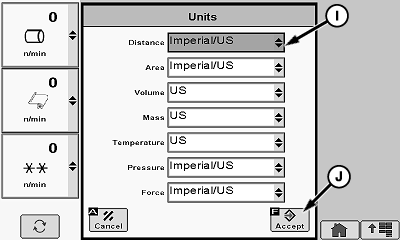
Custom Units Setting Screen
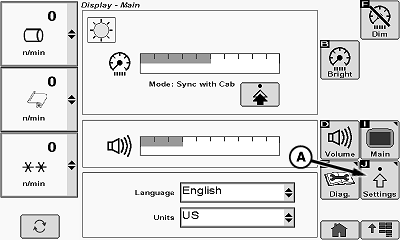
A - Regional Settings Button
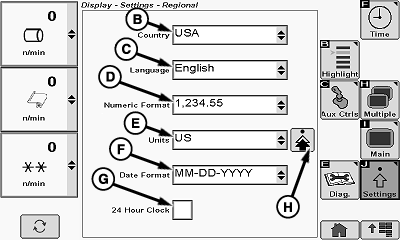
B - Country Setting
C - Language Setting
D - Numeric Format Setting
E - Units Setting
F - Date Format Setting
G - Time Format Setting
H - Advanced Settings Button
I - Measurement Parameter Units Setting
J - Accept Button
The regional display settings screen provides for the following settings:- Regional settings
- Time and date
- Highlight color
- Multiple displays
Regional Settings:
-
Select regional settings button (A) on display settings main screen. Regional settings screen appears on display with more menu buttons.
-
The following parameters can be set to conform to the requirements and customs of the specific region where the machine is being operated:
- Country (B)
- Language (C)
- Numeric format (D)
- Units (E)
- Date format (F)
- Time format (G)
-
Select desired parameter on regional settings screen. Drop-down menu appears on screen.
-
Select desired setting from menu. Menu closes and screen updates to show new selection.
-
The drop-down menu for units of measurement (E) allows the operator to choose from metric, imperial, or US units. The selected measurement units are normally applied to all measurement parameters. In some cases, the operator may want to display certain parameters in one system of units and other parameters in a different system of units. The choice of units can be customized as follows:
-
Select advanced settings button (H). A custom units settings screen appears.
-
Select the desired measurement parameter units setting box. A drop-down menu appears showing the units available for that parameter.
-
Select the desired units.
-
Repeat as necessary.
-
Select accept button to save custom settings and return to previous screen. The legend in units setting box (E) changes to custom.
-
N108354-UN-26NOV13
Advanced Display Settings Screen
N108355-UN-26NOV13
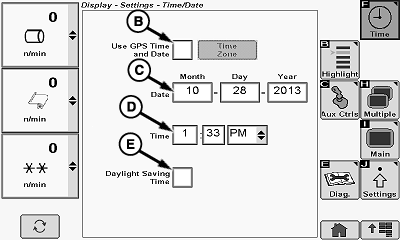
Time and Date Settings Screen
A - Time and Date Button
B - GPS Time and Date Selection Box
C - Date Display Box
D - Time Display Box
E - Daylight Savings Time Selection Box
Time and Date Setting:-
Select time and date button (A) on advanced display settings screen. Time and date settings screen appears.
-
NOTE: If a Global Position Satellite (GPS) receiver is detected, a check mark appears in selection box and time and date information is automatically displayed.
If GPS receiver is not detected, time and date must be manually entered.
If GPS time and date selection box (B) is not checked, time and date information must be entered as follows:.
-
Select date display box (C) for month. Numeric keypad pops up on screen.
-
Enter numeric indication for current month and select accept button on keypad.
-
Repeat previous steps to enter day and month.
-
Select time display box (D) for hour. Numeric keypad pops up on screen.
-
Enter current hour and select accept button on keypad.
-
Repeat previous steps to enter minutes and AM or PM setting.
-
Select daylight savings time selection box (E) when daylight savings time is in effect.
-
N108357-UN-26NOV13
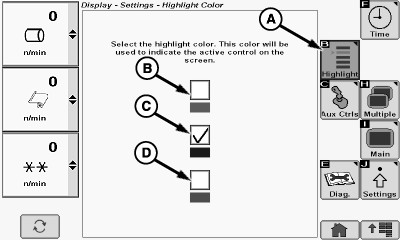
Highlight Color Selection Screen
A - Highlight Button
B - Green Selection Box
C - Blue Selection Box
D - Red Selection Box
Highlight Color Setting:The operator can choose green, blue, or red as the color used to highlight the current selection on the display screen. Select desired color as follows:
-
Select highlight button (A) on advanced display settings screen. Highlight color selection screen appears.
-
Select green selection box (B), blue selection box (C), or red selection box (D) to set desired highlight color. Check mark appears in box selected.
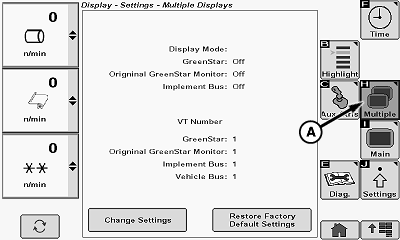
N108358-UN-26NOV13
Multiple Displays Setting Screen
A - Multiple Displays Button
Multiple Displays:NOTE: Software automatically detects if another display is connected. See your John Deere dealer for further information before changing any settings or if system does not detect a connected display.
NOTE: Refer to the additional display settings Icon information to move machine information to the alternative display.
Select multiple displays button (A) on advanced display settings screen. Multiple displays setting screen appears.
Display Diagnostics Screen
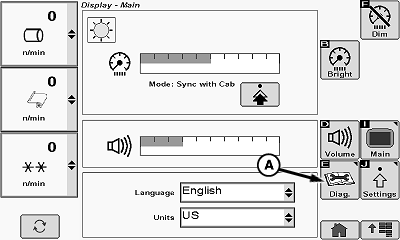
N108359-UN-26NOV13
Display Settings Main Screen
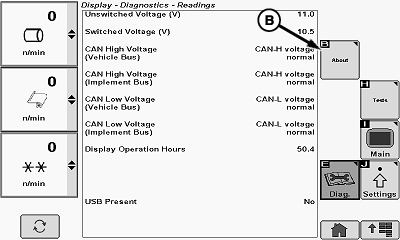
N108360-UN-26NOV13
Display Diagnostics Screen
A - Diagnostics Button
B - About Button
The display diagnostics screen provides access to the following:
- Diagnostics readings
- About information
- Display tests
Diagnostics Readings:
Select diagnostics button (A) on display settings main screen. Diagnostic readings screen appears and displays the following information.
- Unswitched voltage
- Switched voltage
- CAN high voltage (vehicle bus)
- CAN high voltage (implement bus)
- CAN low voltage (vehicle bus)
- CAN low voltage (implement bus)
- Display operation hours
- USB present
NOTE: Universal serial bus (USB) connector is located under armrest. Connector is used to transfer data from the display system to an external storage device. DO NOT plug phone or audio devices into this connector. This connector is NOT for charging consumer devices.
About Information:
Select about button (B) on diagnostic readings screen. A new screen appears showing the following:
- Copyright information
-
Software and hardware information
- Hardware part number
- Hardware serial number
- Software part number
- Software version number
- Application build number
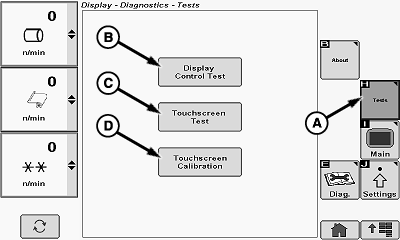
N108361-UN-26NOV13
Display Tests Menu Screen
N108362-UN-26NOV13
Display Control Test Screen
N108363-UN-26NOV13
Touchscreen Test Screen
N108364-UN-26NOV13
Touchscreen Calibration Screen
A - Display Tests Button
B - Display Control Test Button
C - Touchscreen Test Button
D - Touchscreen Calibration Button
E - Confirm Button
F - Cancel Button
G - Menu Button
H - Home Button
Display Tests:Select display tests button (A) on diagnostic readings screen. Display tests menu screen appears. Menu screen provides access to:
- Display control test
- Touchscreen test
- Touchscreen calibration
-
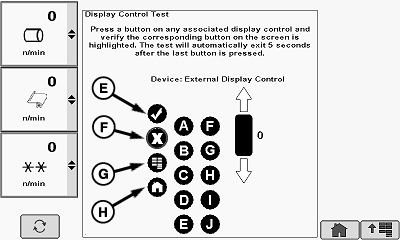
Display control test. Select display control test button (B) on display tests menu screen. Display control test screen appears. This test confirms that the display recognizes inputs from the operator interface control buttons on the armrest control console.
NOTE: Test automatically exits and returns to previous screen 5 seconds after last button is pressed.
Press confirm button (E) on console. Verify that confirm button on screen is highlighted. Repeat for cancel button (F), menu button (G), and home button (H).
-
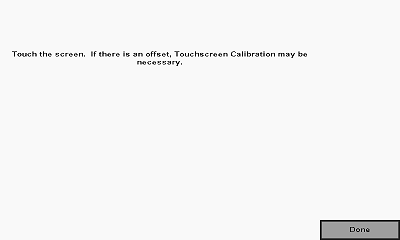
Touchscreen test. Select touchscreen test button (C) on display tests menu screen. Touchscreen test screen appears. This test is designed to verify the accuracy of selection of interactive areas on the screen.
-
Touch the test screen at any location.
-
Verify that a sighting target appears on the screen near the point it was touched.
-
Repeat previous step at various areas on screen.
-
If there is an offset between the sighting target and the touch point, perform touchscreen calibration.
-
If sighting target does not appear, see your John Deere dealer.
-
-
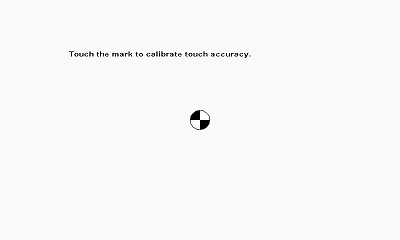
Touchscreen calibration. Select touchscreen calibration button (D) on display tests menu screen. Calibration screen appears.
-
Touch screen on sighting target that appears on screen.
-
A new sighting target appears on screen at a different location.
-
Repeat previous steps until calibration is complete. A message appears on screen to indicate success or failure of the calibration.
-
If calibration cannot be successfully completed after several attempts, see your John Deere dealer.
-
|
DP99999,0000A9B-19-20141106 |