Video Camera Observation System
N105486-UN-30JUL13
N96849-UN-06FEB12
N109916-UN-29JAN14
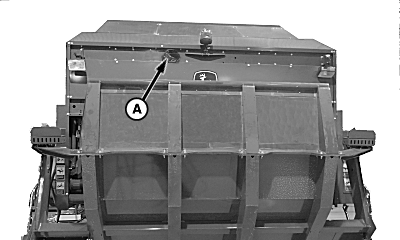
A - Rear Camera
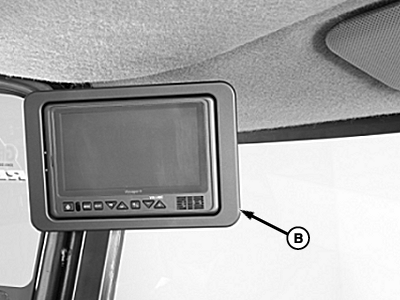
B - Video Monitor
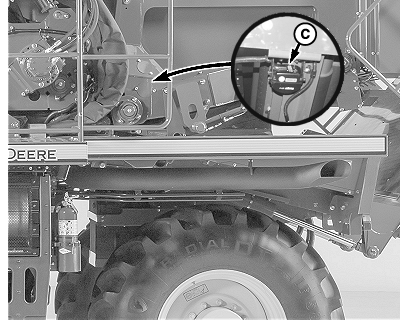
C - Wrap Camera
The video camera observation system provided with the machine includes two cameras. The primary rear camera (A) is mounted at the top of the wrap box near the center of the machine. A second camera (C) is mounted inside the module gate frame to view the module wrap process. The optional video monitor (B) is mounted in the cab at the top of the left-hand corner post.
The machine cab is pre-wired to accept four video inputs. Additional cameras can be ordered from your John Deere dealer for field installation.
Controls and Operation
IMPORTANT: Refer to camera system owner's manual from manufacturer on all steps for usage of camera system.
N95066-UN-29SEP11
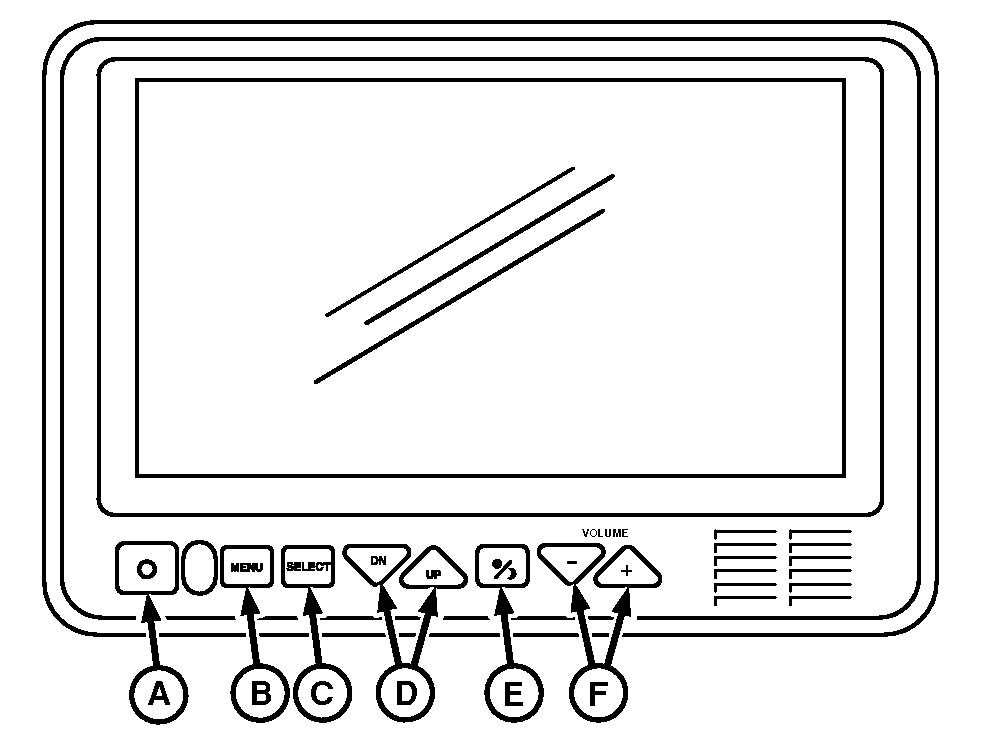
Video Monitor (If Equipped)
A - Power Button
B - Menu Button
C - Input Source Select Button
D - Up and Down Buttons
E - Day/Night Button
F - Adjustment Buttons
-
Power Button (A)
When key switch is in ON position and video monitor is off, only red power button is dimly lit. When key switch is ON and monitor is ON, all buttons are lit. Press power button to turn video monitor on or off.
-
Menu Button (B)
This control accesses display main menu mode. Press button again to exit menu mode before time-out. If no buttons are pressed within approximately 8 seconds from last key pressed time-out occurs. Time out exits main menu automatically.
-
Input Source Select Button (C)
This button scrolls through input sources for camera display (CH1, CH2, CH3, CH4, Split Screens). This button also activates highlighted modes or option settings indicated on main menu mode. Source ID is shown in upper left corner of display. Source NAME is shown in lower center of display. When display is in SCAN mode, select button stops scan function and show current input. Monitor displays “Pause” to show that scan was interrupted. Pressing select button again, turns scan back to active.
-
Up and Down Buttons (D)
Primary use of DN button is to adjust camera position downward. Primary use of UP button is to adjust camera position upward. Secondary function of buttons is for scrolling through main menu functions and options.
-
Day/Night Button (E)
This control toggles monitor between Day, Night, and AUTO modes of display backlight compensation. A temporary indicator of current mode setting is visible at lower center of display. In night mode, screen backlight is dimmed to a preset level that is more suitable for low light operation.
-
Volume Control Buttons (F)
Primary use of + button is to increase speaker volume. Primary use of - button is to decrease speaker volume. Secondary use of volume control buttons adjusts level which is indicated by a bar graph at bottom of screen in certain Main Menu modes (Picture Adjustment, Source Naming).
Multi-function Lever
IMPORTANT:
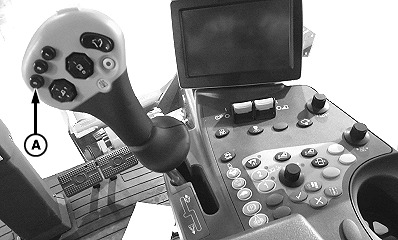
N110580-UN-24FEB14
A - Toggle View Button
Refer to camera system owner's manual from manufacturer on all steps for usage of camera system.-
Toggle View Button (A)
If machine is configured to view input from two cameras on video monitor display, button (A) on multi-function lever can be used to toggle from one camera to another. When button is pressed, the monitor displays the camera connected to input 3. Normal view is from the camera no. 1 (rear view). To switch to camera no. 2, tap button once on multi-function lever. The view changes back to camera no. 1 automatically after 10—15 seconds. To view camera no. 2 for longer time, tap button (A) more times or hold to increase time delay (10—15 seconds per tap). Time delay can also be adjusted in the main menu functions on monitor.
Setup Camera Triggers
Video cameras can be activated by predetermined trigger functions. Video image is displayed on the GS3 display while the trigger is on. Cameras can be associated with multiple triggers. If no camera is associated with a trigger then no video is displayed when that trigger is on. See Video Trigger Setup in CommandCenter Display Screens section for additional information.
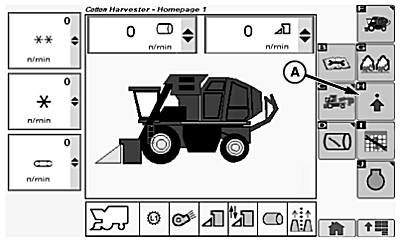
N109497-UN-20JAN14
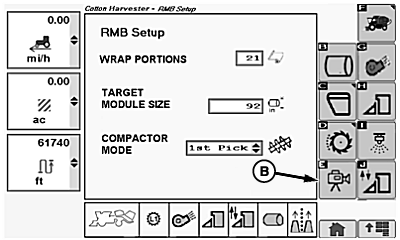
N109498-UN-20JAN14
A - Setup Button
B - Video Button
Setup desired video triggers using the CommandCenter™ display and the following procedure.-
Press setup button (A).
-
Press video button (B).
-
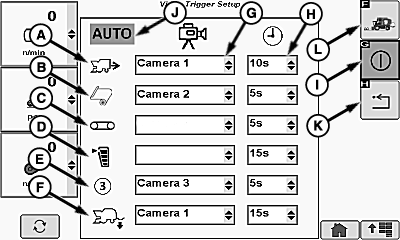
N119750-UN-31AUG15Video Trigger Setup Screen
A - Machine in Reverse Trigger
B - Wrap Active Trigger
C - Module Forming Trigger
D - Accumulator Full Trigger
E - Preset Button 3 Trigger
F - Handler Lowered Trigger
G - Camera Selection Drop-Down Box
H - Display Time Drop-Down Box
I - Softkey
J - Automatic Trigger Status Indicator
K - Return Button
L - Home Page Button
Icons representing available trigger sources are shown on the left-hand side of the video trigger setup screen. Triggers include:- Machine in reverse (A)
- Wrap active (B)
- Module forming active (C)
- Accumulator full (D)
- Preset button 3 on multi-function lever (E)
- Handler lowered (F)
-
NOTE: Machine is equipped with two cameras. Additional cameras are available as an option.
For each desired trigger source, select drop-down box (G) next to the trigger icon. Select the desired camera to be activated when that trigger event occurs. Drop-down choices include:
- Camera 1
- Camera 2
- Camera 3 (if equipped)
-
NOTE: Video remains on for the time selected after the trigger is off.
Default setting is 5 seconds.
Select delay time drop-down box (H) to set delay time. Choices include:
- 0 seconds
- 5 seconds
- 10 seconds
- 15 seconds
- 20 seconds
- 30 seconds
- 60 seconds
-
Press softkey (I) to set automatic video triggering on or off.
NOTE: Automatic trigger status indicator (J) is highlighted in green when automatic triggering is on and appears with a slash when off.
When automatic triggering is off no video is displayed even if there is a camera associated with that function.
-
To exit the setup screen and return to the previous display, press return button (K).
-
To return to home page when setup is complete, press home page button (L).
Configuring Cameras to Displays
-
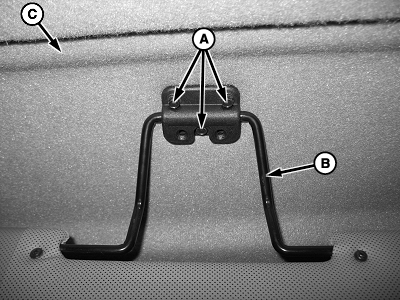
H88159-UN-07MAY07A - Cap Screw (3 used)
B - Sun Visor
C - Front Headliner
Remove and retain cap screws (A) and sun visor (B). -
Push up and pull back on forward edge of front headliner (C) to release from clips. Remove front headliner.
-
IMPORTANT: Damage to camera cable connector pins can cause monitor to be unable to display live picture. Handle connectors carefully to avoid damage.
Pull out cab cables from center headliner and use extension cable provided in bundle.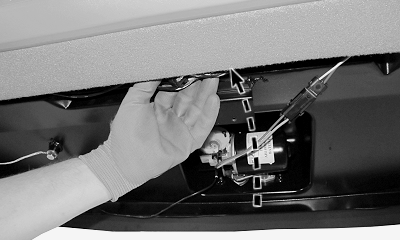
N93988-UN-11AUG11 -
Connect monitor extension harness into the back of LCD video monitor (if equipped).
-
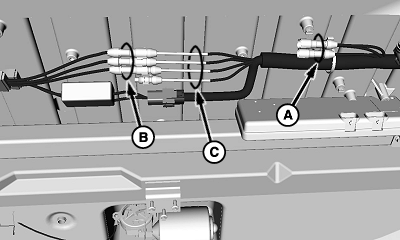
N119749-UN-28AUG15A - GS3 Inputs
B - Video Monitor Inputs
C - Camera Outputs
This illustration shows location of GS3 inputs (A), video monitor inputs (B), and camera outputs (C). -
NOTE: The cab is pre-wired for four video inputs. The video monitor display and GS3 2630 display are each capable of three video inputs. If equipped with a third or fourth camera, connect camera outputs to desired display.
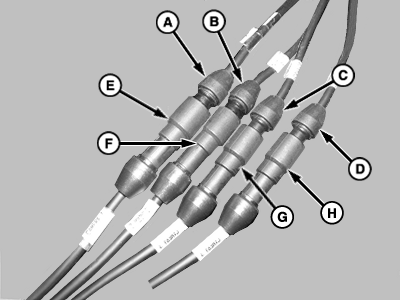
N119751-UN-31AUG15Camera and Video Monitor Wiring
N119752-UN-31AUG15GS3 Display Input Wiring
A - Camera Output 1
B - Camera Output 2
C - Camera Output 3
D - Camera Output 4
E - Video Monitor Input 1
F - Video Monitor Input 2
G - Video Monitor Input 3
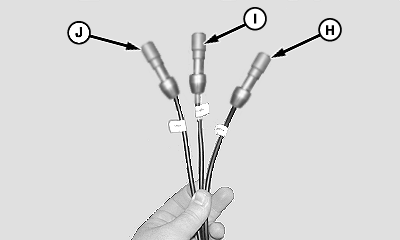
H - GS3 Input 1
I - GS3 Input 2
J - GS3 Input 3
The cameras can be connected to the video monitor and GS3 display based on customer preference. For example:- To display one camera on the GS3 and one on the video monitor: Connect camera output 1 (A) to video monitor input 1 (E). Connect camera output 2 (B) to GS3 input 1 (H).
- To display two cameras on the GS3: Connect camera output 1 (A) to GS3 input 1 (H). Connect camera output 2 (B) to GS3 input 2 (I).
- To display two cameras on the video monitor: Connect camera output 1 (A) to video monitor input 1 (E). Connect camera output 2 (B) to video monitor input 2 (F).
- To display three cameras on the video monitor and one camera on the GS3: Connect camera output 1 (A) to video monitor input 1 (E). Connect camera output 2 (B) to video monitor input 2 (F). Connect camera output 3 (C) to video monitor input 3 (G). Connect camera output 4 (D) to GS3 input 1 (H).
-
Tuck cab cable extensions and display connections in front edge of center headliner.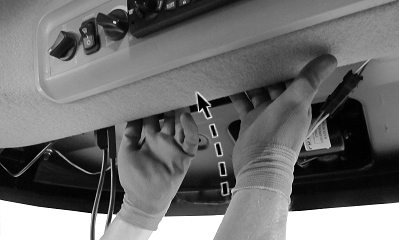
N93985-UN-11AUG11 -
H88159-UN-07MAY07A - Cap Screw (3 used)
B - Sun Visor
C - Front Headliner
Install front headliner (C). Retain with clips by pulling back and pushing up on front edge of headliner. -
Install sun visor (B) using cap screws (A).
|
CommandCenter is a trademark of Deere & Company |
DP99999,0000BBA-19-20150901 |