DISPLAY softkey
|
|
When display is initially installed in a vehicle, it will have a default setting for all features. Operators have the ability to change these settings to fit their needs. |
Once these settings are changed, they will be saved and retained through each power cycle. |
OUO6092,00010D5 -19-13NOV08-1/8 |
|
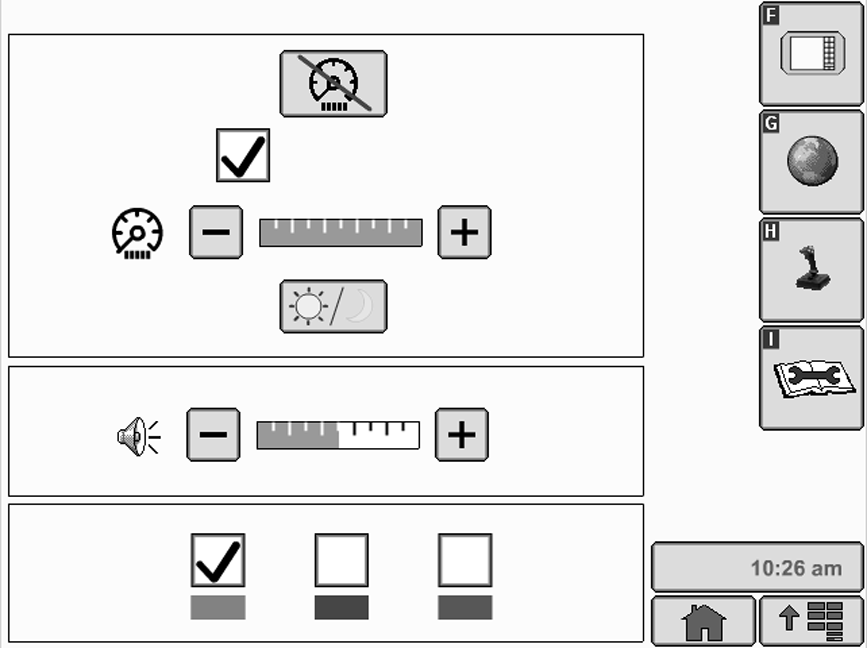
Go to MENU >> DISPLAY button >> DISPLAY softkey |
|


OUO6092,00010D5 -19-13NOV08-2/8 |
|
PANEL DIM button allows operator to quickly darken screen with one button push. When the operator engages the panel dim feature the screen temporarily darkens in order to reduce glare. Screen will resume normal brightness when an alarm condition exists or when operator touches screen. |
|

OUO6092,00010D5 -19-13NOV08-3/8 |
|
NOTE: To exit Panel Dim, press any button on display control. BRIGHTNESS button can be changed by selecting PLUS or MINUS button. |
|

OUO6092,00010D5 -19-13NOV08-4/8 |
|
NOTE: Sync with Cab feature only functions on selected vehicles. Sync with Cab check box , when activated, allows display to control all lights within vehicle cab. Deselecting check box will allow only display to lighting to change with no effect on other cab displays and lights.
|
|

OUO6092,00010D5 -19-13NOV08-5/8 |
|
DAYLIGHT/NIGHTLIGHT button allows operator to quickly change screen with one button push. control. |
|

OUO6092,00010D5 -19-13NOV08-6/8 |
|
Volume can be changed by selecting either + or - button. |
|

OUO6092,00010D5 -19-13NOV08-7/8 |
|
NOTE: Highlight color is defaulted to red at initial power-up of display. Highlight/Focus Color can be changed by selecting desired color (red, blue, green). |
|
OUO6092,00010D5 -19-13NOV08-8/8 |