Input Fields
N82391-UN-13NOV08
PC8846-UN-30OCT05
There are a variety of input fields and buttons that allow the operator to navigate through the screens on the display and input values:
- Drop-Down Box
- Input Box
- Check Box
- Button
2600 Display—fields are selected by touching screen. Key pad will appear to input alpha/numeric data.
Drop-Down Box
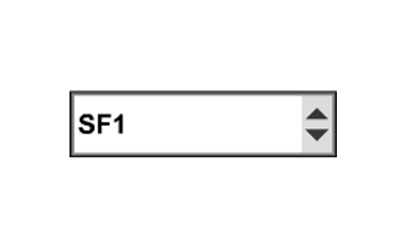
A drop-down box has a border with a numeric or text value and up/down arrows on the right side that allow operator to select a prepopulated item pre-populated in a list.
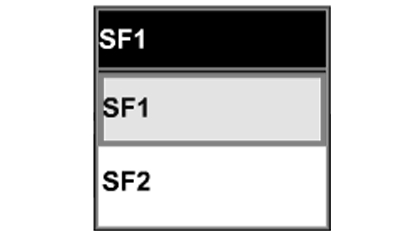
To open, touch drop-down box and list will appear. Move highlight focus through list to desired input value by touching Up and Down arrows. Touching new selection to enter value.
To close the drop-down box without making a new selection, press original value from list. List will close and original value will remain.
Input Box

PC8847-UN-30OCT05
N74881-UN-26JAN07
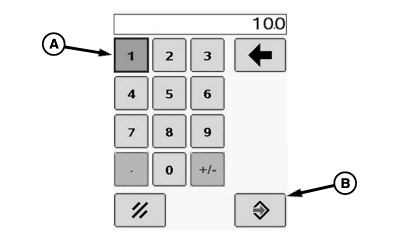
A - Numeric Key Pad
B - Enter Button
An Input box has a border with a numeric value or text. This allows the operator to select and enter new values or text. touch the input box to be changed and a numeric key pad (A) will appear, allowing selection of each digit. Press Enter button (B) to accept new value.
Check Box

PC8686-UN-09AUG05
A check box is a square with a border. A check mark in the box indicates that the box is activated.
To activate a check box, touch the empty check box. A check will appear inside box activating the item. To deactivate a check box, touch check box to remove the check.
Button

PC8649-UN-01NOV05
ENTER

PC8650-UN-01NOV05
GOTO
A Button is an icon or text with a border. Activating a button will perform that icon’s function.
To activate a button, touch the button.
OUO6092,0000D3D-19-20081114 |